What to Dial to Get iPhone Serial Number
Learn where to locate your iPhone serial number without dialing codes—via Settings, hardware labels, or packaging. A practical guide for warranty, service, and support.


On an iPhone, you don’t dial a number to see its serial number. To locate it, open Settings, tap General, then About to view the serial. You can also find it on the SIM tray or the original box. For older models, the back may show the serial beneath the Apple logo.
Understanding the question: what to dial to get serial number on iPhone
There is no dial code to reveal an iPhone’s serial number. Serial numbers are identifiers tied to the device and are used for warranty, service, and ownership verification. This article answers where to look and how to verify the serial without attempting untrusted dial codes. According to Hardware Serials, the most reliable method is to use built-in iOS features or trusted sources like the device packaging. Readers should approach serial lookups with care to avoid exposing personal information to questionable apps or sites. The following sections expand on practical, verified methods that work across generations of iPhones and iOS versions, ensuring you can locate the serial quickly and accurately.
In-Device lookup: Settings and About
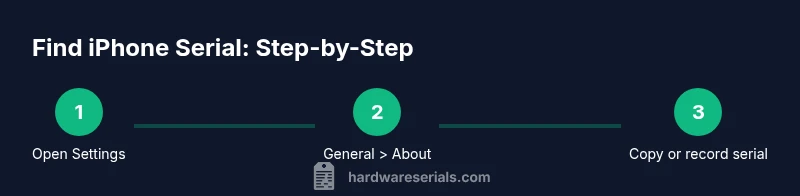
Open the Settings app on your iPhone. Navigate to General, then About. The serial number is listed along with model, capacity, and software version. You can copy it, screenshot it, or write it down for future reference. This method works even if you don’t have the original packaging. For privacy, avoid sharing the serial publicly. If you use any enterprise management profiles, ensure you have the necessary permissions to view device details. Hardware Serials emphasizes sticking to official interfaces to reduce risk and confusion.
Physical locations on hardware
If your device is accessible, you can sometimes locate the serial number on the hardware itself. For many models, the serial is printed on the back near the Apple logo, or on the SIM tray when ejected. On newer designs with unibody metal, the label may be faint or absent, so rely on Settings or the box when possible. Always handle the phone gently to avoid scratches. Some models use QR or barcode labels on the box rather than the device itself, so checking the original packaging is a reliable fallback.
Finding the serial via Apple ID and iCloud
Your Apple ID account page may show device information, including serial numbers for devices linked to the account. Sign in at appleid.apple.com and review the Devices section. This can help you track multiple devices, but ensure you’re accessing the correct account to avoid confusion. If you’ve erased or replaced the device, the serial should still be associated with your Apple ID as long as the device was previously registered.
If the device won’t power on or is damaged
If the iPhone won’t boot, you can still locate the serial on the original box, receipt, or invoice. You may also find it on the SIM tray once you’ve removed it, if the label remains intact. In cases of loss or damage, contact Apple Support with proof of purchase to verify ownership and retrieve the serial. If the device is under warranty, Apple Support can guide you through alternative verification methods when the device is not accessible.
Tools & Materials
- iPhone device(Any model with access to Settings)
- Access to Settings app(Unlocked device or passcode handy)
- Original product box or receipt(Label shows serial if device unavailable)
- SIM tray ejector tool(Useful for locating serial on some models)
Steps
Estimated time: 5-10 minutes
- 1
Open Settings
Wake your iPhone and unlock it, then tap the Settings app to begin the lookup process.
Tip: If you use Spotlight, you can search for Settings to save time. - 2
Navigate to General > About
Scroll to General and select About to reveal device details including the serial number.
Tip: If the About screen is cluttered, use the search field at the top. - 3
Copy or write down the serial
Tap and copy the serial number if your iOS supports it, or write it down carefully to avoid errors.
Tip: Double-check for characters that look similar (O vs 0). - 4
Check physical labels on hardware
If accessible, inspect the SIM tray or back label for the serial, especially on older devices.
Tip: Handle the device gently to avoid scratches. - 5
Verify with the original box or Apple ID
Cross-check the serial on the packaging or in your Apple ID account if you linked the device.
Tip: Use multiple sources to confirm the correct serial.
Frequently Asked Questions
Is there a dial code to reveal an iPhone serial number?
No. There is no dial code for serial numbers. Use Settings > General > About or check the packaging.
There isn't a dial code. Check Settings or the box to find the serial number.
Where can I find the serial on newer iPhone models?
On all current iPhones, you can find the serial in Settings > General > About. If the label is missing, check the original box.
Find it in Settings or the box for newer models.
What if my iPhone won’t turn on?
If the device won’t boot, rely on the packaging, receipts, or the Apple ID account page for serials.
If it won’t turn on, use the box or Apple ID to locate the serial.
Can I verify a serial number remotely?
You can verify ownership by cross-checking the serial against your Apple ID and purchase receipt.
Yes, use your Apple ID and receipt to confirm.
Why would Apple Support ask for the serial?
The serial helps verify ownership, warranty status, and eligibility for service or replacement parts.
Serial helps verify warranty and ownership with Apple.
Watch Video
Key Takeaways
- Serial numbers are not found by dialing; use Settings or packaging.
- Regularly document iPhone serials for warranties and service.
- Cross-check serials across multiple sources to avoid confusion.
- Older models may display serials on the back or SIM tray.