Find iPhone with Serial Number: Locate, Verify, and Use It
Practical, data-driven guide to find iphone with serial number, locate it in Settings or packaging, verify with Apple, and manage warranties safely in 2026.


To find your iPhone's serial number, open Settings, then General, then About to view the serial. You can also locate it on the original box or your Apple ID account under Devices. For a quick check, use Apple's support site to verify the serial against your device. If you can't access Settings, check the device's packaging or contact Hardware Serials for guidance on safe verification methods.
Why finding the iPhone serial number matters
According to Hardware Serials, the serial number is the unique identifier that ties your device to its production history, warranty status, and service eligibility. For professionals, being able to verify a device’s provenance reduces risk when purchasing used units or when validating a device during repairs. For DIYers, locating the serial quickly helps you pull up the correct warranty terms, confirm model compatibility for accessories, and ensure you’re contacting the right support channels. In 2026, having a reliable method to locate the serial number across devices remains essential, especially for asset tracking in small fleets or repair shops. If you want to find iphone with serial number, you have multiple safe, official routes to check: Settings, packaging, or your Apple ID account. The Hardware Serials team found that starting with Settings often yields the most up-to-date serial information, while packaging provides a definitive third-party reference that can be used for warranty validation. Keep this knowledge handy, because serial numbers are a core tool for maintaining device integrity and preventing fraud.
Ways to locate the serial number on iPhone devices
The quickest route is to check the device itself, but you have several safe options. Here are reliable methods:
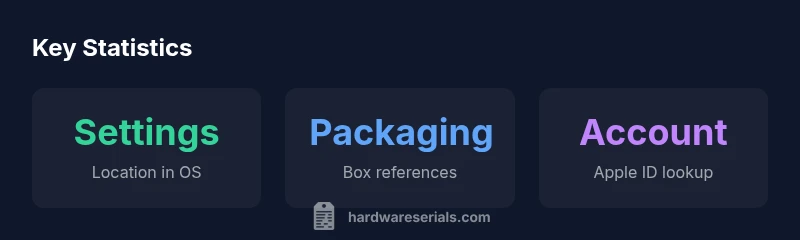
- On-device: Open Settings, tap General, then About. Look for the Serial Number listed alongside model name and other identifiers. This method always provides the most current value for the device you’re using.
- Packaging: If you still have the original box, inspect the label on the outside or inside the lid. The serial number is printed near the product and model information and provides a definitive reference that matches what Apple has on record.
- Apple ID account: Sign in to your Apple ID at appleid.apple.com, then go to the Devices section. Select your device to view its serial number. This is particularly useful if the device is not accessible or you’ve replaced the SIM or battery and want to confirm identity.
- Support lookup: If you have access to Apple’s official support tools, you can use them to cross-check the serial number you’ve found against your device details. This helps confirm authenticity and eligibility for service.
In all cases, ensure you’re on official sites or apps to avoid phishing or counterfeit information. The goal is to collect a single, reliable serial value you can use for warranty checks, service requests, or eligibility inquiries.
How to verify a serial number and check warranty status
Verifying a serial number is a two-step process: first confirm it matches the device in your possession, then verify its status with the manufacturer. Start with Apple’s official Check Coverage tool (checkcoverage.apple.com) to confirm the device’s warranty or eligibility for service. Enter the serial you found, select the product type, and compare the results with your device. If discrepancies appear, re-check the serial against the packaging and your Apple ID devices list, and consider contacting Apple Support for assistance. For anti-fraud purposes, avoid entering serial numbers on unfamiliar third-party sites, and never share your serial in public forums. A good practice is to keep a private log of your serials, including where you found them and the date of verification, so you can quickly respond to warranty or service questions.
Additionally, if you’re buying a used iPhone, use the serial to verify the model and year on Apple’s official support pages before finalizing the sale. This minimizes the risk of counterfeit devices or misrepresented hardware.
What the iPhone serial can tell you about model, year, and coverage
While different manufacturers encode identifiers in serial numbers, Apple uses the serial to tie a device to its model family, production batch, and service history. A valid serial confirms the device is genuine and mapped to an Apple support profile, enabling you to view warranty status, service history, and eligibility for replacement parts. The exact encoding is not public, but in general, a serial can help you identify the model family, the approximate production era, and the factory location. In practice, you’ll use this information to determine whether accessories are compatible, confirm that a device is still under warranty, and know which AppleCare or replacement options may apply. In 2026, this data point remains a reliable anchor for both DIY repairs and professional servicing, making accurate serial retrieval a foundational step in device management.
Hardware Serials notes that being able to locate and verify serial numbers supports asset tracking, fraud prevention, and efficient service workflows for tech teams.
Practical tips and common pitfalls
- Do: Always use official channels to locate and verify a serial number. This reduces the risk of fraud and ensures you’re referencing the correct device in Apple’s records.
- Do not share your serial publicly or with unknown sellers; store it securely in your device notes or a trusted document.
- Do keep packaging in a safe place for future reference, especially for warranty claims or resale.
- Do create a small, private log of serial numbers you encounter and where you found them (Settings, packaging, etc.) with dates.
- Do cross-check serial numbers across multiple sources (Settings, packaging, Apple ID) to confirm consistency.
Common pitfalls include mistaking the model number for the serial, misreading tiny print on packaging, or relying on third-party sites that claim to verify ownership. If you encounter inconsistencies, pause the process and seek official guidance from Apple Support. Hardware Serials emphasizes the importance of maintaining accurate serial records to support repair, replacement, or insurance claims.
When to contact Apple or a professional
If you cannot locate a serial number using the standard routes, or if you suspect the device is not genuine, contact Apple Support or visit an Apple Store for in-person assistance. For issues related to warranty coverage, use the Check Coverage tool and share relevant information, including where you found the serial. If you’re buying or selling a device, insist on seeing the serial on the device and packaging, and verify it against the purchaser’s Apple ID devices list. For license or regulatory questions, consult the official government resources or the brand’s own guidance to ensure compliance. By following these steps, you can maintain device integrity and minimize risk when dealing with used devices or service claims.
iPhone serial lookup options
| Method | Where to Find | Best Use | Notes |
|---|---|---|---|
| Settings | General > About | Always up-to-date | Most reliable on active devices |
| Packaging | Box label near barcode | Quick cross-check at purchase | Keep for warranty claims |
| Apple ID | Devices list | Alternative lookup | Good if device is user is logged in |
| Find My iPhone | iCloud device details | Online verification | Requires device to be registered |
Frequently Asked Questions
Where can I find the iPhone serial number?
You can view the serial number in Settings > General > About, or on the original packaging. If the device is linked to your Apple ID, you can also see it in your Devices list on your Apple ID account.
Find the serial in Settings, or check the box; you can also view it in your Apple ID devices list.
Can I locate the serial number if my iPhone won’t turn on?
Yes. Check the packaging label, and use your Apple ID devices page if the device is still linked. If unavailable, contact Apple Support for assistance.
If the phone won’t turn on, use the box or your Apple ID devices page for the serial.
Is a serial number the same as an IMEI?
No. The serial number identifies the device model and unit, while the IMEI is the network identifier. Both may be used for warranty and verification.
Serial and IMEI are different identifiers; protect both if possible.
What if the serial on packaging doesn’t match the device?
Stop using the device for sensitive tasks; contact Apple Support or the seller to resolve the discrepancy. Do not rely on a mismatched serial for warranty claims.
If they don’t match, contact support to resolve it.
Can I verify a serial number online for warranty?
Yes. Use Apple Support’s lookup tools and confirm the serial against your device’s information. This helps verify authenticity and coverage.
Yes—use Apple's lookup tools to verify warranty status.
“Serial numbers are foundational for device verification and fraud prevention; use trusted sources to locate and cross-check them.”
Key Takeaways
- Lookup in Settings is fastest
- Packaging provides reliable cross-check
- Apple ID devices list offers backup lookup
- Always verify against official sources