What Serial Number Is My iPhone? A Step-by-Step Guide
Learn how to locate, read, and verify your iPhone's serial number across models with a step-by-step guide from Hardware Serials.


By the end, you’ll know exactly where to find your iPhone’s serial number and how to read it. This guide covers both on-device locations and packaging, plus how to verify authenticity. You’ll be able to locate the serial number across iPhone models using Settings, the SIM tray, and the original box.
What is the serial number on an iPhone?
A serial number is a unique identifier assigned to each iPhone model at production. It helps you verify authenticity, check warranty status, and track service history. For DIYers and professionals, knowing where to locate it saves time and avoids confusion when requesting support. According to Hardware Serials, understanding your device’s serial number is essential for efficient troubleshooting and documentation.
If you're asking what serial number is my iphone, remember: it's a unique identifier assigned to your device at production and used for warranty and service checks.
Serial numbers are typically used by Apple and service providers to confirm model, production year, and eligibility for repairs. Treat this number like a PIN for your device’s identity and history.
Why knowing your serial number helps
Knowing the serial number unlocks several practical benefits. It lets you verify warranty coverage, confirm product authenticity, and access targeted support from Apple. Service history – repairs, replacements, and recalls – can hinge on the correct serial, preventing delays or misapplied repairs. For professionals, a serial is essential when documenting assets, filing warranty claims, or coordinating multi-device deployments. Hardware Serials’ research highlights that customers who have their serial handy tend to resolve issues faster and with fewer back-and-forth requests, saving time and reducing downtime.
Additionally, a serial number is often required when checking eligibility for AppleCare, trade-in programs, or software updates tied to a device’s lifecycle. Keeping a log of serials across devices streamlines audits and inventory, especially in tech-heavy environments.
Where to locate the serial number on iPhone hardware
Your best bet for a quick check is Settings, but there are other reliable locations depending on your model and access conditions. The serial number can live in one or more places: on the device itself (often in Settings), on the original packaging label, and in your Apple ID account for linked devices. For older models, there may be a physical engraving or label in the SIM tray area. Always use multiple references when possible to avoid confusion during support or warranty claims. Hardware Serials notes that relying on a single source can lead to mismatches during service requests.
If you have access to the device, Settings is the fastest route. For devices that won’t boot, packaging and Apple ID records become even more important. If you’re a professional managing multiple devices, consolidating serials into a centralized record helps with ongoing maintenance and compliance.
How to view the serial number in Settings
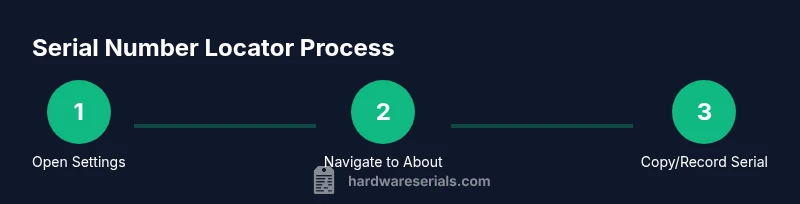
On most iPhones, your serial number is visible under Settings > General > About. Scroll to the Serial Number line to view it. You can tap it to copy the value to your clipboard for easy pasting into forms or inventories. If you share this number with others, consider masking sensitive sections in screenshots or notes to protect against misuse. This on-device method is the most direct and often the most up-to-date source for current models.
If you’re preparing documentation or a service ticket, copy the serial and record it in your asset log immediately to prevent transcription errors. Copy-paste is your friend here and minimizes misread digits.
Finding the serial on original packaging and receipts
The original packaging label and receipts often list the serial number near the barcodes and model information. This is particularly useful if the device cannot be powered on or if Settings are inaccessible. Make sure the label matches the device’s model and color to avoid confusion with other units in your inventory. When cross-referencing, ensure the serial on the box aligns with any serials you’ve recorded from the device itself.
If you purchased a used device or a refurb, the packaging label often contains the correct serial, but verify it against the device when possible to ensure there are no swapped components.
Using your Apple ID to verify a device
You can also verify device ownership and history by signing in to your Apple ID account and viewing your devices. This page lists associated devices and can reveal the serial numbers of linked units. This is especially helpful for confirming which serial belongs to which device in a multi-device setup. If you’re servicing a workshop or enterprise fleet, maintaining a cross-reference between Apple ID records and physical devices helps prevent mix-ups and accelerates support workflows.
For personal devices, this method provides a secondary check that can corroborate the on-device serial. Always log out after you’ve copied or verified sensitive information.
Understanding serial number formats and what they imply
Serial numbers vary by generation and vendor; Apple’s serials contain letters and digits that encode production information and model lineage. While exact encoding schemes change over time, you can rely on the serial for model identification and service eligibility. Apple uses the serial to determine eligibility for warranty claims, recalls, and certain software updates tied to hardware provenance. Do not attempt to decode the serial manually beyond recognizing it identifies the device family and production run—Apple allocates those details internally for service.
Note that many consumer-facing sources provide general decoding hints, but the most reliable interpretation comes from Apple Support or an authorized service partner.
Verifying authenticity and warranty status
Once you have the serial, you can verify the device’s authenticity and warranty status via Apple’s official support channels. Visit Apple’s coverage page and enter the serial to check warranty status, AppleCare eligibility, and repair options. This step helps prevent scams that misuse fake or recycled serials and ensures you receive legitimate service. If you notice any discrepancy between the serial on the device and the serial on the packaging, contact Apple Support to resolve the mismatch promptly.
For professional workflows, maintain a written log of serials with purchase dates and service history to build a robust audit trail that simplifies future claims and compliance checks. Hardware Serials highlights that consistent recordkeeping reduces processing time for repairs and warranty validations.
Troubleshooting when you can't find the serial
If you cannot locate the serial number on the device, try alternate methods first: check Settings on a powered device, inspect the original packaging, and review your Apple ID device list. If the device won’t turn on, rely on packaging and Apple ID records. For refurbished or enterprise devices, ensure your asset records are up-to-date and verify against the retailer’s documentation. If all else fails, contact Apple Support with proof of purchase to obtain the correct serial from their records.
Document the steps you took to find the serial for future reference, and note any discrepancies you observe during verification.
Privacy, security, and best practices for sharing serials
Treat your serial number as sensitive information when it relates to security or warranty claims. Only share it with trusted support channels or authorized service providers. Avoid posting serial numbers publicly or in unencrypted notes. When recording serials for devices in a fleet, store them in a secure, access-controlled system. Regularly audit your serial records to ensure accuracy and protect against fraud or misrepresentation.
Quick-reference by scenario
- If the device powers on: use Settings > General > About to locate the serial.
- If the device won’t power on: rely on packaging or Apple ID records to verify the serial.
- If you’re buying used: compare serials on packaging and device; verify warranty status with Apple.
- If you need to verify for AppleCare: use the serial on Apple’s coverage page for eligibility checks.
Next steps and best practices
Create a centralized log of all device serials in your workspace, including model, purchase date, warranty status, and service history. Regularly update this log when devices are serviced or retired. Keep copies of proof of purchase and packaging labels, and use Apple’s official tools for verification to avoid relying on third-party sites. By organizing serial data, you’ll reduce downtime in audits, recalls, and repairs and improve asset management overall.
Tools & Materials
- iPhone or iPad to locate the serial(Device you want to locate serial for; ensure it’s accessible and unlocked if using Settings)
- Original packaging or receipt(Helps locate serial when Settings aren’t accessible)
- Apple ID credentials(Needed to verify via the Apple ID devices page)
- Pen and notebook or digital log(For recording serials and notes during verification)
Steps
Estimated time: 6-12 minutes
- 1
Power on and unlock the iPhone
Turn on the device and unlock it to access the home screen. This prepares you to navigate to Settings for the serial check.
Tip: Keep the device unlocked to avoid repeated authentication prompts. - 2
Open Settings and navigate to About
From the home screen, open Settings, go to General, then tap About to reveal the serial number. This is the fastest on-device method for most models.
Tip: If you see a restricted screen, try a different user profile or reset restrictions before proceeding. - 3
Copy or write down the serial number
Tap and hold the serial number to copy it to your clipboard or write it down carefully. Double-check digits to avoid errors in support requests.
Tip: Copy to clipboard when possible to reduce transcription mistakes. - 4
Check the original packaging label
If you have the box, locate the label near the barcode that lists the serial number and model information. This provides a cross-check against the device number.
Tip: Use the box label as a secondary reference to confirm accuracy. - 5
Verify via Apple ID (if available)
Sign in to appleid.apple.com and view your devices to see which serials are linked to your account. This helps confirm ownership and cross-checks.
Tip: Log out after verification to protect your account security. - 6
Contact Apple Support if mismatches occur
If the serial on the device, packaging, and Apple ID don’t align, contact Apple Support with proof of purchase. They can resolve ownership or record discrepancies.
Tip: Provide a purchase receipt and any previous service records to expedite help.
Frequently Asked Questions
Where can I find my iPhone serial number?
The easiest way is Settings > General > About, where the Serial Number is listed. You can also check the original packaging label or your Apple ID account for linked devices. These options give you a quick way to verify the device’s identity.
Check Settings under General, About for the serial. If you can’t access the device, use the packaging or Apple ID records to locate it.
Can I find the iPhone serial number if the device won’t turn on?
Yes. Use the packaging label or receipts for the serial. If possible, log into your Apple ID to view device records. These methods don’t require the device to be powered.
If the iPhone won’t turn on, rely on the packaging or Apple ID records to locate the serial.
Is the serial number the same as the IMEI?
No. The serial number is a device-specific identifier assigned by Apple, used for warranty and service tracking. The IMEI is a network identifier used by mobile carriers. They serve different purposes.
Serial numbers and IMEIs are different; use the serial for warranty and service, and the IMEI for carrier-related tasks.
How do I verify a serial number on Apple’s site?
Go to Apple’s support or coverage page and enter the serial number to check warranty status and eligibility for service. This helps confirm authenticity and coverage.
Visit Apple’s warranty checker and enter the serial to confirm coverage and authenticity.
What if the serial on the device doesn’t match the packaging?
If there’s a mismatch, contact Apple Support with proof of purchase to resolve ownership and record discrepancies. Don’t attempt to use the device until resolved.
If the serials don’t match, reach out to Apple Support with your receipt to fix the records.
Watch Video
Key Takeaways
- Locate the serial quickly in Settings
- Cross-check serials against packaging for accuracy
- Use Apple ID to corroborate device ownership
- Record serials securely for warranties and audits
- Serials help verify authenticity and service eligibility