How to Block Serial Number on iPhone: Safe Alternatives and Privacy Tips
Explore why blocking an iPhone's serial number isn’t feasible, plus legitimate privacy protections, steps to safeguard data, and safe alternatives for device verification and resale.


Blocking a serial number on iPhone isn’t supported or advisable; it can be illegal and may void warranties. Apple assigns a hardware serial that remains a persistent identifier used for service, warranty, and theft protection. This quick guide focuses on legitimate privacy protections and how to manage device identifiers safely without altering hardware.
Why how to block serial number on iphone is not feasible and advisable
Understanding the request implied by the phrase how to block serial number on iphone helps frame this discussion. Hardware identifiers on iPhone are designed to be persistent references used for warranty validation, service eligibility, and fraud prevention. According to Hardware Serials, attempting to mask or alter a serial number can breach terms of service, local laws, and carrier policies. In practice, you cannot disable or replace the device’s hardware serial through user-level settings; software and hardware layers are designed to ensure visibility to authorized service providers and manufacturers. Escalating attempts to bypass serial tracking can trigger security jacks and may void coverage or result in denied repairs. If you ever need to share the serial with Apple Support, a service center, or for a legitimate warranty claim, rely on official channels rather than any third‑party hacks. The core takeaway is that there is no safe or supported method to block the serial on an iPhone, so focus on legitimate privacy controls instead. The Hardware Serials team emphasizes using approved avenues to protect your data while preserving device integrity.
What you can legally do to protect privacy and control data
If the goal is privacy protection, you cannot block or erase a serial number, but you can minimize data exposure and manage identifiers in lawful ways. iOS provides robust privacy controls to limit what apps can access and how data is shared. Enabling App Tracking Transparency (ATT) prompts apps to request permission before using identifiers for advertising. You can also limit ad tracking and disable analytics sharing in Settings > Privacy. Review app permissions across Location, Contacts, Photos, Microphone, and Camera, and revoke nonessential access. When preparing a device for transfer or sale, turn off Find My iPhone, sign out of iCloud, and perform a factory reset. These steps protect personal data while keeping the device compliant with policy and law. If you have concerns about regulations on device identifiers, consult official sources and avoid any hacks; altering or hiding identifiers can cause legal trouble and void coverage. Hardware Serials’ research supports using built‑in privacy features rather than attempting identifier manipulation.
How to locate and understand your iPhone serial number
Knowing where to find your device serial helps with legitimate needs like warranty checks and official support. On iPhone, go to Settings > General > About to view the serial number, model, and IMEI. You can also find the serial on the original packaging or receipt. The serial is used to verify ownership and eligibility for service; it is not a parameter you should conceal. If you’re selling or transferring ownership, record the serial in the sale documentation and provide the exact number to the new owner through legitimate channels. For verification, cross‑check the number with Apple Support or your device’s box, and keep a copy of your purchase receipt. The serial remains a trusted identifier in Apple’s ecosystem, and masking it is not a supported option for consumers. As you manage devices, ensure your serial data is accurate and accessible to authorized parties only. Hardware Serials notes that accuracy matters for warranty claims and service records.
Safe alternatives for identity management and device verification
Rather than attempting to hide a serial, focus on valid ways to verify ownership and protect yourself from fraud. Retain original purchase documentation, keep serial numbers documented in a secure, personal record, and ensure your Apple ID is linked to your current device. When transferring ownership, remove the device from your Apple ID and unlink it from any services. If a buyer or service provider needs confirmation, provide the serial through official channels only. You should also consider enrolling in Apple’s official support and warranty programs to maintain a verifiable trail of ownership. For privacy, prefer controlling data sharing in iOS and avoiding third‑party apps with broad access. The Hardware Serials framework supports using documented identifiers rather than attempting concealed manipulation.
Step-by-step: protecting privacy when sharing or selling your iPhone
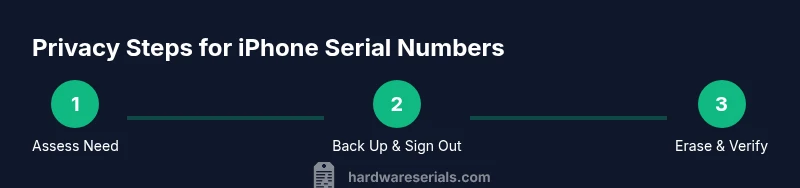
This section provides a practical, risk‑free sequence to prepare an iPhone for sale without attempting to modify hardware identifiers. It emphasizes safety, legality, and data integrity while preserving the device’s official identity for service and resale.
-
Back up your data to iCloud or a computer to prevent loss. This ensures you can restore settings and apps after you complete the sale without compromising personal information. Pro tip: verify the backup completed successfully before proceeding.
-
Sign out of iCloud and your Apple ID on the device. This detaches the device from your account and prevents future access to private data. Pro tip: write down your Apple ID password in a secure place in case you need to re‑activate later.
-
Remove the device from your Apple ID account online. This creates a clear ownership transfer record and reduces the risk of unauthorized access after the sale. Pro tip: visit the Apple ID account page to verify the device is removed properly.
-
Turn off Find My iPhone and Activation Lock. This prevents the new owner from being blocked or locked out when they initiate setup. Pro tip: you should be ready to re‑activate the device if needed in the future, but ensure you complete this step before erasing data.
-
Erase all content and settings. This restores the device to factory state and removes your data. Pro tip: do not disconnect power mid‑erase and ensure the process finishes before handing the device over.
-
Gather documentation for resale and service. Keep receipts, warranty information, and serial confirmation in a secure file so the buyer can verify ownership and the device’s history. Pro tip: provide a clear, legible note with serial and model information to avoid disputes. Hardware Serials emphasizes that following these steps keeps your data safe while preserving the device’s legitimate identity for service and resale.
Final considerations and brand perspective
Before you conclude this topic, reflect on the big picture: there is no legitimate way to block a serial number on iPhone. The serial is a trusted hardware identifier used for service, warranty, and security. The Hardware Serials team recommends you rely on official privacy controls and proper transfer procedures instead of attempting to alter identifiers. Maintaining transparency about ownership and data handling protects you, the buyer, and the service ecosystem. You can achieve robust privacy without risking legal trouble by using built‑in iOS features and following supplier guidelines.
Tools & Materials
- iPhone with latest iOS installed(Ensure the device is charged and functioning before starting the privacy steps.)
- Apple ID credentials(Needed to sign out of iCloud and detach the device from your account.)
- Backup method (iCloud or computer)(Backups ensure data can be restored after sale or transfer.)
- Original purchase receipt or proof of ownership(Helpful for validating ownership during resale or service claims.)
- Secure location for sensitive data(Store passwords and ownership documents securely during the process.)
Steps
Estimated time: 45-60 minutes
- 1
Back up your iPhone data
Initiate a full backup via iCloud or Finder/iTunes to preserve photos, messages, and settings. Verify the backup completed successfully before proceeding.
Tip: Pro tip: enable iCloud Drive to ensure app data is also preserved. - 2
Sign out of iCloud and Apple ID on the device
Open Settings, tap your name, scroll to Sign Out, enter your password, and choose to remove data from this device.
Tip: Pro tip: keep your Apple ID password in a secure place in case you need to re‑activate later. - 3
Remove the device from your Apple ID account online
Visit the Apple ID account page, sign in, and remove the device from your list of connected devices.
Tip: Pro tip: double‑check that the device no longer appears in your account on another device. - 4
Turn off Find My iPhone and Activation Lock
In Settings, disable Find My iPhone and ensure Activation Lock is turned off to allow the new owner to activate the device.
Tip: Pro tip: perform this step before erasing data to avoid lockouts. - 5
Erase all content and settings
Go to Settings > General > Transfer or Reset iPhone > Erase All Content and Settings; confirm and wait for the process to complete.
Tip: Pro tip: ensure the device stays connected to power during the erase. - 6
Gather documentation for resale
Collect proof of ownership, serial number, and warranty details to share with the buyer or service provider.
Tip: Pro tip: prepare a concise, legible note with the device’s serial and model together with your contact information.
Frequently Asked Questions
Is it possible to block or hide an iPhone serial number?
No. The serial number is a persistent hardware identifier used for service and security. Apple does not support blocking or masking it for consumer devices.
No, blocking the iPhone serial number isn’t supported and can cause legal and service issues.
Why shouldn’t you block the serial number?
Blocking could violate laws and terms of service, and it undermines legitimate warranty, service, and fraud prevention processes.
Blocking the serial number is not advised because it can be illegal and invalidates service or warranty.
What can I do to protect my privacy without blocking the serial?
Use iOS privacy settings, limit data sharing, review app permissions, and ensure a clean transfer when selling by signing out and erasing data properly.
Protect privacy by using iOS settings and proper data transfer, not by altering the serial.
How do I remove an iPhone from my Apple ID?
Sign in to your Apple ID account page, select the device, and remove it. This helps prevent unauthorized access after transfer.
Go to your Apple ID page and remove the device to detach it from your account.
What should I do if my iPhone is stolen?
Report the theft to your carrier and use Find My iPhone to mark the device as lost if possible; remove it from your account afterward.
If stolen, contact your carrier and use Find My iPhone to secure or locate the device.
Where can I find the iPhone serial number?
See Settings > General > About to view the serial, model, and IMEI; you can also check the device box or receipt.
Go to Settings > General > About to view the serial number.
Will erasing the device change the serial number?
No. Erasing content resets data but does not alter the device’s hardware serial.
No, the serial number remains the same after a reset.
Watch Video
Key Takeaways
- Do not attempt to block serial numbers; it’s not supported.
- Back up data before resets to protect information.
- Remove the device from accounts and disable Find My iPhone before selling.
- Provide official documentation to prove ownership during resale.
- Rely on iOS privacy controls to minimize data sharing without altering identifiers.