How to block series number on iphone
Learn why blocking an iPhone's serial number isn't feasible and explore safe, compliant privacy options to limit data sharing and protect device identifiers.


Definition: You cannot block or hide an iPhone's hardware serial number through user settings. The serial number is a permanent hardware identifier embedded by Apple and used for warranty, service history, activation, and anti-theft measures. While you cannot block it, you can protect your privacy by limiting data sharing, disabling analytics, and avoiding sharing device identifiers with apps.
Why blocking serial number on iPhone isn't possible in practice
According to Hardware Serials, serial numbers are baked into every iPhone at manufacture. They are not a setting you can switch off, hide, or spoof with a simple toggle. The operating system and the hardware platform treat the serial number as a permanent identifier used for warranty validation, service history, activation records, and anti-theft protections. Because it is tied to the device hardware, attempting to mask or alter the serial would require low-level changes that can compromise device integrity, violate legal terms, and trigger security responses from Apple.
In day-to-day use, you should think of the serial number as a fixed fingerprint of the device. It is how Apple and service providers verify ownership and compatibility, and it can be read by support tools during repairs or a factory reset. Carriers can also query device identifiers for network provisioning or fraud prevention, though consumer options to affect those identifiers are limited to official channels (e.g., a carrier suspension or device swap). The practical takeaway is: you cannot block the serial number, but you can control the data you share and how apps rely on hardware identifiers.
To protect privacy, focus on settings that govern data sharing, not on the serial. The rest of this guide will show concrete steps to reduce the leakage of device data while keeping your iPhone secure and compliant. Hardware Serials analysis suggests that thoughtful privacy tweaks can meaningfully reduce exposure without compromising device functionality.
Understanding what the serial number does
A serial number is a unique alphanumeric code assigned to your iPhone during manufacture. It ties together product age, warranty status, service records, and sometimes activation details. Apple uses it to verify device ownership, access repair histories, and manage certain security features such as Activation Lock. Carriers and retailers may reference the serial during device provisioning or after theft reports. Because it is embedded at the hardware level, there is no consumer-facing switch to disable or mask it. This is different from other identifiers, like the advertising identifier, which can be reset or limited through privacy settings. By understanding what a serial number does, you can focus your privacy efforts on adjustable data flows rather than on an unchangeable hardware ID.
Knowing the role of the serial helps avoid risky attempts to alter it. If you ever consider changing it, be aware that such actions can be illegal in many jurisdictions and may irrevocably harm device functionality. Instead, prioritize protecting your privacy through normal, supported controls that govern data sharing and app access.
Safety and privacy: what you can control
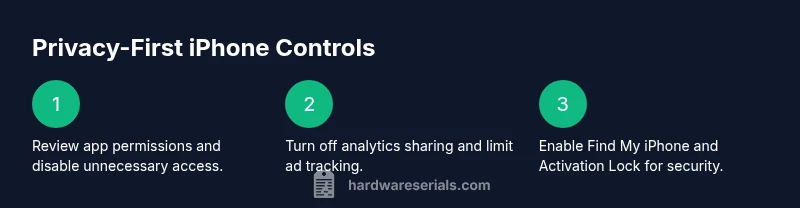
Blocking a serial number isn’t on the table for iPhone users, but you can take concrete steps to reduce how much device data leaks to apps and services. Some key controls include:
- Limit iPhone analytics sharing: turn off or minimize diagnostic data sent to Apple.
- Reduce app data access: review app permissions under Settings > Privacy & Security and disable permissions you don’t need.
- Limit ad tracking: enable the “Limit Ad Tracking” option and reset the advertising identifier if available in Settings > Privacy > Apple Advertising.
- Manage sign-in data: minimize the use of Sign in with Apple or other identity linkage that could indirectly reveal device information.
- Disable unnecessary data synchronizations: restrict how often apps sync data to iCloud or third-party services.
These steps don’t change the serial number but dramatically lessen how much device-specific data leaves your iPhone. They also help reduce fingerprinting risk and improve overall privacy hygiene for DIYers and professionals.
Concrete steps to minimize data exposure
If you want a practical, privacy-forward approach, start here. Each action is focused on reducing data sharing and access by apps and services, not on altering the device's hardware ID.
- Step 1: Open Settings and go to Privacy & Security to audit what data apps can access. Disable location, contacts, and photo access for apps that don’t need them.
- Step 2: In Settings, locate Analytics & Improvements and toggle off “Share iPhone Analytics” and “Improve Siri & Dictation.”
- Step 3: Review App Privacy settings by tapping each app in Settings > Privacy & Security and restricting permissions that aren’t essential.
- Step 4: Enable “Limit Ad Tracking” in Settings > Privacy > Apple Advertising and consider resetting the Advertising Identifier.
- Step 5: Check Find My iPhone settings and ensure Activation Lock is enabled to deter theft and misuse; this protects the device’s identity without altering it.
- Step 6: If privacy concerns persist, document them and contact Apple Support for guidance on data handling related to your device.
- Step 7: Stay current with iOS updates, as privacy controls evolve with software upgrades.
Estimated total time for these steps: about 20-30 minutes, depending on how many apps you review and permissions you adjust.
When you might need to interact with Apple support
If you believe a third party is misusing your device's data or you have a privacy-related request that standard settings can’t address, contacting Apple Support is a prudent next step. Government or enterprise clients sometimes have additional privacy channels, but for typical consumer use, Apple’s Privacy and Security resources cover most concerns. Prepare details about when data sharing happens, which apps were involved, and your device’s serial number in case Apple needs to verify hardware context. Remember: you cannot block the serial number, but you can document concerns and seek official guidance on data handling.
Common myths and FAQs about serial numbers on iPhone
Myth: I can block or spoof my iPhone’s serial number to protect privacy. Reality: The serial number is a hardware-embedded identifier and cannot be blocked or reliably spoofed by user settings. Attempts to alter it can be illegal and cause device issues.
Myth: Disabling analytics completely hides my device’s identity. Reality: Analytics settings reduce some data sharing but do not remove hardware identifiers; they do diminish fingerprinting vectors and improve privacy hygiene.
Myth: Carriers can block my device if I’m worried about a serial leak. Reality: Carriers use network-level identifiers; blocking hardware IDs isn’t typically exposed to end users, and altering identifiers is not recommended. If theft or fraud is a concern, contact the carrier and Apple for legitimate options.
Myth-busting: serial blocking is not a feature, but privacy controls are
The goal of privacy settings is to limit exposure, not to erase a hardware identifier. By understanding this limitation, you can make informed decisions about data sharing, permissions, and how services use device demographics. Hardware Serials, in their 2026 analysis, emphasizes that proactive privacy hygiene—regular reviews of app permissions, analytics opt-outs, and updated software—offers meaningful protection without trying to subvert hardware identifiers.
Tools & Materials
- iPhone with latest iOS installed(Ensure device is updated to the latest version for the newest privacy controls.)
- Stable internet connection(Needed to access Settings, iCloud, and app permissions in real time.)
- Apple ID credentials(Required to adjust iCloud sharing settings and some privacy options.)
- Access to Settings app(No specialized hardware tools required; everything happens in software.)
Steps
Estimated time: 20-30 minutes
- 1
Open Settings and review privacy basics
Launch the Settings app and start at Privacy & Security. Take a quick inventory of data categories (Location, Contacts, Photos, Microphone). Decide which apps truly need access and which can be limited or denied. This initial audit sets the stage for safer data sharing.
Tip: Document major consent decisions for future audits; a quick note helps maintain privacy hygiene. - 2
Disable analytics sharing
Scroll to Analytics & Improvements and turn off Share iPhone Analytics and Improve Siri & Dictation. Reducing diagnostic data minimizes data trails that apps can rely on for fingerprinting and analytics.
Tip: If you rely on Siri, you can selectively enable features later after testing privacy impact. - 3
Review app permissions
Go to Settings > Privacy & Security > App Privacy. For each app, revoke permissions you don’t actively use. This curtails background data access that could tie back to your device.
Tip: Batch-review smaller groups of apps to avoid missing permissions. - 4
Limit advertising tracking
Enable Limit Ad Tracking and consider Reset Advertising Identifier from Settings > Privacy > Advertising. This reduces cross-app ad profiling linked to your device ID.
Tip: Resetting the advertising ID periodically can aid privacy, but it may affect ad relevance. - 5
Strengthen theft protection without altering hardware IDs
Enable Find My iPhone and Activation Lock to deter unauthorized use. These features protect ownership and reduce the risk of misuse without changing the device’s hardware identity.
Tip: Keep the recovery key and Apple ID secure; regular password updates help safety. - 6
Know when to seek official guidance
If privacy concerns persist, contact Apple Support for a privacy consult. Provide a concise summary of your concerns and the steps you’ve taken.
Tip: Keep a log of concerns and the relevant iOS version for faster support.
Frequently Asked Questions
Can I block my iPhone's serial number?
No. The serial number is a hardware identifier embedded at manufacture and cannot be blocked or reliably spoofed by consumer settings.
No, you cannot block the iPhone’s serial number. It’s a hardware ID that remains fixed.
Will disabling analytics hide my device identity?
Disabling analytics reduces some data sharing, but it does not remove or mask the serial number. It helps with privacy, though.
Disabling analytics helps privacy but won’t erase the hardware ID.
What should I do to improve privacy on my iPhone?
Audit app permissions, limit ad tracking, enable Find My iPhone, and keep iOS updated. These steps reduce exposure without altering hardware IDs.
Review app permissions and privacy settings; keep your device updated.
Does Apple provide a way to block the serial number for privacy?
Apple does not offer a user-facing option to block or mask a serial number. For privacy, rely on configurable data-sharing controls.
There isn’t a feature to block the serial number; use privacy settings instead.
What should I do if I suspect misuse of my device data?
Document the issue, review privacy settings, and contact Apple Support for an audit of data handling related to your device.
If you suspect misuse, contact Apple Support and review your privacy settings.
Is it safe to share diagnostics with Apple?
Sharing diagnostics is optional and can be limited. It may help Apple improve products, but it increases data shared from your device.
Diagnostics can improve products but share less if privacy is a priority.
Can a carrier block or track my device using the serial number?
Carriers use various identifiers for network provisioning and security; blocking the serial number is not an offered consumer option. Contact your carrier for policy details.
Carriers use network identifiers; serial blocking isn’t a consumer option.
Watch Video
Key Takeaways
- Block of hardware IDs isn't possible on iPhone.
- Control data-sharing settings to protect privacy.
- Regularly audit app permissions and analytics.
- Use Find My iPhone and Activation Lock for security.
- Consult Apple Support for unresolved privacy concerns.