How to Lock an iPad by Serial Number: A Practical Guide
Learn the official ways to secure an iPad using its serial number, including Find My, Activation Lock, and MDM. This guide clarifies limitations and practical steps for individuals and organizations.


This guide explains how to lock an iPad using its serial number as an identifier, while emphasizing that the actual lockdown hinges on the Apple ID, Find My, and, for organizations, an MDM. You’ll learn practical steps and limits, plus safer alternatives. By the end you’ll know when a serial number helps, and when it does not.
Why locking an iPad by serial number matters
In the realm of device security, the serial number is a unique identifier, not a locking key. The Hardware Serials team emphasizes that a serial number helps verify ownership and track devices during audits or support requests, but it does not by itself lock or wipe a device. For most users, the actual lockdown hinges on the owner’s Apple ID and the use of built-in security features like Find My iPad or enterprise-grade MDM. Understanding this distinction is essential for DIYers and professionals who manage multiple devices, such as field technicians or small businesses.
In practice, serial numbers are most useful when you’re communicating with support, confirming warranty status, or logging devices in an inventory system. They become part of the chain of custody rather than the primary control to remotely lock a device. This separation helps prevent accidental lockdowns and ensures that only authorized accounts can trigger protective actions.
According to Hardware Serials, relying solely on the serial number for security steps can create a false sense of protection. Always pair serial-number documentation with active Find My settings or a managed device strategy to achieve real lockdown capability.
Understanding serial numbers on Apple devices
Apple assigns a serial number to each device, serving as a unique identifier used for warranty checks, support, and device verification. Unlike an IMEI for cellular devices, a serial number is not directly actionable for locking or erasing a device. Locating the serial on an iPad is straightforward: you can find it in Settings > General > About, or on the original packaging. For corporate devices, the serial number is often recorded in an MDM inventory for asset management and compliance.
Serial numbers help you verify ownership when contacting Apple Support or your reseller, but access to the actual lockdown tools is tied to an Apple ID and associated services such as Find My or a deployed MDM profile. This separation protects users from unauthorized remote actions, which is critical in both personal and professional environments.
For DIYers, this means you should keep your Apple ID credentials secure and ensure that Find My iPad is enabled if you intend to lock remotely. For organizations, document serials in your asset database and ensure devices enrolled in your MDM can be locked remotely by authorized admins.
Prerequisites before locking an iPad by serial number
Before attempting any lockdown actions tied to a serial number, gather essential information and verify ownership. You’ll need the device serial number, the associated Apple ID (and password or access to the organization’s MDM), and appropriate permissions to act on the device. If you’re managing multiple devices, have your inventory list ready and confirm that Find My iPad is enabled on each unit.
Additionally, set expectations about offline devices. If the iPad is not currently connected to the internet, a remote lock request will queue and apply when connectivity is restored. For company-owned devices, ensure you have a valid MDM enrollment and administrative access to push remote actions. For personal devices, Find My typically provides the fastest path to a lock, especially when the device is online.
Step-by-step overview of the process
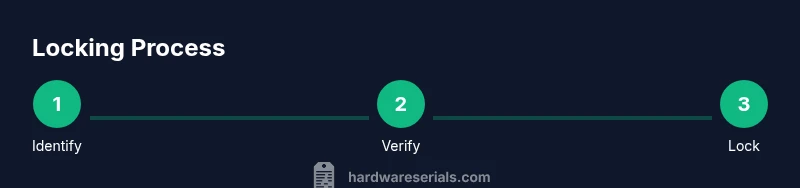
Locking an iPad by serial number is not a one-click action; it’s a process that combines verification, appropriate service access, and a lockdown mechanism. This section outlines the high-level flow you’ll follow: confirm ownership using the serial number, choose the locking method (Find My or MDM), initiate remote lock, and verify that the device is locked. The exact steps depend on whether you’re handling a personal device or a fleet managed via an organization.
Remember: serial number custody helps support and audit roles, but the actual lock requires proper authentication and a lockdown channel.
Methods to lock an iPad using serial number
There are two primary paths to lock an iPad: consumer-focused via Find My iPad and enterprise-focused via an MDM solution. Find My ties the lock to the Apple ID, not the serial alone, so you’ll need access to the Apple ID that previously registered the device. If you’re managing devices through Apple Business Manager or an MDM, you can push a lock command to devices remotely using their serial numbers as identifiers in your inventory.
Activation Lock is another layer that prevents unauthorized access by tying the device to an Apple ID. If you enable Activation Lock, the device cannot be erased or reactivated by someone else without the correct credentials. The serial number helps support verify ownership when you report a lost device, but it’s not the mechanism that performs the lock itself in-day-to-day use.
Using Find My iPhone/Find My iPad as an alternative
Find My is the user-friendly path for individuals. You sign in to iCloud or the Find My app with your Apple ID, select the target iPad, and choose Lock. You can also add a custom message and contact number to deter misuse. Activation Lock will engage automatically if Find My is enabled and the device is linked to your Apple ID. For offline devices, the lock command remains queued until the device regains connectivity. Enterprise users can achieve lockdown more deterministically via MDM policies, which do not rely on the end user’s Apple ID.
If you’re dealing with a device that’s no longer under your control or you suspect ownership ambiguity, contacting Apple Support with the serial number and proof of purchase is the prudent course. Hardware Serials notes that ownership verification is a critical step to avoid accidental or unauthorized lockdown.
Using MDM/Apple Business Manager for enterprise lockdown
Mobile Device Management (MDM) enables fleet-wide lockdown and security enforcement. In Apple Business Manager or Apple School Manager environments, admins can deploy a lockdown profile that locks or erases devices as needed, independent of the user’s Apple ID. Actions are triggered by device serial numbers or device identifiers registered in the MDM console. This approach is ideal for schools, clinics, or field services that require consistent security policies across many iPads.
Setting up MDM involves enrolling devices, installing an MDM profile on each unit, and configuring lockdown rules (Lock, Erase, Network restrictions, etc.). Regular auditing of serials and device status helps ensure compliance and reduces the risk of orphaned devices becoming accessible.
Security considerations and privacy
Locking an iPad is a security measure that must balance protection with privacy. Ensure you have legitimate ownership or authorization to act on the device. Use Find My or MDM to lock remotely rather than attempting to manipulate devices without consent. Activation Lock should be maintained as long as the device remains under your control; this is a powerful deterrent against theft but can create access barriers if credentials are lost. Regularly review who has admin access to MDM and how serial numbers are recorded to minimize misuse.
As a general rule, never share credentials, and store them securely. If you’re responsible for sensitive devices, consider a formal policy that governs who can perform remote locks and under what circumstances.
Common pitfalls and troubleshooting
Locking by serial number can fail if the device is offline, not enrolled in Find My, or not associated with the correct Apple ID. Ensure the iPad is online and Find My is enabled. In enterprise contexts, verify that the device is enrolled in the MDM and that the lockdown profile is active. If you encounter errors, double-check the serial number against your asset inventory and confirm that you’re acting with proper permissions. In some cases, you may need to contact Apple Support for verification of ownership before a lockdown can be applied.
When a device is offline, the lock will occur as soon as connectivity returns. Expect some delays if the device is in a remote location or has limited network access.
Best practices and checklists
- Maintain an up-to-date inventory of devices with serial numbers and assigned owners.
- Enable Find My on all personal devices and enroll all corporate devices in an MDM.
- Use Activation Lock to prevent unauthorized use when devices are lost or stolen.
- Limit admin access to the MDM and enforce two-factor authentication on Apple IDs.
- Prepare proof-of-purchase documents and case notes for ownership verification when contacting support.
conclusion placeholder
Tools & Materials
- Apple ID credentials (username and password)(Access to iCloud/Find My; ensure two-factor authentication is enabled)
- Active internet connection(Wi-Fi or cellular data to reach Apple/MDM services)
- Device serial number(Found on the device or in Settings > General > About)
- MDM access (optional)(Admin credentials for enterprise lockdown)
- Find My iPad enabled (optional)(Needed for remote lock via Find My)
- Ownership verification documents (optional)(Receipts or invoices to prove ownership when contacting support)
Steps
Estimated time: 25-40 minutes
- 1
Identify device and verify ownership
Locate the iPad by its serial number and confirm you are authorized to lock it. Gather the Apple ID or MDM access required to trigger a lockdown. This helps prevent accidental or unauthorized actions.
Tip: Have the original purchase receipt or proof of ownership ready in case support is needed. - 2
Prepare accounts and credentials
Sign in to the relevant account (Apple ID for Find My; or the MDM console for enterprise lockdown). Ensure two-factor authentication is active on the Apple ID to prevent credential theft.
Tip: Use a dedicated admin account for MDM to isolate lock actions from personal credentials. - 3
Choose the locking method
Decide between Find My iPad remote lock and MDM-based lockdown. Personal devices commonly use Find My; fleets use MDM for fleet-wide control and policy enforcement.
Tip: For off-network devices, prepare for delayed lockdown until connectivity returns. - 4
Initiate remote lock
If using Find My, open Find My on iCloud.com or the Find My app, select the iPad, and choose Lock. Optionally add a contact message. If using MDM, push a Lock command per your console’s workflow.
Tip: Include a short contact message to deter misuse and help a rightful owner identify the device. - 5
Enable Activation Lock (if applicable)
Ensure Activation Lock remains enabled to prevent others from erasing or reactivating the device without credentials. For devices already managed, Activation Lock is typically controlled by the owner’s Apple ID.
Tip: Do not disable Activation Lock unless you intend to fully relinquish control and can reassign ownership securely. - 6
Verify lockdown and test
Check that the iPad is inaccessible and shows the lock screen or a locked state. If the device is offline, wait for it to come online and confirm the lock activates.
Tip: Test from another trusted device to confirm the lock status and message display.
Frequently Asked Questions
Can I lock an iPad using only its serial number?
No. A serial number identifies the device, but lockdown requires an Apple ID or MDM access. Use Find My or an enterprise lockdown if available.
No. You can’t lock an iPad using only its serial number; you need Find My or an MDM to trigger a lockdown.
What information do I need to prove ownership when contacting Apple?
Provide purchase receipt, device serial, and account details associated with the device. This helps verify ownership before any administrative actions.
Have your receipt, the device serial, and the associated account information ready when contacting Apple.
Is Find My the same as Activation Lock?
Find My allows remote locking and locating, while Activation Lock prevents use or erasing without credentials. They complement each other but are not interchangeable.
Find My can lock the device, Activation Lock protects it from reactivation without the right credentials.
Can corporate devices be locked via MDM?
Yes. An MDM solution can push lock or wipe commands to devices enrolled in the fleet, identified by serial numbers.
Yes, through an MDM you can lock many devices at once.
What happens after I lock the iPad?
The device becomes inaccessible on the lock screen. If Find My is used, you can display a message. If offline, the lock takes effect once the device reconnects.
Locking shows a secure screen; you can display a message, and it activates when the device comes online.
What should I do if the device is offline when I try to lock it?
Lock requests queue and apply as soon as the device regains connectivity. Plan for some delay if network access is limited.
If the device is offline, the lock will apply once it’s back online.
Watch Video
Key Takeaways
- Locking by serial number isn’t a direct consumer feature; use Find My or MDM.
- Ownership verification is essential before applying any lockdown.
- Activation Lock ties to Apple ID, not just the serial.
- MDM provides fleet-wide lockdown without user credentials.
- Always test the lock to confirm security is applied.