How to check an iPad serial number
Learn how to locate and verify your iPad serial number, why it matters for warranty and authenticity, and how to use the number with Apple and retailers. A practical, step-by-step guide from Hardware Serials.


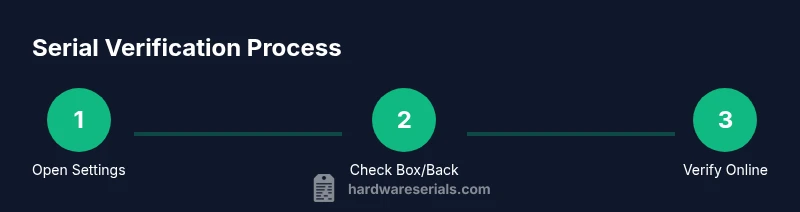
To check an iPad serial number, you can verify it directly on the device, on the original packaging, and through Apple’s official channels. Start by opening Settings > General > About to read the serial, then cross-check with checkcoverage.apple.com or your Apple ID account. This quick multi-source check helps confirm authenticity, warranty eligibility, and proper service routing before you buy, sell, or service the device. Hardware Serials emphasizes using multiple sources to guard against counterfeit labels.
Why verifying the iPad serial number matters
Serial numbers are more than labels; they are anchors that confirm a device's identity throughout its life. For DIYers and professionals, a quick check helps verify authenticity, confirm warranty eligibility, and ensure you’re communicating with the right service channels. According to Hardware Serials, serial verification reduces the risk of counterfeit devices being presented for repair or resale, and it helps you avoid being charged for services on a device that Apple won't recognize. By starting with a clear serial check, you protect yourself from common scams and support delays. The serial number ties together the model, color, storage size, and production date, making it a reliable cross-reference point when you report an issue or request service. In practice, performing this check before buying or handing a device to a technician saves time and avoids confusion later.
Where to locate the serial number on your iPad
The serial number can be found in several places depending on the model and packaging. The most reliable on-device location is Settings > General > About, where you will see the serial immediately alongside other device details. If the screen is damaged or you can’t unlock the device, inspect the back of the iPad model; many devices have the serial printed in small text along the bottom edge or near regulatory markings. Finally, gather the original packaging, as the serial is printed on the box and on the white warranty card. For some cellular models, the SIM tray may also display the IMEI and the serial in certain regions, so check that as a supplementary reference.
How to verify the serial number online with official sources
With the serial in hand, you can verify service eligibility and ownership using official sources. Start by signing into your Apple ID and navigating to Check Coverage (checkcoverage.apple.com) to see if the device is eligible for AppleCare and to confirm the serial matches the model. You can also enter the serial on Apple’s service lookup if available in your region. Cross-check the serial against the product details on your purchase receipt or retailer portal when possible. Hardware Serials recommends using multiple independent checks (official Apple pages, retailer documentation) to guard against mismatches or counterfeit labeling. If you encounter a mismatch, pause and contact Apple Support for verification rather than attempting self-diagnosis.
What to do if the serial number is missing or invalid
If you cannot locate a serial on the device or packaging, or if the serial shown online does not match the model or warranty status, pause any service requests and contact Apple Support or an authorized reseller. Do not attempt to alter or re-label a device; tampering can void warranties and may be illegal. If you recently bought a used or refurbished iPad, verify the serial with the seller and request original receipts or check with Apple Support about the device’s status. Keep in mind that some regional restrictions may apply to serial checks.
Best practices for tracking iPad serial numbers across devices
Create a simple, consistent system to track serial numbers for all iPads you own or manage. Use a secure password manager or encrypted note for digital records, and maintain a small local spreadsheet with fields for serial, model, color, storage, purchase date, and warranty status. Regularly audit your list to remove duplicates and note when warranties expire. If you manage multiple devices in a team or shop, assign a responsible person for serial management and implement a standard naming convention for devices.
Common pitfalls and quick fixes you should know
Blindly trusting one source is risky; always verify serial numbers on the device and packaging, and cross-check with Apple’s official pages and your retailer documentation. Some devices arrive with mislabeled boxes or tampered labels; in those cases, rely on the on-device serial (Settings) and the serial printed on the box. If you suspect a counterfeit, stop using the device, consult Apple Support, and report the issue through the appropriate channel. By staying organized and validating serials through multiple sources, you reduce the chance of service delays and misidentification.
Tools & Materials
- iPad device to check(Any model in use)
- Original box and receipt(Helpful for cross-checking serials)
- Stable internet connection(Needed for online verification)
- Apple ID access(Required for some verification steps)
- Camera or notes app(Capture serial or store notes)
Steps
Estimated time: 5-15 minutes
- 1
Open Settings and locate the serial
On your iPad, open the Settings app. Tap General, then About. Read the serial number displayed, noting the exact letters and digits. This is the fastest on-device source and least prone to packaging errors.
Tip: If you can’t unlock the device, proceed to step 3 for alternative sources. - 2
Check the physical back and box
If the screen is readable, inspect the back of the iPad for the engraved or printed serial. Also verify the serial on the original box and any warranty card. Look for matching fonts and length; discrepancies can indicate a counterfeit label.
Tip: Use good lighting and a magnifier if the print is tiny. - 3
Verify online with official sources
Visit checkcoverage.apple.com or the regional service portal and enter the serial to confirm model and warranty status. Compare results with any receipts or retailer records. Ensure you’re on a secure site (https).
Tip: Be careful to use only official Apple domains to avoid phishing sites. - 4
Cross-check with retailer documentation
If you bought the device from a retailer or reseller, compare the serial against your order confirmation and the retailer’s device page. A mismatch could indicate a return, swap, or mislabeling.
Tip: Ask the seller for the device's original serial and purchase date. - 5
Assess warranty eligibility
Check whether the device is still under Apple’s standard warranty or AppleCare, if applicable. Use the serial to verify eligibility rather than relying on physical labeling alone.
Tip: Note any extended coverage terms and expiration dates. - 6
Document and store serials securely
Record the serial, model, color, storage, and purchase details in a secure location. Use a password manager or encrypted note and back up regularly. This makes future checks faster and safer.
Tip: Create a naming convention so multiple devices are easy to distinguish.
Frequently Asked Questions
Where can I find the serial number on an iPad?
The serial is visible in Settings > General > About. You can also find it on the back of the device or on the original packaging. For some models, the SIM tray area may have related identifiers. Use the on-device serial as your primary reference.
Check Settings under General and About for the serial. If needed, look on the back or on the original box to confirm.
Is the serial number the same as the IMEI?
No. The serial number is a device-specific identifier, while the IMEI is a network identifier used for cellular devices. Some sites display both; always rely on the official serial for warranty and service checks.
Serial numbers and IMEI serve different purposes. Use the serial for warranty or service lookups.
What if my iPad is refurbished or second-hand?
Ask the seller for the original serial and proof of purchase. Verify the serial on Apple’s site and ensure it matches the device. If there is any doubt, contact Apple Support before proceeding.
If it’s refurbished, request receipts and verify the serial with Apple before using the device.
Can I check warranty status offline?
Most warranty checks require an online connection to Apple’s servers. If you don’t have internet access, gather receipts and seller information, then perform checks when you’re online.
Online access is usually needed to verify warranty. Collect receipts to have as backup.
What should I do if the serial doesn’t match the packaging?
Do not use the device for service claims until you confirm its legitimacy. Contact Apple Support or the original retailer to resolve the discrepancy and determine next steps.
If serials don’t match packaging, pause service and contact Apple or the retailer for verification.
How can I tell if a serial is legitimate?
Use Apple’s official Check Coverage page and the retailer’s documentation to confirm. Look for matching model, color, and storage details with the serial across documents.
Check on Apple’s site and with the retailer to confirm legitimacy.
Watch Video
Key Takeaways
- Identify the serial on-device first to avoid packaging errors
- Cross-check serials across settings, packaging, and official sites
- Document serials securely for future service and resale
- Verify warranty status using official Apple sources