Find iPad Serial Number: Step-by-Step Guide
Learn how to locate your iPad serial number quickly, whether you can access the device or only the box. Includes settings, packaging, and Apple ID methods with safety tips.


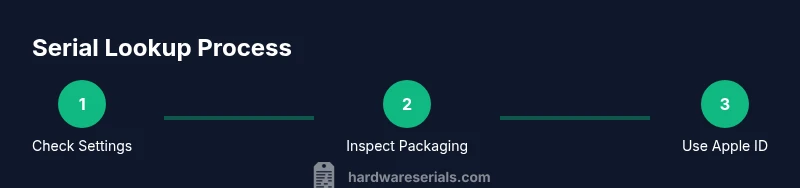
You can locate an iPad’s serial number using several reliable methods: on-device in Settings, on the back of the hardware, on the original packaging, or through your Apple ID account page. Once found, you can use it to check coverage, warranty, and device history. This guide walks you through each method.
How to find your iPad serial number across multiple sources
According to Hardware Serials, locating your iPad serial number is straightforward and can be done using several reliable methods. The Hardware Serials team emphasizes starting with the device itself, then expanding to packaging or online account records to cover cases where the screen is damaged or the device is unavailable.
- On-device in Settings: Open Settings, tap General, then About. The Serial Number line displays a string of letters and digits unique to your iPad. If you use Family Sharing or a managed device, check with the administrator if you don’t see it.
- On the back of the iPad: Some models have the serial number etched on the rear housing near the bottom edge. If you can’t read it due to glare or small text, switch to another method.
- On the original packaging: The white label on the box lists the serial number, model, and IMEI/MEID if present. This is useful if the device is unavailable but the box is kept.
- Through Apple ID (online): Sign in to your Apple ID account page (appleid.apple.com). In the Devices section, select your iPad to view its serial number along with warranty status and coverage.
If you’re dealing with a locked or disabled device, or if the screen is damaged, rely on packaging or online records to retrieve the serial.
Quick routes to verify the serial and its significance
Verifying a serial number opens doors to warranty status, model confirmation, and service eligibility. Hardware Serials analysis shows that a valid serial number enables you to verify warranty via Apple's Check Coverage tool, confirm model accuracy, and safeguard against counterfeit devices. Use the serial to confirm your model when purchasing parts or verifying service eligibility. Steps include visiting checkcoverage.apple.com and entering the serial; the page will show device model, warranty status, and service options. This is especially valuable when buying used or refurbished devices, ensuring you aren’t buying a mislabeled unit.
Special cases: iPads with no visible serial on the back
Some newer iPad designs omit the serial number from the back of the chassis and rely on internal records or online accounts to identify the device. In these cases you should rely more on Settings, the original packaging, and your Apple ID account page to locate the serial. If you can access Settings, that remains the fastest method; otherwise, packaging and online records are your best alternatives. If you’re troubleshooting, keep a note of any serials you retrieve and cross-check them against Apple’s support pages to confirm you have the correct identifier for your model.
When you can't access the iPad: offline, broken screen, or lost device
If the device is offline, damaged, or missing entirely, you can still recover the serial number from secondary sources. Check the original packaging for the label that lists the serial, model, and accessory details. If you have a secondary Apple ID device registered to the same account, you can view your iPad’s serial on the Apple ID devices page. For devices enrolled in school or enterprise programs, consult your administrator for the serial or asset tag. Always record the serial in a secure location once you retrieve it.
Interpreting the serial number: what the digits tell you
Serial numbers are more than identifiers; they can help you validate the device and sometimes infer production details. In general, you can use the serial to confirm the exact model and service eligibility when contacting Apple Support. Apple’s documentation notes that the serial is unique to each unit and can be used for warranty checks, eligibility for hardware service, and verifying repair history. There is no universal public key to decode every segment of the serial, but cross-referencing with the model information and Check Coverage results is a reliable approach.
Privacy and safety considerations when sharing your serial
Treat your serial number like sensitive information. Only share it with trusted sources such as Apple Support or authorized service providers. Be wary of third-party sites that request your serial number for warranty checks; use the official Apple Check Coverage tool to avoid scams. If you sell or give away the iPad, perform a factory reset after noting down the serial for your records, ensuring the new owner receives all relevant documentation.
Tools & Materials
- iPad device(Any model; ensure you can access Settings if possible)
- Original packaging/box(Label with serial and model information)
- Apple ID account access(Credentials to sign in to appleid.apple.com)
- Paper and pen or note-taking app(For recording serials you encounter)
- Internet connection(Needed for online lookups and account access)
Steps
Estimated time: 10-20 minutes
- 1
Open Settings and view About
Unlock the iPad and go to Settings. Tap General, then About to reveal the serial number. Copy or record the serial exactly as shown, including any letters and digits.
Tip: If you can’t access Settings due to a locked device, proceed with packaging or Apple ID method. - 2
Check the back of the device
Flip the iPad over and look near the bottom edge for a serial label. On some newer models, the serial isn’t printed on the back, so use an alternative source.
Tip: Use good light and magnification if the text is small. - 3
Inspect the original packaging
Find the serial on the white label on the outside of the box. This is useful if the device is unavailable or if you’ve misplaced Settings access.
Tip: Compare the packaging serial with the Settings serial to ensure they match. - 4
Sign in to Apple ID and check Devices
Visit appleid.apple.com, sign in, and open the Devices section. Select your iPad to view its serial along with warranty status and coverage.
Tip: If you have two-factor authentication enabled, you may need to verify your identity. - 5
Use Check Coverage for verification
Enter the serial on checkcoverage.apple.com to confirm model accuracy and service eligibility. This step is especially important for used or refurbished devices.
Tip: Cross-check the model shown on Check Coverage with the packaging or Settings for consistency. - 6
Record and secure the serial
Save the serial in a secure place and update your asset log if you manage multiple devices. This helps future warranty checks and resale.
Tip: Avoid posting the serial on public forums or social media for privacy protection.
Frequently Asked Questions
Where can I find the iPad serial number if I can't access the device settings?
Use the original packaging label or sign in to your Apple ID account and check the Devices list for the serial number. If those options aren't available, contact Apple Support for guidance.
If you can't access Settings, check the box label or your Apple ID devices page to retrieve the serial number, or contact Apple Support for help.
Is the serial number the same as the IMEI?
No. The serial number is a unique identifier for the device itself, while the IMEI is specific to cellular models. Some iPads have an IMEI printed on the SIM tray or packaging.
No. The serial is the device’s unique ID, and the IMEI is specific to cellular connectivity. They may both appear on packaging.
Can I locate the serial number using Find My iPad?
Find My iPad doesn’t show the serial number directly; use Apple ID’s Devices page or packaging to find the serial.
Find My iPad doesn’t reveal the serial number; check your Apple ID devices list or the box instead.
How do I verify warranty with the serial?
Go to Apple’s Check Coverage page, enter the serial, and review model, purchase date (if known), and service options. This helps confirm eligibility for repairs.
Visit Apple Check Coverage, enter the serial, and review the warranty status and service options.
If the packaging serial doesn’t match the device serial, what should I do?
Stop using the serial for service until you confirm the device identity. Contact Apple Support for verification and to resolve discrepancies.
If the numbers don’t match, contact Apple Support to verify the device identity and resolve the mismatch.
Watch Video
Key Takeaways
- Check Settings first for quickest result.
- Use packaging as a reliable backup source.
- Sign in to Apple ID to view registered devices.
- Verify warranty and model with Apple Check Coverage.
- Keep your serial secure and private.