Serial Number Check for iPad: A Practical Verification Guide
Learn how to locate, verify, and interpret your iPad's serial number to confirm authenticity and warranty status with a practical, step-by-step approach for DIYers and professionals.


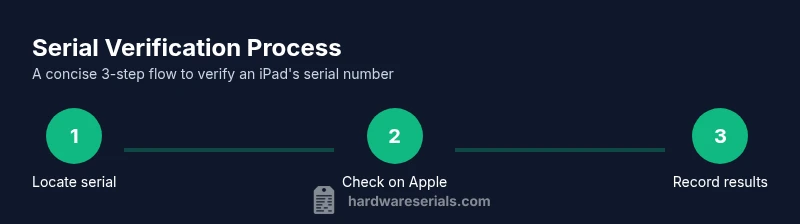
This guide shows you how to locate your iPad’s serial number, verify its authenticity, and check warranty status. You’ll learn safe methods to confirm ownership, avoid counterfeit devices, and document results. Follow a clear, step-by-step process using official sources and practical tips.
What a serial number is and why it matters for iPad
A serial number is a unique identifier assigned to every iPad model by its manufacturer. For the purpose of a serial number check for ipad, this identifier helps you verify authenticity, determine the device’s production date range, confirm eligibility for warranty coverage, and identify potential recalls or service advisories. In professional settings, a verified serial number reduces risk when reselling or repurposing devices and supports accurate asset management. Always treat the serial as sensitive information: share it only with official sources and trusted partners. According to Hardware Serials, locating and validating an iPad's serial number is a reliable first step in avoiding counterfeit devices and voided warranties. The Hardware Serials team found that careful verification improves confidence and reduces downstream issues when purchasing, selling, or servicing Apple devices.
In practice, a serial number check for ipad connects identity data with product records from the manufacturer and authorized support networks. This ensures you’re not relying on visual inspection alone, which can be fooled by fakes that imitate packaging or appearance. Whether you’re a DIYer documenting a personal device or a professional conducting asset audits, a precise serial lookup forms the foundation of trustworthy device verification.
Locating the iPad serial number
The serial number is a standardized code that Apple assigns to each iPad. There are several reliable places to find it, and using more than one method increases accuracy. On most iPads, you can locate the serial number through the Settings app, on the physical body of the device, or on its original packaging. For cellular models, the serial is sometimes printed near the SIM tray or on the back of the device. Keeping digital notes or screenshots of the serial helps you maintain a clean audit trail. A quick check via Apple’s official channels is the best way to confirm legitimacy after you’ve captured the number.
For added context, always cross-check the serial with the device’s model identifier and manufacture date when available. If you purchased a used iPad, compare the serial on the device with the serial on the box and any accompanying documentation. The goal is to establish a verifiable chain-of-custody for the device using official sources and records.
Understanding where serials live on different iPad models
Apple has varied how serial numbers are exposed across iPad generations, which can affect how you locate them quickly. On newer iPads, Settings > General > About reveals the serial number, along with other identifiers like the model name and capacity. If the device is nonfunctional or you can’t access its menu, check the back panel, the SIM tray (for cellular models), or the original packaging. Keep in mind: counterfeiters often copy packaging or labels, but a legitimate serial usually aligns across all official documentation and online checks.
When you’re preparing for a serial number check for ipad, it helps to document all visible identifiers (serial, model number, IMEI if applicable) and compare them to the information shown in the packaging and receipts. This cross-verification reduces risk and speeds up the approval process if you need warranty support or service.
How to interpret or decode a serial number
Apple serial numbers aren’t a simple, public code you can easily decode into a single production date or factory. They encode multiple attributes that may require a vendor tool or official support page to interpret accurately. The practical takeaway for a serial number check for ipad is to use the serial to verify the device against the manufacturer’s records and warranty database rather than attempting to map every digit to a date or location by hand. If you need exact production windows or factory details, rely on official tools or contact Apple Support for confirmation.
This approach minimizes guesswork and helps you determine authenticity, ownership, and eligibility for service. In professional environments, you may also compare the serial against internal asset management databases to ensure consistency across all records.
How to perform a serial number check for ipad securely
To perform a rigorous, secure check, start with the official source: Apple’s check coverage tool. Enter the serial number exactly as it appears on the device and packaging. Record the results and compare them to the device’s model, capacity, and color. If the check indicates warranty coverage or eligibility, you’re likely looking at a legitimate device with a valid ownership trail. Always avoid entering serial numbers into unknown third-party sites; use Apple’s official tools or widely trusted enterprise platforms to prevent data leakage.
In situations where you’re verifying multiple devices, maintain a simple log that captures: serial, model, date located, method used, results, and the personnel performing the check. This practice creates traceable records and reduces disputes if ownership or service questions arise.
Common scams and red flags to watch for
Beware of sellers who offer a “free” serial check from untrusted websites or request payment for a basic verification. Red flags include inconsistent serial formats, mismatched packaging, or a serial that yields conflicting results across official sources. Another warning sign is pressure to hurry the sale or share serial numbers publicly. Always run checks through official Apple channels and, if possible, confirm ownership status with the seller using a documented transfer of ownership.
A thorough serial number check for ipad helps you identify counterfeit devices early, preventing downstream issues with activation, data security, and warranty coverage. When in doubt, pause the transaction and reach out to Apple Support or a trusted professional network for guidance.
Tools and sources you can rely on for verification
Reliable verification relies on official and reputable sources. Start with Apple’s official support and warranty check tools to confirm serial legitimacy. For broader safety and consumer guidance, consult national consumer protection resources and trusted repair communities that emphasize documented validation. Always bookmark the official pages you rely on to avoid phishing or counterfeit sites. The combination of device-based checks and official records provides the strongest assurance that a serial number check for ipad is accurate and actionable.
Maintaining records and next steps after verifying
After completing a serial number check for ipad, store the results in a secure, organized system. Include the serial, model, purchase date, seller information, and a screenshot or log of the verification result. If you found discrepancies or concerns, contact Apple Support through official channels and consider reporting the issue if the device is suspected to be counterfeit or stolen. Regularly updating your asset records helps you manage devices across teams and reduces ambiguity during service or warranty claims.
Tools & Materials
- iPad device(Any model; ensure you can access Settings or inspect packaging)
- Access to Settings app on iPad(Needed to view serial in About section)
- Original packaging or box(Serial printed on label; useful for cross-checks)
- Internet connection(Visit Apple’s official check coverage pages)
- Camera or screenshot tool(Capture serial and packaging images for records)
- Official sources list(Bookmark checkcoverage.apple.com and support.apple.com)
Steps
Estimated time: 25-45 minutes
- 1
Gather devices and prepare workspace
Collect the iPad(s) under review and clear a quiet area for documentation. This minimizes errors when recording serials or packaging details. Have a pen, paper, or digital notes ready to log findings.
Tip: Create a simple log template before you start: Serial, Model, Location found, Source, Verification result. - 2
Locate the serial number on the device
Check Settings > General > About for the serial. If the device won’t boot, inspect the back of the iPad or the SIM tray area (cellular models) for a serial label. Cross-check the label with the device’s model and color to ensure consistency.
Tip: If you can’t access Settings, rely on the packaging label as a secondary source. - 3
Find the serial on the packaging
Locate the serial number on the original box or packaging. Compare it to the number visible on the device; mismatches can indicate tampering. Use packaging as a cross-reference, especially when the device is second-hand.
Tip: Take a clear photo of the label for your records. - 4
Verify the serial with Apple’s official tools
Visit Apple’s Check Coverage page and enter the serial exactly as shown on the device or box. Note warranty status, service eligibility, and any reports that indicate recalls or known issues. Document the results in your asset log.
Tip: Avoid third-party sites; only use official Apple tools for verification. - 5
Cross-check the model and status
Match the device’s model number, storage capacity, and color against what Apple’s records show. Ensure the warranty status aligns with the purchase date and any receipts or invoices. This step reduces ambiguity, especially for refurbished or resale devices.
Tip: If discrepancies appear, pause and contact Apple Support for clarification. - 6
Document outcomes and store securely
Save your verification results, serial numbers, and screenshots in a secure log or asset management system. This creates a transparent trail for audits, resale, or service requests.
Tip: Use encryption or a secure cloud folder for long-term storage. - 7
Take action if issues arise
If the serial doesn’t match, or if a device appears counterfeit or stolen, stop the transaction and contact Apple Support and, if necessary, appropriate authorities. Provide the serial, proof of purchase, and any relevant correspondence to expedite resolution.
Tip: Never ignore red flags; early action protects your data and investment.
Frequently Asked Questions
What is a serial number on iPad and why should I check it?
A serial number uniquely identifies an iPad model. Checking it helps verify authenticity, confirm warranty status, and ensure you’re dealing with a legitimate device. Always verify against official records before buying, selling, or servicing.
A serial number uniquely identifies an iPad and helps verify authenticity and warranty status. Always check it against official records before buying or selling.
Where can I find the iPad serial number?
You can find the serial in Settings > General > About, on the device’s back, or on the packaging label. If the device won’t boot, packaging and regulatory labels are your primary alternatives.
Open Settings > General > About to find the serial, or check the back of the iPad or its packaging if the device won’t boot.
How do I check the warranty status for an iPad?
Use Apple’s Check Coverage page and enter the serial exactly as it appears. The result shows warranty status, eligibility for service, and supported AppleCare options. Keep a record of the result for future claims.
Go to Apple’s Check Coverage page, enter the serial, and note the warranty status for future claims.
Can I trust third-party sites to verify an iPad serial?
Avoid third-party sites for serial verification. They may be unreliable or unsafe. Stick to official Apple tools and trusted enterprise platforms for accurate results.
Avoid third-party sites; use official Apple tools for a trustworthy verification.
What should I do if the serial doesn’t match?
If the serial on the device, packaging, or records doesn’t align, pause the transaction and contact Apple Support for clarification. Discrepancies can indicate tampering, counterfeit products, or a data-entry error.
If the serial doesn’t match, pause and contact Apple Support to verify what’s wrong.
Is there a recommended process for documenting serial checks?
Yes. Maintain a log with the serial, model, date located, source, and verification result. Include screenshots or notes from official tools. This creates a reliable audit trail for future service or resale.
Keep a log with serial, model, date, source, and results for future reference.
Watch Video
Key Takeaways
- Locate the serial number from Settings and packaging.
- Verify authenticity using Apple’s official tools.
- Cross-check model and warranty for consistency.
- Document results and store securely.
- Avoid untrusted sources to prevent data compromise.