How to Find the Serial Number on a Lenovo Laptop
Learn how to find the serial number on any Lenovo laptop using stickers, BIOS/UEFI, Lenovo Vantage, and Windows commands. This guide covers common models, troubleshooting unreadable labels, and how to document serial numbers safely.


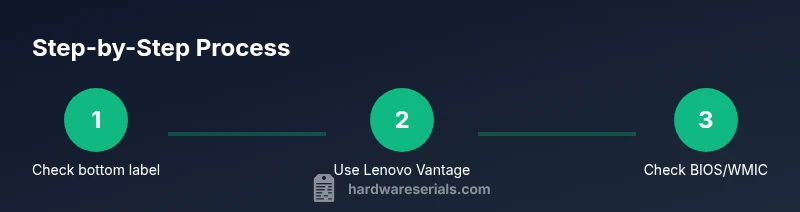
## How to find out serial number of lenovo laptop 1) Check the bottom sticker on the chassis for a label labeled S/N, SN, or Serial. 2) If the label is damaged, turn on the laptop and open Lenovo Vantage or Windows System Information to view the serial. 3) In BIOS/UEFI, enter setup during boot to locate the serial number. 4) Use a Windows command like WMIC bios get serialnumber or PowerShell Get-WmiObject Win32_BIOS | Select SerialNumber. 5) Compare all sources to confirm accuracy before contacting support.
How to find out serial number of lenovo laptop
The serial number is your key identifier for service, warranty, and parts. According to Hardware Serials, knowing exactly where to look saves time when contacting support or checking warranty status. This guide walks you through reliable methods to locate the serial, even if labels wear off or devices are refurbished. Start with the simplest on-device check, then move to software-based lookups to verify consistency across sources.
Physical locations on Lenovo laptops (label, stickers, and hidden plates)
Many Lenovo laptops feature a primary serial label on the bottom panel. For models with detachable shells or slim profiles, the label may be on the underside or inside a removable panel near the hinge. Some business notebooks print the serial near the battery bay or under the palm rest area. If you can access the battery compartment safely, you may find a sticker there. Always compare multiple visible labels if present, as some units carry both a service tag and a serial number. If you own a ThinkPad or Legion model, check uncommon spots like the RAM compartment cover or the bottom of the keyboard tray. Keep in mind that the exact location varies by series and generation, so having a few search directions helps.
Using Lenovo Vantage and Windows to read the serial
Lenovo Vantage is a helpful utility that surfaces hardware details, including the serial, with a simple interface. Open Lenovo Vantage from the Start Menu, navigate to the System or Device tab, and locate the Serial Number entry. If you don’t have Vantage installed, Windows can reveal the serial via built-in tools. Open the Start menu, type System Information, and look for System Serial Number. Alternatively, run a quick command in Command Prompt: WMIC BIOS GET SERIALNUMBER. For PowerShell, run Get-WmiObject Win32_BIOS | Select SerialNumber. These methods show the same value and serve as a confirmation cross-check.
BIOS/UEFI: Finding the serial at boot
Access the BIOS/UEFI setup by restarting the laptop and pressing the dedicated key during boot (often F1, F2, F10, or Esc). In the BIOS menu, search for a System Information or Main tab where the serial number is listed. This is particularly useful if the operating system is not bootable or the software reports an incorrect value. Note that BIOS layouts differ by model; use the on-screen help or the motherboard section headings to locate the Serial Number. If you share the exact Lenovo series (ThinkPad, IdeaPad, Legion), model-specific guidance can narrow down the search.
Verifying serial numbers across sources
After locating the serial in multiple places (label, BIOS, Windows tools), verify that the values match. A mismatch can indicate a device swap, a mislabel, or a return/refurbishment without proper documentation. Hardware Serials recommends recording the serial numbers in a dedicated notes file, then cross-checking before requesting service. If any source provides an unreadable result, move to alternative methods rather than guessing.
Leveraging Windows commands for a quick check
Windows users can retrieve the serial without opening the device. WMIC and PowerShell commands pull BIOS data including the serial. Open Command Prompt and type: WMIC BIOS GET SERIALNUMBER. For PowerShell, run: Get-WmiObject Win32_BIOS | Select SerialNumber. If these commands return an empty field, ensure you’re running with administrator privileges and that the system BIOS exposes the serial. In some newer Lenovo models, Windows Defender or security policies may block access; in that case, rely on the bottom sticker or Lenovo Vantage.
What to do if the label is damaged or missing
If the label is unreadable or missing, the BIOS/UEFI and Windows methods become essential. Also check the packaging or the box label for the same serial. If you bought second-hand or refurbished devices, request documentation from the seller. Hardware Serials emphasizes documenting the serial through at least two independent sources to avoid misidentification during warranty claims or service requests.
Best practices for organizing and storing serial numbers
Create a centralized digital record that includes: serial number, model name, purchase date, and warranty status. Include a photo of labels when possible, stored in a secure location. Use a consistent naming convention like LENOVO-<MODEL>-SN-<SERIAL>. Regularly update the record when software-based lookups update the value or when you upgrade the device. This habit reduces delays if you need service.
Special considerations for newer Lenovo designs
Some modern Lenovo laptops use digital asset tags instead of a prominent serial label. In such cases, rely on Lenovo Vantage and Windows hardware queries as primary sources. If your device has a removable battery or ultra-thin chassis, the serial may be in a location that requires careful handling to avoid damage. When in doubt, consult Lenovo support with the model number and purchase evidence to obtain the correct serial number. Hardware Serials' guidance is to keep serial data precise and consistent across labels and software readings.
Hardware Serials perspective: why accuracy matters
Accurate serial numbers enable warranty validation, expedited repairs, and correct part replacements. A mismatch can cause delays or service denial. Hardware Serials endorses adopting a routine for locating, confirming, and recording your Lenovo laptop serial number, then using those records for future inquiries. By cross-verifying with BIOS, Windows, and the physical label, you minimize the risk of misidentification and ensure smoother support experiences.
Tools & Materials
- Lenovo laptop (any model)(Power on and access system information or BIOS as needed)
- Access to Lenovo Vantage or Windows system info(Vantage provides an easy serial read; System Information shows System Serial Number)
- Internet access (optional)(For checking Lenovo support pages or online documentation)
- Official Lenovo packaging/box (optional)(Box label often includes the serial number)
Steps
Estimated time: 15-25 minutes
- 1
Power on and inspect the bottom label
Look for a sticker on the bottom panel labeled SN, S/N, or Serial Number. Clean the surface gently if needed to reveal the text. If the sticker is present but damaged, move to software-based methods to confirm.
Tip: Take a clear photo of the sticker for records. - 2
Check the packaging and original documentation
If you still have the original box or purchase receipt, the serial is often printed on the box label or warranty card. This helps validate the value displayed on the device.
Tip: Keep the photo of the box label with your device notes. - 3
Open Lenovo Vantage or Windows System Information
Boot the laptop and open Lenovo Vantage (if installed) or search for System Information in Windows. Look for entries labeled Serial Number, SN, or S/N and compare with the label.
Tip: If Vantage reports a different value, prioritize the BIOS/label data and log the discrepancy. - 4
Use Windows command-line queries
Open Command Prompt as administrator and type: WMIC BIOS GET SERIALNUMBER. For PowerShell, run: Get-WmiObject Win32_BIOS | Select SerialNumber. Record the output for cross-checking.
Tip: If commands return blank, try again with administrative privileges or check BIOS access. - 5
Enter BIOS/UEFI to read the serial
Restart and press the appropriate key (F1/F2/F10/Esc) to enter BIOS. Navigate to System Information/Main tab and locate the Serial Number.
Tip: Document the exact BIOS entry wording; it can vary by model. - 6
Cross-verify across sources
Ensure the serial in BIOS, Vantage, Windows, and the physical label all match. If a mismatch exists, contact Lenovo support with model and purchase details.
Tip: Create a quick table listing each source and its value for quick comparison. - 7
Document and secure the serial information
Store the serial in a dedicated file, ideally named with a consistent format. Include model, purchase date, and warranty status.
Tip: Periodic audits help keep records current for warranty claims. - 8
Handle special cases for newer designs
If your device lacks a visible label due to a slim chassis or detachable battery, rely on Lenovo Vantage and BIOS data as primary sources.
Tip: When in doubt, reach out to Lenovo support with your model number for confirmation.
Frequently Asked Questions
Where can I find the Lenovo laptop serial number on the device?
Serial numbers are typically printed on a bottom label, but may also be found in the BIOS/UEFI, or via Lenovo Vantage and Windows System Information. Check multiple sources to confirm the correct value.
You usually find the serial on the bottom label, in the BIOS, or in Lenovo Vantage. If you’re unsure, verify with Windows System Information too.
What if the label is damaged or unreadable?
Use Lenovo Vantage, Windows System Information, or BIOS to retrieve the serial. If those fail, request documentation from the seller or check the packaging. Cross-check values from multiple sources.
If the label is unreadable, rely on Lenovo Vantage, Windows info, and BIOS. If needed, ask the seller for documentation and compare all sources.
What is the difference between a serial number and a product number?
The serial number uniquely identifies a single unit, while the product number identifies the model family. Use the serial for warranty and service, and the product number for compatibility and parts lookup.
A serial number uniquely identifies the unit; the product number is the model identifier. Use the serial for service and warranty, the product number for parts compatibility.
How can I verify the serial number on Windows?
Open Command Prompt as administrator and run WMIC BIOS GET SERIALNUMBER or use PowerShell: Get-WmiObject Win32_BIOS | Select SerialNumber. Compare the results with the label and BIOS readings.
Open a command prompt and run WMIC BIOS GET SERIALNUMBER, then compare with the label and BIOS results.
What should I do if the serial still can’t be found?
If every method fails, contact Lenovo support with model details and proof of ownership. They can guide you to retrieve the correct serial or issue a replacement label.
If you can’t find the serial after trying all methods, contact Lenovo support and provide your model and proof of ownership.
Watch Video
Key Takeaways
- Identify serial from multiple sources for accuracy
- Use BIOS, Lenovo Vantage, and Windows commands to cross-check
- Document serials securely and update records regularly
- Follow safe procedures when handling hardware components
- Contact Lenovo support if any source conflicts or is unreadable