How to Locate and Verify the Lenovo Legion Serial Number
Learn how to locate and verify the Lenovo Legion serial number across laptops and desktops, with practical steps, troubleshooting, and safety tips from Hardware Serials.


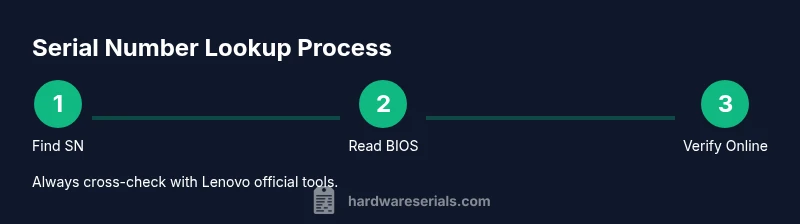
In this guide you will learn how to locate, read, and verify the Lenovo Legion serial number across devices. You’ll use BIOS, official Lenovo tools, and your device’s labels to confirm ownership and warranty status. This step-by-step approach helps DIYers and professionals avoid counterfeit or mismatched records.
Understanding Lenovo Legion serial numbers
A serial number uniquely identifies a specific Lenovo Legion device and is essential for warranty service, repair requests, and ownership verification. For DIYers and professionals, knowing where to find the serial number and how to verify it against official sources saves time and reduces risk when selling, upgrading, or seeking support. According to Hardware Serials, common confusion often arises between a model or SKUs and the true device serial. This guide focuses on clear, verifiable steps you can take regardless of whether you own a Legion laptop, desktop, or gaming tablet, and it emphasizes practical, hands-on methods that rely on official records rather than rumors. By building a solid SN record, you’ll streamline future support cycles and avoid delays.
Why verify your Lenovo Legion serial number
Verifying the serial number protects you from faulty parts claims, warranty misunderstandings, and potential fraud. A verified SN helps you confirm genuine ownership when reselling a device, access warranty coverage, and obtain legitimate software or firmware updates. Verification also supports auditing and asset management workflows in professional environments. Hardware Serials Analysis, 2026 emphasizes the importance of cross-checking serial numbers with official Lenovo records to prevent misattribution and ensure accurate service history.
Where to find the Lenovo Legion serial number on devices
Lenovo Legion devices typically display the serial number on physical labels attached to the chassis. For laptops, this is commonly on the bottom panel or under a removable service cover, sometimes near the battery bay. For desktops or all-in-ones, look at the back or side panels and inside the access doors. If the label is damaged, use software methods such as Lenovo Vantage, Lenovo Diagnostics, or the BIOS/UEFI interface to locate the SN. In all cases, compare what you find with the packaging label and the purchase invoice to ensure consistency. If you bought a refurbished unit, request the original SN from the seller and verify it through Lenovo’s official channels.
How to verify the serial number against official records
Begin by recording the serial number exactly as printed. Then, use Lenovo’s official support sites or tools to confirm warranty status, device specifications, and authenticity. When possible, cross-check with the purchase date and model information to ensure there’s no mismatch between the SN and the Legion model. Hardware Serials notes that it’s best practice to use more than one verification method (manual lookup, official tool, and seller documentation) to corroborate the SN. Keep a digital backup of the SN in a secure location for future reference.
Practical tips for recording and protecting your serial number
Create a dedicated, secure record of your Lenovo Legion serial number. Store it in both a physical notebook and a digital vault or password-protected document. Include related metadata such as purchase date, retailer, and warranty expiration. Regularly re-check the SN against Lenovo’s support portal after major updates or hardware changes. Use a simple naming convention to tag each device (e.g., LENOVO-LEGION-2026-01) to keep records organized across a growing inventory. Hardware Serials recommends avoiding posting SNs publicly or sharing them in unsecured channels to reduce fraud risk.
Common pitfalls and Hardware Serials’s recommended practices
Many users misread the serial number due to wear, poor lighting, or label degradation. If you cannot read the SN clearly, photograph the area with good lighting, then zoom in on the image to transcribe the digits accurately. Always verify the SN in BIOS or via Lenovo software to confirm the label’s accuracy. The Hardware Serials Team suggests maintaining an audit trail: record not only the SN but also where you found it (label, BIOS, or software) and the date of verification. This practice minimizes confusion during warranty claims or asset audits.
Tools & Materials
- Lenovo Legion device (laptop or desktop)(Have the unit powered on for BIOS checks or accessible labels.)
- Smartphone or camera(Capture photos of labels and BIOS screens for record-keeping.)
- Bright light or flashlight(Helps read very small serial numbers on labels.)
- Microfiber cloth(Clean the label area if dirt obscures the SN.)
- Pen and notebook or digital note app(Log the SN exactly as read and include metadata.)
- Access to Lenovo software or BIOS/UEFI(Lenovo Vantage or Diagnostics can reveal the SN when the label is unreadable.)
Steps
Estimated time: 15-25 minutes
- 1
Prepare and gather materials
Power on the device and collect the tools you’ll need (camera, notebook, light). Confirm you have access to Lenovo software or BIOS if the label is unreadable.
Tip: Having everything ready reduces trips to the hardware closet and speeds up verification. - 2
Locate the label on the device
Flip the laptop or inspect the desktop chassis to find the SN label. Look for “Serial Number” or “S/N” and note any characters that are clearly printed.
Tip: If the label is damaged, proceed to BIOS-based lookup as a backup. - 3
Read the serial number carefully
Read the characters from left to right, avoiding spaces or hyphens. Take photos if needed, and zoom in later to confirm each character.
Tip: Double-check against any packaging or invoice labels for consistency. - 4
Check BIOS/UEFI for SN
Enter the BIOS/UEFI setup (often F2 or Delete during boot) and navigate to System Information or a similar section to locate the SN.
Tip: BIOS data is authoritative when the label is unreadable or missing. - 5
Use Lenovo software to verify the SN
Open Lenovo Vantage or Lenovo Diagnostics and locate the device information page to confirm the serial number matches the read label.
Tip: Software-based SN retrieval helps validate label accuracy. - 6
Cross-check with packaging and receipts
Compare the SN with the original box label and your purchase receipt to ensure no mismatch.
Tip: Keep all receipts with device SNs together for future support. - 7
Document and secure the SN
Record the SN in your secure log, along with device model, purchase date, and warranty status check.
Tip: Back up the log in a cloud-safe location. - 8
Review and archive
Review your notes for accuracy and archive the information in a known place for future reference.
Tip: Set a reminder to re-verify warranty status around the expiration date.
Frequently Asked Questions
Where is the Lenovo Legion serial number usually located on laptops?
On most Lenovo Legion laptops, the serial number is printed on a label on the bottom panel or under a service cover. If the label is unreadable, you can also find the SN in BIOS or via Lenovo software tools like Vantage or Diagnostics.
Typically, the serial number is on the bottom label; if unreadable, check the BIOS or Lenovo software to verify.
Can I use BIOS to read the serial number?
Yes. Enter the BIOS/UEFI during boot (often by pressing F2 or Delete) and navigate to System Information or a related section to locate the SN.
Yes—the BIOS usually shows the serial number under System Information.
How do I verify the serial number online?
Visit Lenovo’s official support portal and enter the serial number to check warranty status and device details. It’s best to cross-check with the original packaging and purchase records.
Go to Lenovo Support, enter the SN, and confirm warranty and device details.
What should I do if the serial number is unreadable or missing?
Document the issue, take clear photos of the label area, and contact Lenovo support for guidance on recovery or verification through alternative methods.
If unreadable, photograph it and contact Lenovo for help.
Does the serial number indicate warranty status?
In most cases, the serial number is tied to warranty information in Lenovo’s records. Verifying the SN through Lenovo’s portal confirms coverage and expiry date.
Yes, the SN helps determine warranty status when checked online.
Is it safe to share my Lenovo Legion serial number with a third party?
Avoid sharing the serial number publicly or with untrusted parties. Use it only with official Lenovo portals or trusted service providers.
Don’t share SN publicly; use it only with official tools or trusted services.
Watch Video
Key Takeaways
- Locate the serial number on the device label or BIOS.
- Verify the SN against Lenovo's official records.
- Record and store the serial number securely for future use.
- Cross-check with packaging and receipts to prevent mismatches.
- Hardware Serials recommends maintaining a secure backup and documented audit trail.