How to Get a Laptop Serial Number: A Complete Guide
Learn practical, step-by-step methods to locate your laptop's serial number across hardware labels, BIOS/UEFI, and software tools for DIYers and professionals.


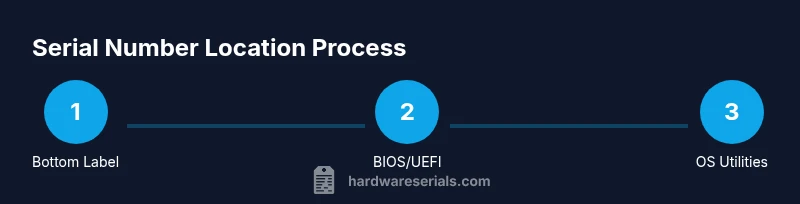
To get a laptop serial number, start with the physical label on the bottom or inside the battery compartment, then check the BIOS/UEFI, and finally use OS utilities or the manufacturer portal. If the label is missing, you can often find it in system information tools or on the original packaging. In rare cases, the firmware stores it.
Why you need the laptop serial number
A laptop serial number is more than just a sticker; it’s your gateway to warranty claims, service eligibility, and verifying ownership. According to Hardware Serials, serial numbers tie your device to purchase records, manufacturing details, and repair history. For professionals, a serial is essential when ordering parts, validating device provenance, or submitting support tickets. Knowing where to locate it saves time and reduces hassles when contacting support or registering the product. Whether you own a Windows notebook, a macOS MacBook, or a Linux workstation, the serial number serves as a unique identifier that links to model, batch, and manufacture date. This guide walks you through reliable methods to locate it, regardless of brand or era, so you can act quickly if you need service or verification.
Where to locate the physical label
Most laptops carry a serial on a sticker affixed to the bottom panel, sometimes under a removable battery. On newer ultrabooks, the label may be on the interior of the battery bay or under a service panel. The string typically begins with letters and includes digits, often 10-20 characters long. If you purchased a used device, inspect the box and user manual as well—the serial is usually printed there. If the label is worn, take a clear photo for later reference. Always cross-check the serial with another retrieval method to ensure accuracy, since stickers can peel or be replaced during maintenance. For privacy, do not share this number publicly unless you’re connecting with official support channels. Brand-specific labels vary, so be prepared to check under the lid or inside compartments on certain models.
BIOS/UEFI: locate during boot
The BIOS/UEFI stores hardware identifiers, including the serial number. Reboot and enter the firmware interface by pressing a vendor-specific key during startup (commonly F2, F12, Del, or Esc). Navigate to the System, Information, or Hardware tab to find the Serial Number field. If your device has a removable battery, some models show the serial under the battery area in BIOS rather than on the bottom label. Note that BIOS strings are read-only and should reflect the same value shown on the label. If you cannot access BIOS due to password protection, proceed with OS-based methods as a backup.
Using Windows, macOS, and Linux utilities
Windows: open Command Prompt or PowerShell and run commands like wmic bios get serialnumber or Get-WmiObject Win32_BIOS | Select SerialNumber. macOS: open About This Mac > System Report > Hardware and read Serial Number, or run system_profiler SPHardwareDataType in Terminal. Linux: use dmidecode -s system-serial-number (you may need root), or check /sys/devices/virtual/dmi/id/product_serial. Copy the serial value carefully and store it in a secure note. If commands produce no output, ensure your OS has the necessary permissions and that the CMOS/BIOS exposes the serial.
Check packaging, receipts, and vendor portals
If you still have the original box, a purchase receipt, or the vendor account portal, the serial is often listed there. Many manufacturers allow you to register devices and retrieve serials by entering the model and purchase data. For privacy, use trusted devices and avoid sharing screen content publicly when displaying serials. When you have the serial from multiple sources, cross-verify to detect inconsistencies.
Verifying the serial and warranty status
Once you have the serial, you can verify warranty status on the manufacturer’s site or a trusted hardware support portal. The Hardware Serials team notes that serial-based checks are usually the fastest way to confirm eligibility and service options. If the device is still under warranty, you may be asked for the model, purchase date, and proof of ownership. Save screenshots of warranty pages and note the dates for future reference.
Common issues and troubleshooting
Sometimes the serial is obscured or invalid due to hardware revisions, firmware updates, or region-specific variations. If you cannot locate a valid serial via any method, check alternate identifiers such as the model number, service tag, or SKU. Avoid guessing; contact the vendor’s support and provide as much information as possible (model, approximate purchase date, location). If the device is locked or password-protected, you may need to provide proof of ownership before they release sensitive data.
Privacy, safety, and best practices
Treat your serial like a password; don’t share it in public forums or insecure screenshots. Use secure storage like a password manager or encrypted notes. Create a standardized record that includes the serial, model, purchase date, and warranty expiration. Regularly back up this information and review it after hardware changes or OS upgrades.
Quick-start checklist for locating a laptop serial
- Check the bottom label and battery bay for the serial string.
- Boot into BIOS/UEFI to confirm the number.
- Run OS commands to verify across Windows, macOS, and Linux.
- Review packaging, receipts, and vendor portals for corroborating data.
- Record and securely store the serial for future reference.
With these steps, you’ll reliably identify your laptop serial number and keep it accessible for warranties, repairs, or asset management.
Tools & Materials
- Owner's manual or purchase receipt(Useful for confirming serial when other methods fail)
- Laptop with accessible bottom label or battery bay(Look for a sticker or etched string)
- Access to BIOS/UEFI(Power cycle and press the vendor-specific key)
- Operating system access (Windows/macOS/Linux)(Needed for OS-based retrieval commands)
- Secure storage for serial data(Use a password manager or encrypted notes)
Steps
Estimated time: Estimated total time: 10-15 minutes
- 1
Identify device specifics
Note the laptop model and current operating system. This determines which methods will work best and helps when cross-checking serials across sources.
Tip: If you’re unsure of the exact model, photograph the label area for later lookup. - 2
Inspect the physical label
Flip the laptop over and examine the bottom panel or under the battery bay for a sticker containing the serial.
Tip: If the label is damaged, take high-res photos from multiple angles. - 3
Try BIOS/UEFI during boot
Restart and press the common key to enter BIOS/UEFI (F2, F12, Del, or Esc). Find the System Information or similar tab to locate the serial.
Tip: If you’re unsure of the key, check the device’s manual or manufacturer support site. - 4
Windows: query the BIOS
Open Command Prompt or PowerShell and run wmic bios get serialnumber or Get-WmiObject Win32_BIOS | Select SerialNumber.
Tip: Run with administrator rights for full access. - 5
macOS: check hardware data
On macOS, go to About This Mac > System Report > Hardware, or run system_profiler SPHardwareDataType to reveal the Serial Number.
Tip: Copy exactly as shown; macOS may show a slightly formatted string. - 6
Linux: read system serials
In a terminal, use dmidecode -s system-serial-number (root may be required) or cat /sys/devices/virtual/dmi/id/product_serial.
Tip: If dmidecode is missing, install it via your package manager. - 7
Cross-check with packaging and receipts
Review the original box, purchase receipt, or manufacturer portal to corroborate the serial you retrieved.
Tip: Prefer multiple sources to confirm consistency. - 8
Verify warranty status
Enter the serial on the manufacturer’s site to check warranty status and service options.
Tip: Capture a screenshot of the result for records. - 9
Record and store securely
Document the serial along with model, purchase date, and warranty expiry in a secure location.
Tip: Use a password manager or encrypted note; back up regularly. - 10
Know when to contact support
If you still cannot locate a valid serial after trying all methods, contact the device’s manufacturer with proof of ownership.
Tip: Have your proof of purchase ready to speed up verification.
Frequently Asked Questions
Where is the serial number usually located on a laptop?
Most laptops place the serial on a bottom sticker or inside the battery bay. If the sticker is missing, BIOS/UEFI and OS utilities can reveal it. Always cross-check across at least two methods.
Most laptops have the serial on the bottom or inside the battery bay. If you can’t see it there, BIOS or your operating system can help you locate it, and you should verify with another method.
Can I find the serial number without turning on the laptop?
Yes. Look for the serial on the physical label on the bottom or under the battery. If unavailable, packaging and receipts often list the serial. Powering on allows BIOS/OS lookup as a backup.
You can often find the serial on the bottom label, even if the laptop won’t boot. If you can, check the packaging or receipts too.
What should I do if the label is damaged?
Photograph the label area from multiple angles and use BIOS/UEFI or OS utilities to confirm the serial. Contact support if the serial cannot be read from any source.
If the label is damaged, take clear photos and rely on BIOS or software tools to verify the number.
Is the serial number the same as the model number?
No. The serial number uniquely identifies your unit, while the model number identifies a product line. They can be different strings and serve different purposes in support and warranty contexts.
No, the serial is a unique device identifier, not the model number.
Can I trust third-party sites to verify warranty status?
Warranty checks are most reliable on the manufacturer’s official site. Third-party portals can be helpful but verify the source and compare with official data.
Check warranty status on the manufacturer’s site first, then corroborate with trusted portals if needed.
Do Macs use the same method to find the serial number?
Macs show their serial in About This Mac, System Report, or the Terminal via system_profiler. The same general approach applies: label, firmware, then software checks.
For Macs, check About This Mac or use system_profiler to find the serial.
Watch Video
Key Takeaways
- Locate the serial on physical labels first.
- Use BIOS/UEFI as a reliable secondary source.
- OS utilities provide cross-platform verification.
- Cross-check with packaging or vendor portals.
- Store serial securely for warranty and asset management.