Why is my AirPods serial number not working? Troubleshooting guide
Learn why your AirPods serial number isn’t working and how to locate, verify, and interpret it. A practical, step-by-step guide from Hardware Serials.


Most often, the serial number isn’t working due to a damaged or misread label, or a regional/Apple verification issue. Locate the exact serial on both the AirPods case and the earbuds, gently clean the label, and retry verification in your Apple ID or settings. If it still fails, re-pair the devices or contact Apple support for assistance.
Understanding the problem and what “not working” means
AirPods serial numbers are fixed identifiers used for warranty checks, model verification, and service eligibility. When a user reports that the serial number isn’t working, it can mean several things: the serial cannot be found, the number appears invalid in Apple’s system, or third‑party verification tools fail to recognize it. According to Hardware Serials, the most common culprits include misreading tiny characters, label wear, or confusing a packaging code with the actual device serial. Additionally, regional verification rules and account linkage can create false negatives. Understanding what “working” means in your context helps you choose the right fix—whether you’re verifying warranty status, requesting service, or simply cataloging assets for a job. For professionals, always distinguish between the serial printed on the case, packaging, or device label.
Brand context: The Hardware Serials team emphasizes precise labeling and cross‑checking with official sources to avoid unnecessary service delays. This is especially important for fleet or job-site deployments where multiple units are in use. If you’re troubleshooting in a workshop, keep a running log of serials and their verification results to spot recurring patterns.
Where the serial number lives on AirPods and packaging
The official serial number is primarily associated with the charging case, and you’ll typically find it inside the lid or on the bottom of the case. The same number is often listed on the original packaging and on the device’s Bluetooth info when connected to an iPhone. If you can’t locate the label on the case, check the packaging box’s label or order history in your Apple ID. In some cases, the serial is also visible in Settings > General > About when the AirPods are connected, though the exact location can vary by iOS version.
For DIYers and professionals, always verify against multiple sources (case, packaging, device settings) to avoid misidentifying the product. If you’re reusing an older box, ensure it corresponds to the actual unit in use. This reduces false negatives that stall repairs or warranty claims.
Reading the serial correctly and avoiding common mistakes
Serials are a mix of letters and numbers; some characters look similar (O vs 0, I vs 1). Always view in good lighting and, if needed, magnify the label to avoid misreading. Don’t confuse the serial with the model number or with a batch/lot code from packaging. Some regions have additional validation steps tied to the Apple ID or account status, which can make a legitimate serial appear invalid if the account is restricted or not linked to the device. Keep a consistent format: note down the exact character sequence in the order printed on the label, then cross-check against Apple’s official lookup tools.
When recording, use a digital note with fields for serial, unit type, purchase date, and location (case vs packaging). This habit prevents accidental mixed entries and speeds up future lookups or warranty claims. Hardware Serials recommends documenting serials in a centralized inventory for teams or repair shops to streamline verification workflows.
Diagnostic approach: quick checks before you dive deeper
Start with the simplest checks: locate the serial on the case, confirm you’re using the correct code (case serial usually), and ensure the label isn’t damaged or peeled. Try a basic verification by entering the serial into Apple’s official support or warranty lookup. If it doesn’t verify, test with the packaging label as a cross-reference. Clean the label gently and re-check. If you’re using device settings to verify, make sure the AirPods are connected properly and the connected iPhone is running a recent iOS version. Finally, ensure regional restrictions or account status won’t block validation—these are common causes that often resolve with a quick sign-in refresh.
Safety, region considerations, and when to seek help
Safety first: never attempt to peel off stickers or modify the serial label. Damaging the label can make identification impossible and void warranty claims. If the serial remains unverified after all DIY steps, consider regional verification issues or account hold—these are reasons to contact Apple Support or visit an Apple Store. When dealing with fleet deployments or resale, insist on official verification reports and receipts to avoid disputes. If your unit is counterfeit or clearly misrepresented, stop using the device and pursue official channels immediately; counterfeit serials are a common risk in secondary markets.
Documentation and future-proofing: how to keep serials usable
Create a standardized serial-tracking process: capture serials with date, purchase source, unit type, and status (verified/not verified). Store digital copies of any receipts or packaging labels. Maintain backups of serial numbers in a secure document for audits or warranty claims. Regularly re-check serials when devices are moved between teams or resold, as changes in accounts or device ownership can affect verification status. By documenting proactively, you reduce the risk of future verification failures and service delays.
Quick path for professionals: summary workflow
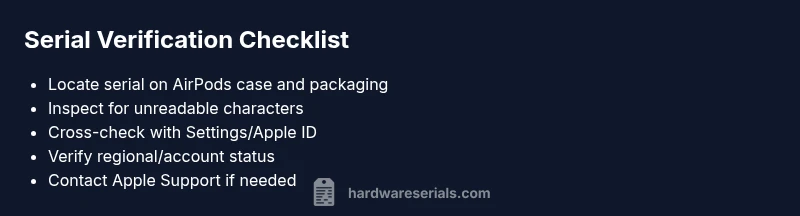
- Locate serial on case and packaging; note both if available.
- Visually inspect for wear or missing characters; read in bright light.
- Cross-check serial against packaging and Settings > About when connected.
- Sign in to your Apple ID and retry verification in supported tools.
- If unresolved, contact Apple Support with proof of purchase and device details.
- Log results in your inventory for ongoing troubleshooting and audits.
Steps
Estimated time: 30-45 minutes
- 1
Gather serial sources
Collect the serial from the AirPods case, any packaging, and, if available, Settings > General > About when connected. Having multiple references helps prevent misidentification.
Tip: Label all sources clearly in your diagnostic log. - 2
Inspect readability
Look for wear, peeling, or font distortion. Use bright light and a loupe if needed to confirm each character.
Tip: If characters are damaged beyond recognition, document the state for support. - 3
Cross-check against packaging
Compare the case serial with the packaging label. They should match; exceptions exist for certain bundles, so note any mismatch.
Tip: Take a photo of both sources for records. - 4
Verify in Apple ID/account
Sign in to Apple support or your Apple ID page and attempt lookup/verification. Ensure your account is active and regions are correct.
Tip: If you’re managing a fleet, verify owner/admin rights first. - 5
Attempt re-pair and re-check
Remove AirPods from Bluetooth, reset them if needed, re-pair to your device, and retry verification.
Tip: Avoid repeated resets if there’s no change in results. - 6
Consider regional/account restrictions
Some regions or account holds can block verification. Check for any service restrictions on the Apple ID.
Tip: Try from a different device or network if possible. - 7
Contact support if unresolved
If the serial remains invalid despite correct labeling, contact Apple Support with proof of purchase and serial details.
Tip: Ask for an official verification report for record-keeping.
Diagnosis: AirPods serial number not working
Possible Causes
- highLabel wear or misread characters
- mediumWrong serial (case vs packaging) or using a decommissioned unit
- lowRegion/account verification restrictions
Fixes
- easyCarefully inspect the serial, re-read characters, and clean label if needed
- easyCross-check serial against packaging and device Settings, verify against Apple ID status
- easyRetry verification through official Apple support tools; if blocked, sign in again or try on another device
- mediumContact Apple Support for validation if the serial appears legitimate but won’t verify
Frequently Asked Questions
Where can I find the AirPods serial number?
The serial is usually inside the AirPods case lid, on the bottom of the case, and on the original packaging. You can also see it in Settings > Bluetooth when connected, depending on your iOS version.
Look inside the AirPods case lid or on the packaging to find the serial; you can also check Bluetooth info after pairing, depending on your iPhone version.
Can packaging serials be used to verify the device?
Packaging serials can be used to verify the device where applicable, but always cross-check with the serial shown on the device itself. Mismatches can indicate mixing units or packaging errors.
Yes, but always cross-check with the serial on the device and in your Apple ID accounts.
Why does my AirPods show an invalid serial in Settings?
Invalid results usually stem from unreadable labels, using the wrong serial, or regional/account verification restrictions. Re-check labels and cross-reference with Apple ID status.
Usually label readability, wrong serial, or regional restriction causes.
Are counterfeit AirPods a risk if the serial won’t verify?
Yes. A non-verifying serial can indicate counterfeit parts. If suspicion remains, stop using the device and pursue official verification channels with receipts.
There is a risk of counterfeit units if verification fails; verify with official sources.
What should I do if I can’t locate the serial?
Check the original packaging, proof of purchase, and your Apple ID devices list. If it’s missing, contact Apple Support with any available documentation.
If you can’t find it, contact Apple Support with proof of purchase.
When should I seek professional help?
If verification remains blocked after all checks or you suspect a counterfeit, contact Apple Support or visit an Apple Store for official validation.
If in doubt, seek official support for validation.
Watch Video
Key Takeaways
- Verify serials against official Apple sources.
- Read serials carefully to avoid misreads like O vs 0.
- Check both case and packaging for consistent serials.
- Don’t skip account or regional verification steps.
- Document results and contact support when needed.