How to Check Serial Number on AirPods
Learn exactly where to find the AirPods serial number, whether on the case lid, engraving, or via iPhone/iPad and Mac settings. This Hardware Serials guide provides step-by-step instructions, tips, and authentic sources to verify serial numbers and warranty.


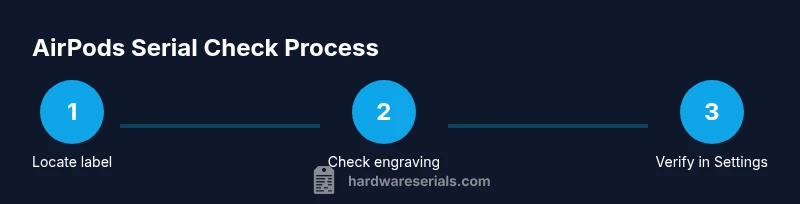
You can check the AirPods serial number by inspecting the case lid label and, if needed, the AirPods themselves, then confirming the number in your device or packaging. On iPhone or iPad, open Settings > Bluetooth > (AirPods) > About to view the serial; on a Mac, use System Settings > Bluetooth > AirPods > About. Hardware Serials notes this method works across generations.
Why knowing the serial matters
Serial numbers are more than just a sticker; they are the unique fingerprint of your AirPods. They underpin warranty eligibility, service history, and authentication against counterfeit products. For DIYers and professionals, confirming the serial across sources reduces the risk of errors during repairs or warranty claims. According to Hardware Serials, the serial number is a key reference that helps you verify model, region, and production batch before contacting support or ordering parts. Reading the serial from multiple places increases accuracy and minimizes back-and-forth with customer service.
Where to locate the serial on AirPods
Apple places serial numbers in a few reliable places. The most common is the label on the underside of the charging case lid. If you can read the label clearly, that is usually the fastest path to the serial. Some models also show a serial engraving on the AirPods themselves, typically near the stems or inside the charging case. In addition, the original packaging includes a model information label with the serial. If you bought refurbished or from a reseller, you should still be able to locate a serial using these same locations.
Reading the serial on the charging case lid
Open the AirPods case, flip the lid open, and look for a small printed string on the inner rim of the lid. This label is the official serial number assigned to yourAirPods family. Read carefully in good lighting, and if the label is worn, try tilting the case slightly to catch the light. If you cannot read the label, move to the other locations mentioned in this guide. Keep the case flat and avoid fingerprints on the label for a clear read.
Reading the serial on the AirPods themselves
Certain AirPods generations include a serial engraving on the AirPods themselves, usually near the stem. If you see a short string of alphanumeric characters etched into the metal, this is the serial for that individual unit or pair. The engraving is small and may require good lighting or a magnifier. When in doubt, cross-check the engraving with the case lid label or the packaging to confirm consistency across components.
Checking the serial in iOS/iPadOS
You can confirm the serial quickly on your iPhone or iPad. Go to Settings, then Bluetooth, and locate your AirPods in the list. Tap the device name and look for an About option or a details screen that shows the serial. If your device groups AirPods as a single device, the serial may appear under an About or Model section. This method is convenient when you do not have the packaging handy or the label is difficult to read.
Checking the serial on macOS
Mac users can check the AirPods serial through System Information. Open the Apple menu, select About This Mac, then click System Report. In the Bluetooth section, locate your AirPods and read the serial listed there. If you use a different approach, you can also check Bluetooth preferences for a connected device and look for a serial field. This path is helpful when your iPhone or iPad is unavailable.
Verifying serial and authenticity online
Once you have the serial, you can verify ownership and warranty on Apple’s official pages by entering the serial in the Check Coverage tool. This step confirms whether your AirPods are eligible for support, warranty repairs, or replacements. If you have questions about the model, region, or serial validity, contact Apple Support with the serial handy. Hardware Serials emphasizes using official sources to avoid scams or counterfeit risk.
Interpreting the serial and warranty implications
Serials encode information about model family and production period, which Apple uses to determine support eligibility. A valid serial typically unlocks warranty status, service options, and part compatibility. If your serial does not appear in Apple’s database or is flagged as invalid, avoid making claims or ordering parts until you confirm authenticity with an official source. This verification protects both you and service technicians from misidentification and potential fraud.
Troubleshooting unreadable labels and edge cases
If the label is damaged or unreadable, try the other locations (AirPods engraving, packaging, or device-based lookups). If you still cannot read the serial, consider using a magnifier, cleaning the area gently with a soft cloth, or checking purchase receipts or invoices for model details. In edge cases, contact Apple Support directly with your purchase information and any photos you can provide to help identify the serial.
Best practices for recording and storing serials
Maintain a dedicated note or secure digital record of your AirPods serials, including the model, purchase date, and warranty status. Store receipts and packaging copies alongside the serials for quick reference in the future. Regularly update your records whenever you acquire a new AirPods unit or replacement parts. Keeping an organized archive reduces confusion during service or warranty claims and speeds up assistance from support channels.
Tools & Materials
- AirPods or AirPods case(Read serial from lid label or engraving)
- iPhone or iPad(To view serial in Settings)
- Mac computer (optional)(To view serial via System Settings)
- Original packaging or box label(Contains printed serial)
- Good lighting source(Helps reading small print)
- Magnifier or loupe (optional)(Read tiny engravings more clearly)
Steps
Estimated time: 15-25 minutes
- 1
Gather items
Collect AirPods, the charging case, the device you will use to read the serial, and the original packaging or label. This ensures you have all sources in one place and can cross-check results quickly.
Tip: Keep everything in one place to avoid missing a serial across sources. - 2
Inspect the case lid label
Open the case and look at the underside of the lid for the printed serial. Read it carefully in bright light and note any ambiguous characters that could look like o or 0 or l or 1.
Tip: If the label is worn, tilt the case and use gentle light from different angles. - 3
Check for engraving on the AirPods
Inspect the AirPods themselves for any small serial engraving near the stems or on internal surfaces. This can be more challenging to read but provides an additional cross-check against the lid label.
Tip: Use a magnifier if needed and avoid rubbing or scratching the surface. - 4
Read serial in iOS/iPadOS
On your iPhone or iPad, go to Settings, then Bluetooth. Find your AirPods in the list, tap their info, and locate the serial in the About or details section. This is the fastest way when the packaging is unavailable.
Tip: If you see only model information, scan the screen for a more detailed section or try reconnecting the device. - 5
Read serial on macOS
Open System Settings, select Bluetooth, and locate AirPods in the device list. Use System Information if needed to view a dedicated serial field associated with the AirPods.
Tip: Mac paths can vary by macOS version; use System Report if the simple view lacks details. - 6
Verify with Apple Check Coverage
Enter the serial on Apple’s official Check Coverage page to confirm warranty status and device eligibility. This ensures the serial is valid and associated with the correct model.
Tip: Use the official site only to avoid scams or incorrect readings. - 7
Document and store securely
Record the serial in a dedicated location, along with model, purchase date, and warranty status. Store the packaging and receipts where you can access them when needed.
Tip: Create a backup copy (digital and physical) to prevent loss.
Frequently Asked Questions
Where is the AirPods serial number located?
The serial is usually on the case lid label and may also be engraved on the AirPods themselves or printed on the original packaging. You can also view it in Settings on your iPhone or iPad, or via System Information on a Mac.
The serial is typically on the case lid, can be engraved on the AirPods, or shown in Settings. Check the packaging and your Mac for another way to view it.
Can I read the serial number without the AirPods?
Yes. The serial appears on the case lid label and on the original packaging. If you have access to a connected device, you can also read it in the device's Bluetooth details.
Yes, you can read the serial from the case lid label or the packaging, or from the Bluetooth details on a connected device.
What if the serial number is unreadable?
Try the other locations such as engraving on the AirPods, the packaging label, or the packaging itself. If still unreadable, contact Apple Support with purchase details.
If unreadable, check engraving or packaging. If still unclear, reach out to Apple Support with your purchase details.
Is the serial the same for both AirPods in a pair?
In most cases, a single serial covers the whole AirPods set, but some components may have individual IDs. Use the primary serial from the case lid as the main reference.
Typically one serial covers the pair, but refer to case lid for the main reference.
How can I use the serial for warranty checks?
Enter the serial on Apple’s official Check Coverage page to confirm warranty status and eligibility. This helps determine if service or parts are covered.
Enter the serial on Apple's Check Coverage page to confirm warranty status.
What should I do if I lose the serial or packaging?
Try reading from the case lid or engraving on the AirPods, and check any purchase receipts. If unavailable, contact Apple Support with purchase details for assistance.
If the serial is lost, check the lid or engraving, then contact Apple Support with your proof of purchase.
Can the serial be used to identify the model?
Yes, serial numbers encode model information that Apple uses to determine compatibility, service options, and region. Use the serial along with model information when seeking support.
The serial helps identify the model and regulates service options, so keep it handy.
Should I trust third-party tools to read the serial?
Prefer official methods to avoid inaccurate readings. Use Settings, packaging, or Apple’s Check Coverage page for verification.
Stick with official sources like Settings and Apple’s Check Coverage for accuracy.
Watch Video
Key Takeaways
- Identify serials from multiple trustworthy sources
- Use iOS or macOS paths for quick lookups
- Verify with Apple Check Coverage to confirm authenticity and warranty
- Keep a secure record of serial numbers for future service