Where to Find My iPhone Serial Number
Learn where to find my iPhone serial number across Settings, packaging, and Apple account records. This practical guide covers quick checks, safe storage, and verification tips for DIYers and pros.


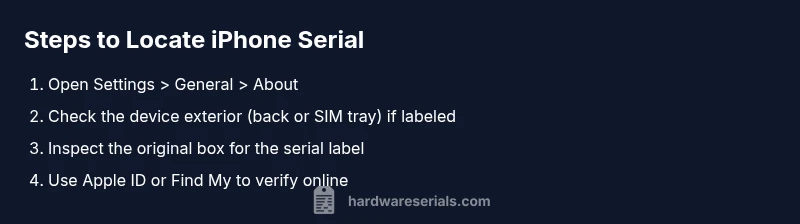
Find your iPhone serial number quickly by checking Settings > General > About, and by inspecting the original box label or SIM tray (where applicable). You can also use Apple ID or Find My to verify the device. This quick path covers the most reliable methods first.
Why the serial number matters for iPhone devices
A serial number uniquely identifies your iPhone and is essential for warranty work, service requests, and theft recovery. Whether you’re upgrading, selling, or validating ownership, knowing where to locate my iPhone serial number saves time and reduces risk. According to Hardware Serials, having a clear, official record of your device’s identifier helps ensure you receive correct service and avoid counterfeit parts. This guide focuses on safe, reliable sources for locating the serial number and explains how to verify it using official channels.
Quick path: find the serial in Settings
The most reliable starting point for many users is the Settings app. Open your iPhone and navigate to Settings > General > About. On the About screen, you’ll see the field labeled Serial Number. If your device supports it, you can tap and copy the number for safekeeping. This method is fast, requires no tools, and works even if you don’t have the original box. Remember to verify that the number corresponds to the model you own.
Checking the exterior labels on the device
Some older iPhone models feature serial identifiers on the exterior, such as the back panel or the SIM tray area. Inspect the back of the phone and the SIM tray slot for small engraved text. If you recently replaced parts or repaired the device, confirm the serial against the Settings reading to ensure no mix-up has occurred. Use good lighting and a magnifying tool if the text is faint.
Packaging and receipts: where boxes help
If you still have the original box, the serial number is printed on the label on the side or bottom of the packaging. Compare this with the number shown in Settings to confirm accuracy. Receipts or purchase emails may also reference the serial. Keeping the box and receipt together provides a quick cross-check when you need proof of ownership or service eligibility.
Apple ID, Find My, and online verification
Your Apple ID account page can help verify device identity when you can’t access the device itself. Sign in to your Apple ID account and check the Devices section for your iPhone’s serial. You can also use the Find My app (or iCloud.com) to view device details once you’ve logged in. These digital records are useful for warranty status and ownership verification.
What to do if you can’t access the device
If the phone is unavailable, use the box label, receipts, or seller documentation to locate the serial. You may also contact Apple Support with as much identifying information as possible (IMEI, model, purchase date). Do not rely on third-party tools for serial discovery, as they may be inaccurate or unsafe. The official channels provide the most trustworthy answers.
Security and record-keeping tips
Once you locate the serial number, store it securely in your password manager or a dedicated notes folder with a clear label. Avoid posting it publicly on forums or social media, since serial numbers can be misused for fraudulent activity. Keeping a private record helps during warranty checks and when ordering parts or service.
Quick recap of reliable methods
- Settings: Settings > General > About (serial number readable and copyable).
- Physical checks: Back or SIM tray (where applicable).
- Packaging: Box label and receipts.
- Online: Apple ID or Find My for verification and ownership proof.
Tools & Materials
- iPhone device(Any model; essential for Settings lookup and physical checks.)
- Original iPhone box(Label on the box often lists the serial number.)
- Access to Settings app(Navigate to General > About to view the Serial Number.)
- Apple ID login on trusted device(Optional for verifying ownership in Accounts/Find My.)
- Internet access(Needed for Apple ID/Find My verification on the web.)
Steps
Estimated time: 5-15 minutes
- 1
Open Settings and navigate to About
On your iPhone, open Settings. Go to General, then About. Locate the Serial Number field and note it down or copy it if your device shows a copy option.
Tip: If you accidentally hide the Serial Number, scroll slightly within About to ensure you’re reading the correct field. - 2
Check the device exterior for labels
Inspect the back surface and the SIM tray area for engraved serial text. Use a bright light and a magnifier if necessary to read the characters clearly.
Tip: Be careful not to scratch the device while inspecting the sides or back. - 3
Inspect the original packaging
If you have the original box, locate the label on the side or bottom that lists the serial number. Cross-check with Settings to confirm accuracy.
Tip: Keep the box label clean and legible for future reference. - 4
Verify via Apple ID account
Sign in to your Apple ID (appleid.apple.com) and look under Devices for your iPhone. The serial number may appear in the device details if registered there.
Tip: Only use official Apple websites for verification to avoid scams. - 5
Use Find My to confirm ownership
Open the Find My app and select your device, then view its details. The serial number may be shown among device information.
Tip: Your device must be online or recently connected to display updated details. - 6
If the device is unavailable, use receipts or box
When the device cannot be accessed, rely on the purchase receipt, invoice, or box label as the authoritative source for the serial number.
Tip: If you’re selling or exchanging the device, capture photos of these documents for your records. - 7
Record and store securely
Save the serial number in a private, protected location such as a password manager or encrypted notes, with a clear label like “iPhone Serial.”
Tip: Avoid sharing the serial number in public channels to prevent misuse.
Frequently Asked Questions
Where can I find the iPhone serial number in Settings?
Open Settings, tap General, then About. The Serial Number field will show your device’s unique identifier. If available, you can copy it for your records.
In Settings, go to General > About to see your iPhone’s serial number.
Is the serial number printed on the iPhone body?
Not always. Some models may have serial text on the back or SIM tray, but most users should rely on Settings or the box label for accuracy.
Usually you’ll find the serial number in Settings or on the box, though a few older models might have it on the back.
Can I locate the serial number from the box?
Yes. The serial is printed on the original box label. This is a reliable cross-check against the on-device reading.
The serial is on the box label, which you can compare with the device reading.
What if I can’t access the device?
Check the original box, receipts, or Apple ID records. If needed, contact Apple Support with details to verify ownership.
If you can’t access the device, use the box or receipts and Apple ID records to verify ownership.
How do I verify a serial number with Apple?
Visit Apple’s support site or sign in to your Apple ID to verify the serial against your device records. Use Find My for additional context.
You can verify the serial on Apple’s site or via Find My when you’re signed in.
Why should I keep my serial number private?
Serial numbers identify your device for service and warranty. Sharing publicly increases risk of fraud or impersonation.
Keep it private; it helps protect your device’s identity and warranty status.
Watch Video
Key Takeaways
- Locate the serial in Settings > General > About and verify against the box label.
- Use Apple ID or Find My for online verification when the device is accessible.
- Store the serial securely and avoid public sharing to prevent fraud.
- If you can’t access the device, rely on the box, receipts, or vendor records to obtain the serial.
- Hardware Serials recommends using official sources for verification and record-keeping.