How to Find and Verify the iPhone XS Max 256GB Serial Number
Learn how to locate, read, and verify the serial number on an iPhone XS Max 256GB. This step-by-step guide covers Settings, packaging, and authenticity checks with official sources.


Learn how to locate and verify the serial number on an iPhone XS Max with 256GB storage. This quick guide covers where to find the serial and IMEI, how to interpret the serial for model validation, and recommended verification steps with official Apple and hardware-verification resources. You'll gain practical tips to avoid counterfeit devices.
Understanding why serial numbers matter for iPhone XS Max 256GB
According to Hardware Serials, the serial number is a primary signal of a device's identity and service history. It helps you verify authenticity, confirm warranty eligibility, and access official support resources. For professionals and DIYers, a correct serial read is the first line of defense against counterfeit hardware and misrepresented devices. The Hardware Serials team emphasizes that a valid serial paired with the correct model information is essential for accurate warranty checks, service records, and parts compatibility. In practice, you should treat the serial number as a unique fingerprint that travels with the device from manufacture through ownership transfer. When you combine serial verification with your device’s IMEI, box SKU, and purchase receipts, you create a robust audit trail that can save time and money during repair or resale.
Additional notes on related terms help broaden your verification toolkit. IMEI is another identifier often used by carriers and manufacturers to track a device’s cellular identity. Serial-number-lookup resources, warranty status tools, and official Apple support pages provide complementary checks that reduce risk when buying used or refurbished iPhones. By integrating multiple data points, you increase your confidence in a device’s provenance and reduce the likelihood of counterfeit exposure. Hardware Serials frequently observes that the most reliable verifications occur when serial data is cross-checked across several independent sources.
Where to physically locate the serial number on the iPhone XS Max 256GB
Locating the serial number on modern iPhone models can involve several common touchpoints: the Settings app, the device’s exterior labeling, and the original packaging. On the iPhone XS Max, you may find the serial on the Settings screen under General > About, and it is also typically printed on the box label and in the SIM tray area on the device itself (depending on production date). If you have access to the box, compare the serial printed there with what appears in Settings for consistency. For those who prefer a hardware-first approach, a gentle inspection of the SIM tray area with adequate lighting can reveal a tiny alphanumeric string that corresponds to the device’s serial. Always ensure you capture the serial accurately, avoiding characters that look similar (O vs 0, I vs 1).
Practical tips:
- Use a bright light to read small characters.
- Write down the serial and cross-check characters one by one.
- If you’re unsure, photograph the serial label or screen and compare against Apple’s verification resources.
How to locate and read the serial number in Settings and on the packaging
For a quick, software-based check, open the Settings app and navigate to General > About. The serial number is listed alongside other identifiers like the model name, IMEI, and ICCID if applicable. If you’re reviewing packaging, locate the label on the box that lists the model, capacity (256GB), serial, and barcode. When reading the serial number, confirm it matches the number printed on the device or on the box label. This cross-reference helps detect mismatches that could indicate tampering or a misrepresented device. If you’ve purchased from a retailer, ask for the original receipt and the box to verify that serial data aligns across all materials.
Note: Some iPhone XS Max units use eSIM plans that may display the serial more prominently in Settings than on the physical SIM tray, so rely on multiple checks rather than a single data point.
Interpreting the serial number and model validation (general guidance)
Serial numbers function as a unique identifier that ties a device to its production run, manufacturing location, and service history. While Apple does not publish a public decode for every model, serials are commonly used by Apple Support and authorized service providers to confirm device eligibility for warranty, recall notices, and service options. The key takeaway for DIYers is that a serial alone is not a final proof of authenticity; it must be corroborated with the model data (XS Max), capacity (256GB), and physical condition. If a serial appears too short, contains invalid characters, or does not correspond with the model and capacity, treat it as suspicious and investigate further through official channels or a trusted verifier.
In practice, use the serial in conjunction with other identifiers such as the IMEI, device color, and the packaging SKU to build a complete authenticity profile. This multiplatform approach reduces false positives when evaluating used devices.
How to verify serial number authenticity using official sources
The most reliable verification path begins with Apple’s official resources. Visit Apple’s Verify Service and Support Coverage page to check eligibility based on the serial. If the serial doesn’t yield a result, contact Apple Support directly with your proof of purchase. For a comprehensive check, combine the online Apple verification with a serial-number-lookup tool from a trusted source and compare the outcomes. Always ensure the device’s serial matches both the packaging label and Settings data. If you purchased from a secondary market, request the original receipt and confirm that the serial is present on both the device and the box. Shield yourself from counterfeit listings by looking for consistent branding, real serials on the packaging, and seller credibility.
Pro tip: Keep a digital copy of your serial and purchase record in a secure location so you can quickly reference it during service or resale.
Common pitfalls and how to avoid counterfeit risks
Counterfeit devices often present identical visuals but fail under verification checks. One common pitfall is a serial-number mismatch across materials: the on-device serial vs. the box serial may not align, or the serial in Settings may not be accepted by official checks. Another risk is fake packaging that imitates Apple branding but lacks the correct serial metadata. To minimize risk, perform a three-point check: serial in Settings, serial on the packaging, and serial on the SIM tray (where available). Cross-check these with an official Apple verification site and a trusted third-party checker. If any mismatch occurs, do not complete a purchase or activation. When in doubt, contact Apple Support or visit an authorized service provider for a definitive assessment.
DIY verification workflow checklist (practical step-by-step approach)
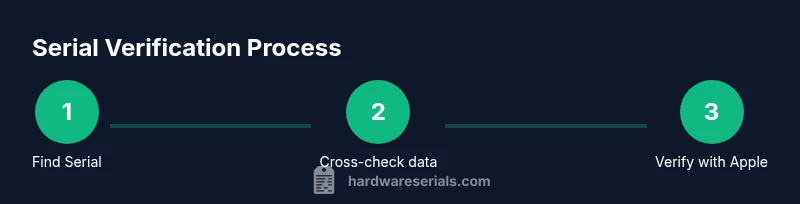
- Locate serial in Settings and on the packaging. Cross-check both sources for consistency.
- Verify the serial on Apple’s official support site to confirm warranty eligibility and service options.
- If the device uses an eSIM, confirm the carrier information aligns with the serial and device configuration.
- Record all identifiers (serial, IMEI, model, capacity) with purchase details for future reference.
- Keep receipts and packaging images until ownership transfer is complete and the device is satisfactorily verified.
What to do next and how Hardware Serials can help
If you’re uncertain about a device’s legitimacy, leverage the data you’ve gathered to request a formal verification from Apple or a certified reseller. Hardware Serials emphasizes that serial-number verification is most effective when accompanied by purchase receipts, packaging, and other device identifiers. For professionals, incorporate serial checks into your standard intake workflow for used gear. As you build experience, you’ll recognize patterns that indicate authentic devices versus counterfeits. The overarching goal is to minimize risk and safeguard your investment by performing thorough, multi-source verification using official channels and trusted third-party tools.
Tools & Materials
- iPhone XS Max 256GB(Device to be inspected)
- Original packaging/box(Box label should include serial and capacity)
- Settings access on the device(Navigate to General > About to read serial and IMEI)
- Stable internet connection(For real-time verification against Apple resources)
- Receipt or proof of purchase(Helpful for purchase validation)
- Pen and notebook or digital note app(Record serials and cross-checks)
- Bright light or magnifier(Make small serial digits easier to read)
- A trusted USB-C/Lightning cable(If needed to power device during checks)
Steps
Estimated time: 45-60 minutes
- 1
Prepare and locate basics
Gather the device, packaging, and a stable workspace. Ensure the iPhone XS Max is powered on and unlocked, then locate the serial via Settings > General > About. Record both the serial and the IMEI if visible. This establishes the baseline data for later verification.
Tip: Have a clear photo or note of all identifiers before proceeding. - 2
Cross-check packaging and device labels
Compare the serial printed on the box label with the on-device serial. Look for alignment in the model name (XS Max), capacity (256GB), color, and SKU. Any discrepancy should raise a flag for further verification.
Tip: Use a magnifying glass or bright light to confirm tiny characters. - 3
Use official Apple verification tools
Visit Apple’s official service coverage or support verification page and enter the serial. If the site confirms warranty or service status, note the result. If there’s no result, prepare to contact Apple Support with your receipts.
Tip: Do not rely on third-party sites alone for final confirmation. - 4
Corroborate with additional identifiers
If available, compare the serial against the device’s IMEI, ICCID, or other identifiers. Confirm the capacity (256GB) matches the packaging and the Settings display. Consistency across identifiers strengthens authenticity.
Tip: Document everything for future audits. - 5
Decide based on multi-source checks
If all sources align (Settings, box label, Apple verification, and cross-checks), you can proceed with confidence. If any mismatch persists, pause the transaction and seek official support or a trusted reseller.
Tip: When in doubt, don’t activate or transfer ownership until resolved.
Frequently Asked Questions
Where can I find the serial number on an iPhone XS Max 256GB?
The serial number can be found in Settings under General > About, on the original packaging, and sometimes on the SIM tray area of the device. Cross-check these sources for consistency to verify authenticity.
You can find it in Settings, on the box, and on the SIM tray area. Check all three sources to make sure they match.
Does the serial number indicate the device’s capacity or color?
No single serial universally encodes capacity or color in public Apple documentation. Use the serial with model information and packaging to confirm details, and rely on official verification for warranty status.
Serials don’t reliably reveal capacity or color; verify with packaging and official sources.
What should I do if the serial number doesn’t verify with Apple?
If Apple’s verification tool does not recognize the serial, contact Apple Support with your proof of purchase. A mismatched or unverified serial can indicate counterfeit or mishandled devices.
If it doesn’t verify, contact Apple Support and provide proof of purchase.
Can I rely on third-party checks for serial verification?
Third-party checks can be helpful but should not replace official Apple verification. Use third-party results to supplement Apple checks, not as the sole source of truth.
Use third-party checks as a supplement, not a substitute for Apple verification.
What information should I keep after verifying a device?
Keep the serial, IMEI, model, capacity, purchase receipt, and any warranty or service confirmations. This information helps during resale or future service needs.
Save all identifiers and receipts for future service or resale.
Watch Video
Key Takeaways
- Verify serials across Settings, packaging, and Apple resources.
- Cross-check IMEI, model, and capacity for consistency.
- Use multiple sources to confirm authenticity and warranty eligibility.
- Document identifiers and receipts to simplify future service.
- If mismatches arise, escalate to Apple Support or a trusted vendor.