How to Check If an iPhone Serial Number Is Real
Learn a thorough, step-by-step method to verify an iPhone serial number using official Apple resources, device details, and purchase records. Ideal for DIYers and pros seeking accuracy and confidence.


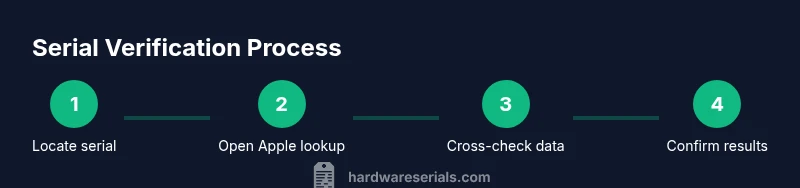
This guide helps you verify whether an iPhone serial number is real and active by cross-checking Apple’s official records, the device’s IMEI/MEID, and activation status. You’ll need the iPhone, its serial number, access to Apple’s check coverage page, and a stable internet connection. Basic safety considerations are also covered. This quick start helps you decide whether to pursue a return, service, or replacement.
Why verifying iPhone serials matters
According to Hardware Serials, verifying a serial number is a critical first step in assessing authenticity, protecting warranties, and avoiding scams. Counterfeit iPhones and damaged units sometimes display serials that look legitimate but don’t correspond to Apple’s records. A real serial should align with Apple’s production date ranges, model identifiers, and the device’s activation status. When serials don't match, or the device cannot be activated with Apple services, you have strong signals of a counterfeit, a refurbished device passed off as new, or a unit with altered identifiers. For professionals, this process reduces risk when buying used inventory, auditing refurbishment shops, or validating gifts and returns. For DIYers, it saves time and money by stopping a purchase that would later fail activation or service. Always start with the serial, then corroborate it with the IMEI/MEID, model details, and ownership records. In short, serial verification is the gateway to trustworthy service, legitimate warranties, and accurate device history.
What makes a serial real vs fake
Real iPhone serials should be unique identifiers tied to a specific production batch and device configuration. Look for consistency across the device’s claims (model, color, storage) and Apple’s records. Features like format, length, and characters are designed to deter easy forgery, but the strongest signals come from Apple’s official lookup results and activation status. If a serial appears valid on one screen but fails a second cross-check (IMEI/MEID, warranty, or activation), treat it as suspect and investigate with caution. Always cross-verify against multiple data points instead of relying on a single source.
How to find the serial number on an iPhone
Locating the serial on an iPhone is straightforward: go to Settings > General > About to see the serial number. If the device is missing access, check the original packaging or the SIM tray label on some models. For devices without screen access, you can retrieve the serial by logging into your Apple ID account and viewing the device list. Capture a photo or note the serial clearly, then compare it to the box label and packaging. Keep in mind that counterfeit products may display mismatched serials across packaging and device surfaces, so consistency is key.
Use Apple’s official lookup tools
Apple provides official resources to verify device details. Start with Apple’s Check Coverage page to confirm warranty status and service options associated with the serial. If the model, color, or capacity shown there doesn’t match the device you’re inspecting, the serial is likely invalid. For activation checks, you may be prompted to sign in with your Apple ID to see ownership status and activation eligibility. Always use Apple’s official domains to avoid phishing or counterfeit sites. Document the results with a screenshot for records.
Cross-check IMEI/MEID and model number
The IMEI/MEID is another independent device identifier. On most iPhones, you can view IMEI under Settings > General > About, or on the SIM tray for some models. Dialing *#06# on the device will reveal the IMEI on screen as well. Compare the IMEI/MEID to the serial’s claims and ensure the model number (e.g., iPhone model family) and storage configuration match the physical device. Discrepancies between serial and IMEI/MEID, or a mismatched model, are major red flags.
Verify against device identifiers
Beyond the serial, verify the device’s model number, color, capacity, and regional variant. Apple’s records include model identifiers that align with production regions and configurations. If you notice inconsistencies—such as a model not offered in the serial’s claimed region or a capacity option that isn’t available for the model—this is a strong indicator of a non-genuine serial or a misrepresented device. Keep a record of each identifier for future reference.
Activation status and warranty check
For a serial to be considered real, it should support actual activation with Apple services and appear in the Check Coverage results. Enter the serial on Apple’s official page to verify warranty status and eligibility for service. If activation fails or warranty status shows a different device, you’ve likely encountered an invalid serial or a device with altered identifiers. In such cases, contact the seller for clarification and request supporting documents, such as original purchase receipts.
What to do if the serial looks fake
If any step yields suspicious results, pause further testing and seek evidence. Request proof of purchase and serial documentation from the seller, and consider contacting Apple Support for validation. If you suspect fraud, report the issue and avoid using the device if it could jeopardize data security or warranty coverage. When in doubt, seek a trusted professional or an authorized service provider to confirm the device’s legitimacy.
Best practices to avoid counterfeit purchases
Always buy from authorized retailers or official Apple channels. Inspect packaging for serials that match the device, box, and accessories. Keep receipts and transfer ownership documents, and avoid devices with missing or altered identifiers. Use Apple’s official lookup tools and cross-check the serial with IMEI/MEID and model data before completing a purchase or transfer. Regularly review warranty and activation status after purchase to catch issues early.
Tools & Materials
- iPhone device(The target device you are verifying; ensure it’s powered and reachable)
- Serial number(Found on Settings > General > About, packaging, or SIM tray label)
- Stable internet connection(Wi-Fi or cellular data to access Apple services)
- Access to Apple official lookup(Check Coverage page or Apple Support resources)
- Camera or note-taking tool(Capture serials, screenshots, or notes for records)
- Proof of purchase (optional)(Receipts or invoices to corroborate authenticity)
Steps
Estimated time: 20-30 minutes
- 1
Gather device data
Collect the iPhone’s serial number from Settings or the packaging. Note the model, color, and storage. Gather any receipts or original packaging to support authenticity checks.
Tip: Take a screenshot of the serial page for your records. - 2
Locate the serial and IMEI/MEID
Record the serial from Settings > General > About, the IMEI/MEID, and the model number. If needed, use the dial trick to reveal the IMEI on screen on compatible models.
Tip: Verify that the serial displayed on the device matches the box label. - 3
Use Apple’s official lookup
Open Apple’s Check Coverage page and enter the serial. Review warranty status and service options; confirm the model and configuration match.
Tip: Always use the official Apple URL to avoid phishing sites. - 4
Cross-check identifiers
Compare the IMEI/MEID with the serial’s claims and ensure the model, storage, color, and regional variant align.
Tip: If any mismatch exists, treat the serial as suspicious. - 5
Assess activation and ownership
Attempt activation through Apple services. If activation fails or ownership cannot be verified, re-evaluate the serial’s legitimacy.
Tip: Ask the seller for proof of ownership and a receipt. - 6
Take action if concerns persist
If results conflict, contact Apple Support for validation and consider returning or avoiding further use of the device.
Tip: Document all communications and keep receipts for reference. - 7
Document and store results
Save screenshots, serial records, and purchase documentation in a secure location for future audits or warranty claims.
Tip: Organize data by device, seller, and date of check. - 8
Review best practices for future passes
Adopt a standard check workflow before purchasing or accepting a device as part of your process.
Tip: Share a verification checklist with teammates or clients.
Frequently Asked Questions
Can I rely on third-party sites to verify an iPhone serial?
Third-party sites can be unreliable or spoofed. Always start with Apple’s official lookup and cross-check against the device’s identifiers and ownership records.
Third-party sites can be unreliable. Start with Apple’s official lookup and cross-check the device details.
What if the serial number shows but activation fails?
If activation fails, the serial may be invalid or the device may be restricted. Seek proof of purchase and contact Apple Support for validation.
If activation fails, the serial may be invalid. Seek proof of purchase and contact Apple Support.
Is there a risk to my data when verifying a used iPhone?
Verifying a serial is low risk. Ensure you are using trusted networks and do not enter sensitive data beyond what is necessary for lookup.
Verifying is low risk; use trusted networks and only enter necessary data.
Where can I find the device’s serial if the screen is broken?
Check the packaging, original accessories, or Apple ID device list from another device linked to the account.
Check packaging or your Apple ID device list if the screen is broken.
What should I do after confirming a fake serial?
Do not use sensitive accounts on the device, contact the seller, request a refund, and report potential fraud if needed.
Do not use the device, ask for a refund, and report potential fraud.
Can a real serial belong to a counterfeit device?
Yes, counterfeiters sometimes copy serials from legitimate devices. Always confirm with multiple identifiers and ownership records.
Yes, serials can be copied; verify with multiple identifiers.
Watch Video
Key Takeaways
- Verify serials using official Apple tools
- Cross-check IMEI/MEID and model data
- Obtain proof of purchase when possible
- Document results for future reference