How to Check Your iPhone Is Original Using the Serial Number
Learn how to verify an iPhone’s authenticity by its serial number using official Apple checks, packaging clues, and service data. A practical guide for DIYers and professionals to spot counterfeits and protect purchases.


You will verify an iPhone's authenticity by cross-checking its serial number with Apple’s official tools, the device settings, and packaging details. Key steps include locating the serial on the device, checking coverage online, and comparing model identifiers with the box.
Why authenticity matters in the iPhone ecosystem
Authenticity isn't just about a label; it affects security, warranty, and performance. A counterfeit iPhone can expose you to malware, unreliable software, and canceled coverage. For professionals who resell devices, verifying authenticity protects your reputation and your customer’s investment. The serial number is a crucial anchor in this verification process, because it ties the device to Apple’s records, production data, and service history. In practice, you should treat the serial check as a multi-layered confirmation rather than a single test. The goal is to corroborate the serial with multiple independent data points: the iPhone’s own reporting, the packaging, and Apple’s official records. When done consistently, this approach minimizes risk and helps you quickly identify red flags, such as mismatched purchase dates, unusual warranty coverage, or inconsistent hardware identifiers. This article walks you through a reliable, repeatable workflow you can apply to any iPhone, whether you’re buying used, auditing inventory, or troubleshooting a device in a clinic.
Where to Find the Serial Number on Your iPhone
The serial number is a key piece of evidence when assessing authenticity. Start with the device itself:
- Open the Settings app, then go to General > About. The Serial Number is listed along with model, software version, and other device details.
- If you cannot access the screen, look for the serial on the underside of the device or on the SIM tray label where available. Note that placement can vary by model and region.
Always record the serial exactly as shown, including letters and numbers. A minor mismatch can be a telltale sign of inconsistency. For professionals auditing inventory, taking a screenshot or photo of the About page is a best practice to preserve the exact serial as reported by the device.
Where to Find the Serial Number on the Box and Accessories
Serial numbers are also printed on the product packaging and included accessories. Check:
- The box label: the serial number, model name, and IMEI (if applicable) are listed on the outer carton. Compare this information to what is shown on the device.
- Any included documentation or warranty cards: these may reiterate the serial or offer a barcode linked to the serial number.
- Accessories like the charger or cable may carry batch numbers or identifiers, which can help corroborate the product’s origin when cross-referenced with the serial.
Consistency across the box, device, and accessories greatly reduces the risk of accepting a counterfeit.
Checking the Serial with Apple: Official Validation
Apple provides official tools to validate a device’s status. Use Apple’s Check Coverage service to verify warranty status and service eligibility tied to the serial. Visit the official page and enter the serial, model, and country. You should see accurate details about the product type, model, and warranty coverage if the device is legitimate. If the results show mismatches or missing information, treat it as a red flag and pursue further verification or purchase protection.
Note: Only Apple’s official sites should be trusted for this validation. Be cautious of third-party sites that request heavy permissions or personal data.
Cross-Checking Hardware Identifiers and Service Data
Beyond the serial, compare other hardware identifiers to ensure consistency. Key checks include:
- IMEI/MEID: On iPhones, you can often view the IMEI by dialing *#06# or through Settings > General > About. Ensure the IMEI reported on the device aligns with the one printed on the box.
- Model number and color: The model identifier on the device should match the model on the box for the same regional variant.
- Service history: If you have access to Apple Support, confirm whether the device has service records that correspond to its serial and model. A lack of service history for a recently manufactured device can be unusual, but not always a red flag depending on purchase timing.
When multiple identifiers align, the likelihood of authenticity increases. Misalignment across serial, IMEI, and model data warrants deeper investigation.
Red Flags to Watch For and How to Act
Watch for these common red flags:
- Serial or IMEI mismatches between the device and the box
- Missing or inconsistent warranty data after a Check Coverage lookup
- Unusually new-looking hardware on an older model, or vice versa
- Inconsistent procurement documentation or unfamiliar reseller provenance
If you encounter red flags, pause the transaction and request documentation from the seller. If you already own the device, consider contacting Apple Support for an authoritative determination and documenting your findings for audits or resales.
A Practical Verification Workflow for Buyers and Technicians
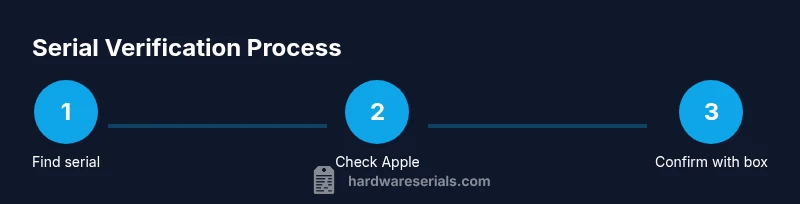
A robust workflow reduces risk. Start with the device, then corroborate with packaging and Apple records. Use the following progression: locate serial on device; verify serial on box; run an Apple Check Coverage validation; cross-check IMEI; review model number and color; finally assess warranty status. Document each step with timestamps and screenshots. This structured approach helps you defend your decisions during sales, audits, or warranty claims and minimizes the chance of overlooking subtle cues that indicate non-original hardware.
Documentation and Next Steps After Verification
Once you complete the checks, create a concise verification report:
- List the serial, IMEI/MEID, model number, and purchase information.
- Attach screenshots or export the Check Coverage results.
- Note any discrepancies and the actions taken (e.g., escalate to support, request replacement).
Keeping a well-documented trail is essential when purchasing used devices or managing inventory in a professional setting. It builds trust with clients and reduces liability if later authenticity questions arise.
Final Considerations for Professionals and DIYers
In professional practice, combine serial checks with standard due diligence: verify seller credibility, review purchase receipts, and corroborate with service data. For DIYers, prioritize steps that minimize risk and protect your investment. Always start with official Apple verification, then supplement with packaging and physical inspection.
Hardware Serials emphasizes consistency and diligence in serial verification. By building repeatable processes, you can reliably determine authenticity and protect yourself from counterfeit products.
Tools & Materials
- iPhone device(Any model under verification)
- Original packaging(Box with serial label and model information)
- Serial number (on device & box)(Exact characters; capture screenshots)
- Internet access(For Check Coverage and official lookups)
- Apple ID (optional)(Helpful for service checks if you own the account)
- Notepad or digital notes(To record findings and results)
Steps
Estimated time: 20-40 minutes
- 1
Locate serial on device
Open Settings > General > About. Copy or screenshot the Serial Number exactly as shown. This establishes the primary reference for any authenticity check.
Tip: Take a screenshot and save it with the date of verification. - 2
Find serial on the packaging
Check the product box label for the serial number and model identifier. Ensure it matches the device serial exactly.
Tip: If the box label is damaged, request a replacement label from the seller or fall back to other sources like the invoice. - 3
Record IMEI/MEID
Dial *#06# to reveal the device’s IMEI/MEID and compare it to what’s printed on the box. This adds a cross-check layer beyond the serial.
Tip: If the device is offline, you can typically find IMEI in Settings > General > About. - 4
Run Apple’s official check
Visit Apple’s Check Coverage page and enter the serial number (and model if requested). Review the warranty status, purchase date if shown, and model match.
Tip: Always use Apple’s official site; avoid third-party portals that request sensitive data. - 5
Cross-verify model and color
Ensure the device model number and color align with the box and regional variant. Mismatches can signal a non-original device.
Tip: Check hardware identifiers like the model name in About as a quick cross-check. - 6
Check service history
If you have access to Apple Support, confirm service history and eligibility tied to the serial. A missing service history for a recent device could be unusual depending on purchase timing.
Tip: Document any service notes and dates for future reference. - 7
Assess packaging and accessories
Compare chargers, cables, and documentation with typical Apple packaging. Look for misspelled labels, low-quality print, or unusual markings.
Tip: Counterfeit packs often have minor typographical inconsistencies; don’t overlook these details. - 8
Decide on next steps
If serial data aligns across sources, document the verification and proceed with confidence. If mismatches persist, escalate to the seller or Apple Support.
Tip: When in doubt, buy from reputable sources or request a return if authenticity can’t be confirmed. - 9
Document the verification
Compile serial, IMEI, model, warranty status, and screenshots into a single report for your records or client delivery.
Tip: A clear, timestamped record simplifies audits and future disputes. - 10
Retain ongoing monitoring
Store verification records for future service checks or resale. If the device is later found counterfeit, you’ll have a documented trail.
Tip: Set reminders for periodic warranty or service checks during device lifetime. - 11
Share findings responsibly
If you’re advising a client or team, present a concise verdict with supporting evidence, including Check Coverage results and screen captures.
Tip: Avoid exposing sensitive data in public channels; redact serials when sharing publicly. - 12
Reflect on continuous improvement
Review your verification process after each check and adjust your workflow to reduce false positives and missing cues.
Tip: Document lessons learned and update your checklist accordingly.
Frequently Asked Questions
How do I find the iPhone serial number if the device won’t turn on?
If the device won’t power up, you can still locate the serial on the box, packaging, or the SIM tray label if accessible. You can request the serial from the seller or check any original purchase documentation.
If the iPhone won’t turn on, look on the original box or packaging for the serial number, or check the SIM tray label if accessible. You can also rely on the purchase receipt to verify serial information.
Can a counterfeit iPhone pass a serial check with Apple?
A counterfeit can sometimes mimic a serial, but Apple’s official checks often reveal inconsistencies across the device and service data. Always corroborate with multiple data points.
Counterfeits may try to mimic a serial, but Apple’s official checks plus cross-checks with the box and hardware identifiers usually reveal the truth.
Is the serial number alone enough to prove authenticity?
No. Serial alone is not sufficient. Combine serial checks with packaging validation, IMEI/MEID, model numbers, and warranty status for a robust assessment.
No—serial alone isn’t enough. Use the serial alongside packaging, hardware IDs, and warranty data for a solid authenticity check.
What steps should I take if the Check Coverage results are blank or inconsistent?
If Check Coverage provides no data or inconsistent results, contact Apple Support for an official verification and request a purchase history or service diagnosis if needed.
If Apple Check Coverage gives blank or conflicting results, reach out to Apple Support for an authoritative confirmation and consider requesting purchase history documentation.
How can I verify warranty timing on an older iPhone?
Use Check Coverage with the serial to see if any warranty or support eligibility exists, and compare against the purchase date and regional terms.
Check Coverage with the serial to confirm any warranty, then compare that to the purchase date and regional terms.
What documentation should I keep after verification?
Keep screenshots of the About page, box label, Check Coverage results, purchase receipts, and any notes on the verification steps for future reference.
Save screenshots of the device settings, packaging, and Check Coverage results along with receipts and notes for future reference.
Watch Video
Key Takeaways
- Verify serial with official sources first
- Cross-check IMEI, model, and packaging for alignment
- Document results with timestamps and screenshots
- Escalate when any mismatch is detected
- Maintain a repeatable workflow for reliability