How to Know If Your iPhone Is Fake Using Its Serial Number
Learn how to verify iPhone authenticity by validating the serial number, warranty status, and packaging. Practical steps, red flags, and trusted sources to protect your investment.


According to Hardware Serials, you can determine whether an iPhone is fake by validating its serial number with Apple’s official tools, then cross-checking the device’s model, packaging, and physical cues. This quick method helps DIYers and professionals avoid counterfeit devices, overstated warranties, and potential scams when buying used or refurbished iPhones.
Why serial number validation matters
If you’re wondering how to know if iphone is fake using serial number, the serial number is the primary anchor for authenticity. Each iPhone leaves a unique trace that ties to its original factory data, purchase records, and service history. Serial validation is not a single magic test, but a reliable first checkpoint that reduces risk when you’re shopping used, refurbished, or international devices. Counterfeiters may mimic logos or packaging, yet a true serial record should align with Apple’s official databases and activation history. Hardware Serials’ analysis, 2026, emphasizes that serial-number validation in official channels is the most dependable starting point for authenticity checks. This sets up a practical workflow you can perform with everyday tools and no disassembly required.
How to locate the serial number on an iPhone
Locating the serial number is the first technical step. On most iPhone models, you’ll find it in Settings > General > About, where you can copy or screenshot the serial. If the device is not bootable, the serial is also printed on the SIM tray or the original packaging label. Use the box label as a cross-reference: the serial on the box should match what’s on the device. For counterfeiters, mismatches between the box, device, and software can be a telling red flag. Always verify in multiple places and record the serial for future checks.
Check the serial number on Apple’s official tools
The most trustworthy verification path is through Apple’s official channels. Enter the serial on Apple’s Check Coverage page to see whether the device is registered for service and the warranty status. Note that a valid warranty status doesn’t guarantee authenticity, but a mismatch can strongly indicate a fake. If the serial is not recognized or shows inconsistent model information, stop using the device and seek support. Combine this with an on-device check (Settings > About) to corroborate the findings. This approach minimizes the risk of relying on third-party sites that may be unreliable.
Interpreting the serial number format
Apple’s serial numbering schemes have evolved over time, and decoding them isn’t a simple one-to-one map like some brands. A serial number can reveal the manufacturing year window, the factory, or other production details, but counterfeiters may copy numbers without aligning to the correct device configuration. Treat the serial as one data point among several: use it to validate against Apple’s records, then cross-check with the model number, hardware features, and packaging. If the format or data seems off (e.g., a serial that doesn’t correspond to a known model), escalate the check.
Warranty status and activation checks
Activation status and warranty coverage are strong signals of legitimacy. Use Apple’s support pages to confirm the device’s activation history and service coverage. A live, verifiable record that matches the device’s model and purchase context is a good sign; a lack of records or a mismatch is a red flag. If you recently bought the device, compare the activation date with the stated purchase date. If there’s a gap, ask the seller for proof of purchase and consider requesting a refund. Hardware Serials recommends prioritizing official sources for this validation.
Packaging, accessories, and build quality cues
Real iPhones come with carefully printed packaging, correct fonts, and authentic accessories. Examine the box for misspellings, faded logos, or misaligned text, and compare with Apple’s official product images. Check the charger, cable, and earphones for Apple branding, build quality, and component details. Packaging should consistently reflect the serial and model numbers on the device. If anything looks off or inconsistent with Apple’s standard, the device should be scrutinized further. Counterfeit boxes often reuse authentic-looking fonts, but the overall print quality, weight, and color tone can betray fakes.
Cross-reference with IMEI, MEID, and model number
In addition to the serial number, collect the device’s IMEI/MEID and model number from Settings > General > About. The IMEI on the device should match the one printed on the SIM tray and on the original box. Cross-checking these identifiers helps reveal inconsistencies that a simple serial check might miss. If one identifier is missing or doesn’t align with the others, treat the device as suspicious until you obtain credible documentation or a replacement unit from a trusted source.
Common red flags and examples
Look for a combination of issues: serial not recognized by Apple; a warranty that doesn’t align with purchase history; a model number that contradicts the device’s hardware; packaging that doesn’t match Apple’s style; or inconsistent activation data. Other telltale signs include non-original iOS behavior, unusual screen art, or hardware components that don’t match Apple’s specifications. While none of these signs alone proves counterfeit status, a cluster of discrepancies should prompt a cautious approach and, if possible, a refund or return.
What to do if you suspect a fake
If the serial check raises questions, pause and document everything: take screenshots, save receipts, and note serial numbers across the device and box. Contact Apple Support or take the device to an authorized Apple service provider for a definitive assessment. If you purchased from a third-party seller, request the original proof of purchase and consider initiating a return or dispute. The goal is to avoid exposing yourself to data loss or security risks associated with counterfeit devices.
Quick reference verification workflow
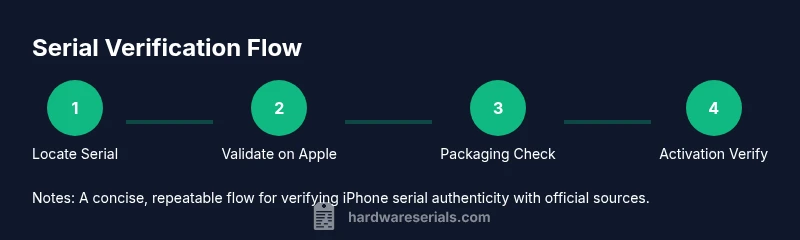
- Locate the serial number on the device and packaging. 2) Validate the serial with Apple’s official Check Coverage tool. 3) Ensure the model number, activation status, and warranty details align. 4) Inspect packaging and accessories for consistency with official Apple standards. 5) If anything is inconsistent, escalate to Apple Support or an authorized service provider. This concise workflow reduces risk and improves your odds of catching fakes efficiently.
AUTHORITY SOURCES
- Apple Check Coverage: https://checkcoverage.apple.com
- Apple Support: https://www.apple.com/support
- Consumer Protection: https://www.consumer.ftc.gov/articles/counterfeit-goods
These sources provide official guidance on serial validation, warranty checks, and consumer safety considerations when buying electronics.
Final note from Hardware Serials
The Hardware Serials team emphasizes a disciplined, source-first approach. Use the serial number as the starting point, not the sole determinant, and corroborate with packaging, activation data, and official records. Following this approach minimizes risk when evaluating iPhones in the secondhand market and builds confidence in every purchase.
Tools & Materials
- Internet-enabled device (phone or computer)(Access Apple’s official serial validation and support pages.)
- iPhone to inspect(Check hardware, on-device settings and serial references.)
- Original packaging and accessories(Compare serial numbers, model numbers, logos, and font quality.)
- Pen and notebook or note-taking app(Record results and steps for sharing with support.)
- Screenshots of serial number, model, and warranty status(Helps to document findings for disputes or returns.)
Steps
Estimated time: 15-25 minutes
- 1
Locate the serial number on the device
Open Settings > General > About and copy or screenshot the serial. On non-bootable devices, check the SIM tray and the original packaging for the serial label. Record all serial numbers you find on the device and box for cross-reference.
Tip: If the on-device serial is blank or missing, do not proceed; request official documentation. - 2
Validate the serial with Apple
Visit Apple’s official Check Coverage page and input the serial number. Note the activation and warranty details returned by the tool. If the serial is not recognized or reveals inconsistent information, treat it as suspicious.
Tip: Take a screenshot of the results for your records. - 3
Cross-check packaging
Compare the serial, model number, and branding on the box with the device. Look for mismatched fonts, logos, or serial numbers that don’t align with Apple’s standard packaging design. Packaging anomalies can be a strong counterfeit signal.
Tip: Hold packaging under good lighting to spot color and font inconsistencies. - 4
Verify model and activation
In Settings, confirm the model shown matches the device’s hardware. Attempt to activate the device with a valid carrier SIM and confirm that activation completes without errors. A failed activation or mismatched model can indicate a counterfeit.
Tip: If activation prompts seem unusual, consult official support before proceeding. - 5
Check IMEI/MEID and model numbers
Find the IMEI/MEID and model number from Settings and box, then ensure they align with the serial data. Inconsistencies across identifiers are a red flag even if the serial passes initial checks.
Tip: Document all identifiers in one place for review. - 6
Inspect physical build and accessories
Examine build quality, finish, and logos; compare accessories with official Apple images. Subtle defects like misaligned seams or incorrect cable connectors can signal counterfeit devices.
Tip: Trust your senses—weight, feel, and finish often reveal fakes not caught by software checks. - 7
Consider the source
If purchased from a third-party seller, request proof of purchase and a return policy. Counterfeit devices frequently evade checks when bought from unverified sources.
Tip: Prefer purchases from authorized retailers or reputable marketplaces with buyer protection. - 8
Seek official confirmation
When in doubt, contact Apple Support or visit an authorized service provider for a hands-on assessment. They can validate the serial against internal records and assess hardware authenticity.
Tip: Bring receipts, serials, and packaging to the appointment. - 9
Document findings
Save screenshots, serials, and notes of each verification step. Clear documentation speeds up support interactions and resolution with sellers or authorities.
Tip: Organize evidence by source: device, packaging, and service history. - 10
Decide based on the overall picture
If multiple indicators point toward fake, avoid continuing with the purchase or use. If most indicators are solid but one data point is uncertain, seek a formal confirmation before deciding.
Tip: When in doubt, delay the purchase and request a legitimate source of verification. - 11
Know your rights
Familiarize yourself with consumer protection policies and return windows. Counterfeit prevention is a shared responsibility among sellers, platforms, and buyers.
Tip: Check local consumer protection guidelines before purchasing electronics. - 12
Review and learn for next time
Reflect on the verification steps you used and adapt your process for future purchases. A standardized checklist reduces risk in future deals.
Tip: Create and reuse a simple 5-point verification checklist.
Frequently Asked Questions
Can serial number checks prove an iPhone is genuine?
Serial number checks are a strong initial indicator, but they should be paired with cross-checks of the model, warranty status, and packaging. A single positive result does not guarantee authenticity.
Serial checks are a good first step, but you should confirm with model details and packaging as well.
What if the serial number check fails?
If the serial number is not recognized or results don’t align with the device, treat the device as potentially counterfeit and avoid purchase until verified by official channels.
If the serial check fails, don’t buy the device until it’s confirmed by official channels.
Can refurbished iPhones pass all serial checks?
Refurbished devices can pass some checks, but discrepancies in packaging, model numbers, or activation history may reveal authenticity issues. Always verify with multiple data points.
Refurbished phones might pass some checks, but look for packaging and activation mismatches.
Do all iPhone models have the same serial format?
Serial formats have evolved across generations, so don’t rely on a single pattern. Use serial checks as a data point and confirm with official support for the exact model.
Serial formats vary by generation; use official support for precise verification.
Should I trust third-party verification sites?
Third-party sites can be helpful but are not always reliable. Prioritize Apple’s official tools and supported sources, then supplement with packaging and activation data.
Stick to official Apple tools first, then supplement with other checks.
What should I do if I suspect a counterfeit after purchase?
Contact Apple Support or visit an authorized service provider for a definitive assessment, and initiate a return or dispute with the seller if possible.
If you suspect counterfeit, contact Apple or the seller for a resolution.
Watch Video
Key Takeaways
- Verify serial through official Apple channels first
- Cross-check model, activation, and packaging data
- Document all findings and seek official support for confirmation
- Avoid purchases from dubious sources
- Use a consistent, step-by-step workflow to reduce risk