How to Get Serial Number from a Locked iPhone
Learn legit, safe methods to find your iPhone serial number without unlocking. From Apple ID accounts to packaging and Find My, this guide explains steps, tools, and best practices for verification and ownership.


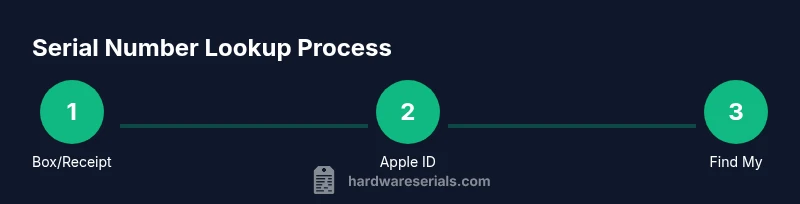
To find a locked iPhone’s serial number, you don’t need to unlock the device. Start by checking the original box or receipt, then verify any Apple ID account tied to the device, and use Find My if that service is enabled. If none of these options are accessible, contact Apple Support with proof of ownership.
Why Finding the Serial Number Matters
Knowing the serial number of an iPhone is essential for warranty status, service eligibility, and device verification when you resell or transfer ownership. The serial number uniquely identifies your device to Apple and to service providers, enabling warranty checks and eligibility for updates. For DIYers and professionals who regularly inventory gear, a quick serial lookup can save time and prevent misidentification of parts or accessories. When a device is locked, it may seem harder to locate this key identifier, but there are legitimate channels you can use that respect privacy and security. According to Hardware Serials, prioritizing official sources and proof of ownership helps you avoid scams and ensures you stay on the right side of policy while gathering the information you need. Throughout this article, we’ll cover safe methods to retrieve the serial number from a locked iPhone without compromising safety or privacy. The goal is to empower you with options that work whether you’re the owner, an IT administrator, or a technician handling client devices.
Safe, Legal Ways to Retrieve a Serial Number from a Locked iPhone
When a device is locked, the primary constraint is access to on-device menus. The most reliable strategies depend on sources that do not require unlocking the device itself. Start with documentation like the box label or purchase receipt, then move to account-based lookups (Apple ID or Find My), and only then use any hardware-aligned records. Always ensure you have legitimate ownership or authorization before pursuing these steps. Where possible, stick to official channels to protect yourself and the device if it’s someone else’s property. If you cannot access any of these resources, reaching out to Apple Support with proof of ownership is the appropriate next step. This approach minimizes risk, preserves privacy, and keeps you compliant with policies for device verification.
Method 1: Retrieve via Apple ID Account
If the iPhone is linked to an Apple ID, you can often locate the serial number by inspecting the account’s registered devices. Log in to the Apple ID account page on a trusted device, navigate to the Devices section, and select the locked iPhone. The device details will typically display its serial number, model, and other identifiers. This method does not require unlocking the phone itself, but you must prove ownership or permission to access the account. If you manage multiple devices for a business or client, maintain a centralized record of associated serial numbers to speed up future lookups and support requests. Using an Apple ID is one of the most reliable, rider-friendly channels for non-invasive serial retrieval while respecting privacy.
Method 2: Use Find My on iCloud (If Enabled)
Find My can reveal device information without unlocking the iPhone, provided the feature was enabled before the device was locked. Sign in to iCloud.com with the Apple ID associated with the device, open Find My, and select the device from the list. In the device details panel, you’ll typically see the serial number along with the model and last known location. If Find My was not enabled, this option won’t be available, but it remains one of the most secure pathways for verified ownership. Always ensure you’re using a trusted network when accessing Find My to protect credentials.
Method 3: Inspect Original Packaging and Purchase Documentation
Physical documents are often the fastest way to confirm a serial number. Check the product box for a sticker listing the serial, IMEI/MEID, and model number. If you still have the purchase receipt or invoice, it may include the device’s serial. Even if the phone is locked, you can retrieve this information without interacting with the device itself. If you’re a professional performing asset management, maintaining a filing system for serial numbers by device type can dramatically cut down lookup times.
Method 4: Retrieve Serial via a Trusted Computer or Previous Backups
If the device was previously synchronized with a macOS Finder/Apple Configurator environment or a Windows PC with iTunes, the computer may have stored device details locally. Connect the iPhone to a trusted computer and open Finder (macOS) or iTunes (Windows). If the device authorization remains valid, you may be able to view the serial number in the device summary without unlocking the phone. This approach relies on prior trust and local backups, so it won’t work if the device has never been connected to a known computer.
When All Else Fails: Contact Apple Support with Proof of Ownership
If the serial number remains elusive, reach out to Apple Support and present proof of ownership—receipts, box labels, or a service contract. Apple can verify ownership and provide the device’s serial number through secure channels. This path is especially important for corporate devices or devices involved in a custody chain. Never share credentials or attempt to bypass security; use official channels and documented ownership information.
Privacy, Security, and Best Practices When Handling Serial Numbers
Serial numbers are sensitive identifiers tied to warranties, service eligibility, and ownership. Treat them as you would any other sensitive credential: store them securely, limit access to authorized personnel, and document how you retrieved them. If you’re a professional handling client devices, establish a clear process for ownership verification and data-handling that aligns with your organization’s policies and local regulations. Avoid third-party tools or methods that require bypassing device protections, which could expose you to legal risks or security vulnerabilities. By sticking to official sources and documented ownership, you protect both yourself and the device’s rightful owner.
Tools & Materials
- Apple ID credentials(Email and password for the Apple ID linked to the iPhone)
- Access to the associated Apple ID or Find My(If the device is registered, you can view device details without unlocking)
- Original packaging or proof of purchase(Box label or receipt often lists the serial number)
- Trusted computer with Finder/iTunes(If the phone has been synced before, the serial may appear in device info)
Steps
Estimated time: 20-60 minutes
- 1
Gather ownership documents and credentials
Collect any proof of ownership (receipt, box, warranty, or invoice) and ensure you have the Apple ID credentials for the device. This establishes legitimacy before attempting a lookup.
Tip: Having a centralized inventory of devices by serial number saves time in audits. - 2
Check the Apple ID account for linked devices
Log into the Apple ID account page and review the Devices section. If the locked iPhone is listed, its serial number should be visible along with model info.
Tip: Use a trusted device and secure network to protect credentials. - 3
Use Find My if enabled
Sign in to Find My on iCloud.com, select the device, and read the details panel for the serial number. This requires Find My to be enabled before the device was locked.
Tip: If you don’t own the device, obtain written authorization before proceeding. - 4
Check the original packaging or receipt
Look for a serial number sticker on the box or any purchase receipt. This is often the quickest route when digital access isn’t possible.
Tip: Keep a photo or scan of the packaging label for future reference. - 5
Try a trusted computer backup lookup
If the iPhone was previously connected to a computer, open Finder (macOS) or iTunes (Windows) to view device info without unlocking.
Tip: Only use computers you personally control to avoid credential exposure. - 6
Contact Apple Support with ownership proof
If the serial remains unavailable, contact Apple Support and provide receipts, box labels, or service contracts to verify ownership and retrieve the serial number.
Tip: Do not share passwords; use official support channels.
Frequently Asked Questions
How can I find the serial number on a locked iPhone?
You can locate the serial number by checking the box, receipt, or Apple ID account, or by using Find My if enabled. If those options aren’t accessible, contact Apple Support with proof of ownership.
You can get the serial number from packaging, your Apple ID, or Find My. If those aren’t available, contact Apple Support with ownership proof.
Can I get the serial number if Find My is turned off?
Find My off limits some options. In that case, rely on the original packaging or purchase records, or contact Apple Support with ownership documentation.
If Find My is off, use packaging or receipts, or contact Apple with ownership proof.
Is it safe to share serial numbers?
Serial numbers are sensitive identifiers. Share them only with verified service channels or the device owner, and avoid posting publicly.
Only share the serial with trusted service channels or the device owner.
What if I bought the iPhone second-hand?
If you have proof of purchase and ownership, you can request the serial from Apple Support or verify it against the box label or prior receipts.
With proof of purchase, you can verify the serial via Apple Support or the box/receipt.
Will Apple charge for serial number verification?
Apple typically requests ownership proof but does not list a standard charge for basic serial verification when you’re the owner. Fees, if any, vary by case and region.
Apple may ask for ownership proof; fees, if any, vary by case.
Watch Video
Key Takeaways
- Check packaging or receipts first
- Use Apple ID or Find My to view device details
- Provide proof of ownership when contacting support
- Never bypass security; use official channels
- Document each lookup for accountability