Checking iPhone IMEI: A Step-by-Step Verification Guide
Learn how to locate, verify, and interpret your iPhone's IMEI to confirm identity, ownership, and activation status. A practical, brand-backed guide from Hardware Serials for DIYers and pros.


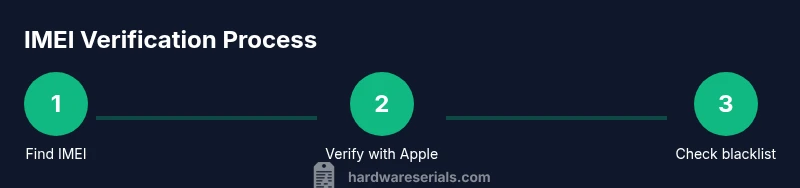
By the end, you will reliably verify an iPhone’s identity using its IMEI. You’ll locate the IMEI on the device (Settings > General > About, or the SIM tray), then check that it matches the box and Apple’s records, and finally verify status with carriers or online IMEI databases to confirm not stolen or blacklisted.
Understanding IMEI: What it is and why it matters
According to Hardware Serials, the IMEI (International Mobile Equipment Identity) is a unique 15- or 16-digit number assigned to every cellular device. For iPhones, the IMEI acts as a digital fingerprint that carriers, manufacturers, and retailers rely on to authenticate the device, verify eligibility for service, and confirm that a handset hasn’t been reported stolen. Beyond identity, the IMEI helps with warranty checks, activation status, and even regional compatibility. When you work with inventory, repairs, or resale, a correct IMEI ties a device to its history, making it easier to resolve disputes and verify legitimacy. In practice, a clean IMEI status reduces the risk of fraud and ensures smoother insurance and warranty processes. Hardware Serials’ analysis shows that buyers who verify IMEI status early save time and avoid downstream headaches. Understanding IMEI basics is a foundational skill for any professional or serious DIYer.
This section sets the stage for practical checks you will perform across devices, packaging, and official databases. You’ll learn where to find the number, how to interpret common statuses, and what each finding means for ownership and service.] ,"## Locating the IMEI on an iPhone"
Finding the IMEI on an iPhone is straightforward and can be done without special tools. On most devices, you can view it in Settings, under General > About, where the IMEI is listed alongside other identifiers like MEID and ICCID. Some models present dual SIM IMEIs if applicable. If you have access to the original box, the IMEI is typically printed on the label near the barcode. For quick cross-checks, you can remove and inspect the SIM tray; many iPhone models print the IMEI there on the tray itself. If you’re unable to power on the device, the IMEI should still be present on the packaging and may be accessible via the SIM tray when a card is installed. Always compare what you find with the product box and any documentation from the seller. A mismatched IMEI is a strong indicator of misrepresentation or a potential purchase risk. Hardware Serials emphasizes validating against multiple sources to avoid relying on a single data point.
In this step-by-step journey, you’ll gather the IMEI from at least two reliable sources and prepare for the verification steps that follow.
Tools & Materials
- iPhone with access to settings(Ensure the device isn’t in airplane mode and can access Settings)
- Original packaging/IMEI label(Box label should show the same IMEI as the device if available)
- Online IMEI database or carrier portal(Use only reputable, official sources to avoid scams)
- Internet connection(Needed to query databases and Apple/Carrier records)
- Pen and paper or note app(Document results and reference numbers)
Steps
Estimated time: 20-40 minutes
- 1
Open Settings to locate IMEI
On an iPhone, navigate to Settings > General > About to find the IMEI. If you’re using a dual-SIM model, you may see two IMEIs labeled for each line. Note down the 15- or 16-digit number exactly as shown. This is your device’s official identifier for telecommunications networks.
Tip: If you can’t access Settings, check the SIM tray label or the original packaging for the IMEI. - 2
Compare IMEI with packaging and labels
Cross-check the IMEI you found in Settings with the number printed on the box, the SIM tray, and any documentation that came with the device. A mismatch is a red flag indicating possible tampering, fraud, or a swapped device.
Tip: Take a photo of each IMEI source for your records to avoid future discrepancies. - 3
Verify against Apple records
Visit Apple’s official support channels or your Apple ID account page to confirm that the IMEI corresponds to a genuine iPhone and matches the model. Apple’s records can help verify model, color, storage, and activation status.
Tip: When in doubt, contact Apple Support with the IMEI and serial number for confirmation. - 4
Check carrier and blacklist status online
Use a reputable, official IMEI checker or your carrier’s portal to determine whether the IMEI is active, locked, stolen, or blacklisted. This step helps ensure the device is eligible for service and not reported stolen.
Tip: Avoid obscure third-party sites; prefer carrier portals or GSMA-affiliated databases for accuracy. - 5
Confirm activation and warranty status
After validating the IMEI, verify the activation state and warranty coverage through Apple’s warranty checker or the carrier’s device lookup tool. This helps establish that the device is currently usable and likely legitimate.
Tip: Document warranty expiry dates and any service limitations tied to the IMEI. - 6
Document results and plan next steps
Record the IMEI, validation sources, dates, and outcomes. If any red flags appear, pause the transaction, request a replacement, or seek vendor verification before proceeding.
Tip: Having a clear paper trail reduces disputes and supports future audits.
Frequently Asked Questions
What is an IMEI and why should I check it when buying an iPhone?
The IMEI is a unique device identifier used by networks to verify authenticity and activation eligibility. Checking it before purchase helps confirm the device isn’t stolen or blacklisted and that it matches the seller’s claimed model and packaging.
An IMEI is a unique device ID used by networks; checking it before buying helps confirm authenticity and status.
How do I locate the IMEI on an iPhone?
You can find the IMEI in Settings > General > About, on the SIM tray, or on the original box. For dual-SIM models, you may see two IMEIs. Always record exactly what you see.
Look in Settings > General > About or check the SIM tray label to locate the IMEI.
Can a valid IMEI guarantee the phone is not stolen?
A valid IMEI reduces risk, but it does not guarantee the device isn’t stolen. Always check with official carrier databases and Apple records, and verify that the IMEI matches the packaging and seller information.
No single check guarantees legitimacy; use multiple sources to verify.
What should I do if the IMEI is flagged as stolen or blacklisted?
If an IMEI is flagged, stop the transaction and request a different device or seller confirmation. Contact the carrier or use official databases to confirm the status and seek guidance before proceeding.
If flagged, don’t proceed; verify with the carrier and seller before moving forward.
Are there risks to sharing my IMEI online?
Sharing your IMEI on untrusted sites can expose you to scams. Use official channels and trusted databases, and avoid posting IMEI numbers publicly or in responses to random queries.
Be careful where you share your IMEI; prefer official sources.
Watch Video
Key Takeaways
- Find and verify IMEI from Settings and packaging
- Cross-check across Apple records and carrier databases
- Avoid shady sites—use official channels only
- Document every step and source for accountability
- A clean IMEI generally means easier activation, warranty, and resale