How to Find the Serial Number on Kindle Fire
Learn where to locate and how to verify the serial number on Kindle Fire tablets, what it means for warranty and service, and best practices for safe record-keeping. Hardware Serials guides you step by step.


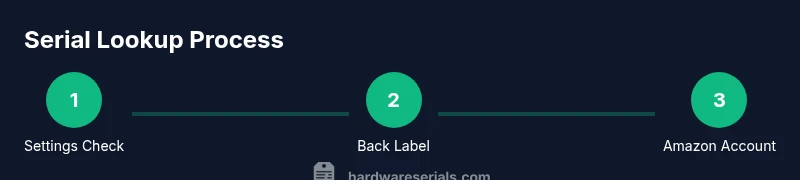
According to Hardware Serials, you can locate the serial number kindle fire on most Kindle Fire tablets in minutes. Start in the software: go to Settings > Device Options > About Fire for a quick lookup. If that doesn’t show it, check the device’s sticker on the back or in the original packaging. You can also sign into your Amazon account to view registered devices.
What is a Kindle Fire serial number?
A serial number on a Kindle Fire is a unique identifier that hardware manufacturers assign to each device. For Kindle Fire tablets, this string helps support teams verify model history, confirm ownership, and determine warranty eligibility. The serial number kindle fire is not just random text; it encodes information about the device lineage and production batch. According to Hardware Serials, recognizing the serial format can help you quickly confirm authenticity and track service history across devices. Understanding where this number lives on your device is the first step in efficient device management, especially for professionals who manage fleets of tablets.
Where the serial number is usually located
On most Kindle Fire models, the serial number can be found in several locations. The most reliable sources are the device settings and the physical label. The Settings path often reads as Settings → Device Options → About Fire, where you’ll see a line for serial. If the software route fails or the device is not responsive, flip the device carefully and inspect the back label or adhesive sticker near the bottom edge. For new devices, the original box or packaging usually lists the serial number on a barcode label. Keeping a note in your inventory helps avoid scrambling for it during support calls.
How to locate via device settings
Navigate to Settings, then Device Options, and select About Fire to pull up the serial number. This method works even if the battery is low or the device is on a restricted screen. If you cannot access About Fire, try rebooting into the settings menu or performing a soft reset, then returning to About Fire. If your device is locked or not responding, proceed to the packaging method below while attempting to restore access safely.
Inspecting the back panel and packaging
Many Kindle Fire serial numbers are printed on the device label on the back or along the edge. Use good lighting and, if necessary, a magnifying glass to read small print clearly. If the device lacks a readable back label, check the original packaging—look for a barcode with the serial number printed beside or beneath it. In business scenarios, you may receive the serial printed on packing slips or procurement documents. Always compare the number you find with any online records you keep to ensure consistency.
Verifying through your Amazon account
Log into your Amazon account and go to the section for your registered devices. This page can display the serial numbers of devices you’ve associated with your account, including Kindle Fire tablets. If you’ve transferred ownership, you’ll want to remove the old device from the account before reassigning. This method is especially useful when hardware is dispersed across teams or vendors. Digital verification reduces the risk of using a wrong or fake serial.
Understanding serial number formats and what they imply
Serial numbers are not arbitrary strings; they encode information about model family, manufacturing date window, and production line identifiers in many cases. While formats vary by generation, a typical Kindle Fire serial number is a combination of letters and numbers. The key is to recognize the sections that repeat across devices in your fleet. When documenting these numbers, include the model family and approximate purchase date to simplify future lookups and warranty checks.
Common scenarios: what to do if the serial is missing
If you cannot locate a serial number on the device, start with the packaging and Amazon account lookup. If the label is damaged, you may still recover the number from purchase documents or invoices. In a corporate setting, log the attempt and escalate to procurement for a replacement label or asset tag. If legitimate serials are removed or defaced, contact support with proof of purchase and ownership to obtain a replacement record.
Safety, privacy, and best practices for serials
Treat serial numbers as moderately sensitive information. Do not share publicly, and avoid writing them on visible parts of the device that could be swapped or stolen. Maintain secure digital records in a password-protected system or asset management software. When transferring devices between owners or locations, verify serials during the handoff and remove the old associations in your account to prevent confusion.
Recording and storing serial numbers securely
Create a standardized log for all Kindle Fire devices, including serial number, model, purchase date, warranty status, and current owner. Include a photo of the device label and packaging if possible. Regularly audit the log to ensure entries are up to date and correct. This habit saves time during support calls or inventory audits and supports proactive warranty checks.
Quick-reference lookup checklist
- Check Settings > Device Options > About Fire
- Inspect back label and packaging
- Review Amazon account for registered devices
- Record serial with model and purchase date
- Preserve a copy in your asset-management system
- Periodically verify serials during audits
Conclusion: applying serial knowledge in practice
Locating and recording the Kindle Fire serial number is a foundational skill for DIYers and professionals. A reliable serial trace improves warranty claims, supports asset tracking, and reduces downtime during tech support. The Hardware Serials team emphasizes keeping multiple corroborating sources (settings, packaging, account) in sync for accuracy and peace of mind.
Tools & Materials
- Kindle Fire tablet(Any current generation device supported by Amazon; ensure battery can power on for settings access)
- Smartphone or computer(For accessing settings, Amazon account, and digital records)
- Original packaging or box(Sometimes includes a label with the serial number)
- Pen and notebook or digital note app(To log serial numbers, dates, and warranty info)
- Magnifying glass or portable light(Helpful for reading small back-label text)
Steps
Estimated time: 5-15 minutes
- 1
Open Settings
From the Home screen, swipe down to access quick settings and tap Settings. Navigate to Device Options, then About Fire to locate the serial number if the device is responsive.
Tip: If the screen is dim, use a brighter lamp or move to better lighting to read the on-screen text. - 2
Check About Fire
Within About Fire, look for a line labeled Serial Number or similar. Copy or screenshot the value for your records.
Tip: Take a photo of the screen to avoid retyping errors. - 3
Inspect the back label
Carefully turn the tablet over and examine the back label near the bottom edge. Read any printed numbers and compare them with other sources.
Tip: If the label is faint, use a flashlight or magnifier. - 4
Examine original packaging
If labeling is unreadable on the device, locate the serial on the box’s barcode label. This is often the quickest external source.
Tip: Keep packaging in a dry place to prevent wear on the label. - 5
Check Amazon account for registered devices
Log into your Amazon account and review your registered devices page to view serials tied to your devices.
Tip: Remove old devices to avoid confusion during inventory checks. - 6
Record and verify
Enter the serial into your asset log with model, purchase date, and warranty status. Cross-check between at least two sources (Settings and packaging).
Tip: Store the log securely and back it up regularly.
Frequently Asked Questions
Where is the serial number located on Kindle Fire tablets?
Most Kindle Fire serial numbers appear in Settings > Device Options > About Fire, on the back label, or on the original packaging. If needed, check your Amazon account for registered devices.
You can usually find it in Settings under About Fire, on the back label, or on the device box.
Can I view the serial number from my Amazon account?
Yes. Sign in to your Amazon account and review the registered devices page. This often lists serials for devices you own or previously registered.
Yes, the serial may be listed on the registered devices page in your Amazon account.
Is the serial number used for warranty checks?
Serial numbers help verify eligibility for warranty and service. Use the serial along with your purchase date and model when contacting support.
Yes, it helps verify warranty status when contacting support.
What if the serial number is rubbed off?
If the label is unreadable, try the packaging, purchase receipts, or your Amazon account records. If unresolved, contact customer support with proof of ownership.
If it's rubbed off, check packaging or your account records, or contact support with proof of ownership.
Do Kindle Fire serial numbers reveal model details directly?
Serials may encode model family or production information in some generations, but reading the exact meaning requires manufacturer documentation. Rely on official records for precise details.
They can hint at the model family, but use official records for exact details.
Should I store serial numbers digitally or in print?
Both are useful. Digital logs enable quick searches; printed copies provide redundancy in case devices are inaccessible.
Keep both digital and printed copies for redundancy.
Watch Video
Key Takeaways
- Locate the serial using Settings, packaging, or Amazon account
- Cross-check serials across sources to confirm accuracy
- Log and store serial numbers securely for audits and warranty
- Protect serial numbers from sharing publicly
- Upgrade asset records after any device transfer