Find and Verify Your Kindle Paperwhite Serial Number
Learn where to locate and verify your Kindle Paperwhite serial number, essential for warranty, support, and device registration. Clear steps, safety tips, and best practices from Hardware Serials.


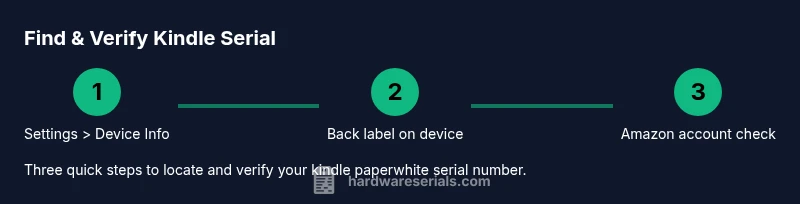
You can locate your Kindle Paperwhite serial number in three places: Settings > Device Info, on the back of the device near the barcode, and in your Amazon account under Manage Your Content and Devices. The serial number is a unique identifier that helps with warranty checks and service requests. For quick reference, have these three locations handy when you need support.
What is a Kindle Paperwhite serial number?
A Kindle Paperwhite serial number is a unique alphanumeric code assigned by Amazon to identify a specific device model. It helps manufacturers, retailers, and service providers verify ownership, eligibility for warranty coverage, and compatibility with firmware updates. According to Hardware Serials, serial numbers are your best defense against counterfeit devices and fraudulent returns. The kindle paperwhite serial number is typically printed on the back label and embedded in the device's software ledger. Recognizing this identifier early saves time when registering your device, requesting support, or validating repairs. In practice, you might see a string that starts with two letters and several digits; if in doubt, cross-check with Amazon's account records to ensure you're referencing the correct unit.
Where to locate the serial number on the device
Your Kindle Paperwhite displays the serial number in multiple places, making it easy to recover if one area becomes unreadable. First, look at Settings > Device Info for a visible serial/IMEI-like identifier. Second, inspect the back of the device, near the barcode or regulatory labels; you may need a good light and a magnifier for readability. Third, check your Amazon account: Sign in to Manage Your Content and Devices, select your Kindle, and view its device details. If the back label is damaged or faded, the Settings page is usually the fastest way to confirm the serial number, ensuring you reference the correct unit when seeking service.
Locating via Settings and About screen
On most Kindle Paperwhite devices, you can access device identifiers by navigating to the Settings menu, then Device Info or About. This screen typically lists the serial number, firmware version, and model. If you don’t see the serial right away, switch to a different options submenu and return; sometimes the display refreshes after a moment. For accuracy, copy the serial number exactly as shown, including any letters or dashes, and compare it with your account records.
Using your Amazon account to verify the serial number
Amazon’s account portal, Manage Your Content and Devices, tracks every registered Kindle. Sign in and select your Paperwhite under the Devices tab. The device details page will display the serial number along with other IDs like the model name. Verifying the serial against the physical device reduces the risk of misidentifying units during support requests or warranty checks. Hardware Serials recommends keeping a record of this entry for future reference.
Verifying authenticity and avoiding scams
Fraudulent sellers sometimes reuse serial numbers or misrepresent devices. To protect yourself, cross-check the serial with the seller’s listing, the packaging, and your Amazon account. Look for inconsistencies like multiple devices sharing a single serial in a seller’s catalog or a serial that doesn't appear in your account. If anything seems off, contact Amazon support directly and request verification using the serial number and order details.
Best practices for recording and storing serial numbers
Record the Kindle Paperwhite serial number in a secure, private location. Prefer electronic storage in an encrypted note or password-protected document. Regularly review and update where your serial numbers are stored, especially after device replacements or firmware updates. Do not publish serial numbers on public forums or social media, as this information can be misused by scammers. Keeping a log of serial numbers for your devices helps streamline warranty claims and future repairs.
Troubleshooting: unreadable or missing serial number
If the serial number is illegible on the device, try a different light source and a magnifying tool to read it from the back label. If the label is damaged beyond recognition, rely on Settings > Device Info to retrieve the identifier, then verify it in Manage Your Content and Devices. If you still cannot locate a valid serial, contact Amazon Support and provide your purchase details, order ID, and any alternate identifiers you can share from the packaging or firmware.
Privacy and safety considerations
Your serial number is sensitive information that can be misused if exposed publicly. Treat it like a password: store it securely, share only with official support channels, and avoid posting it in public spaces. When selling or transferring ownership, reset or deregister the device from your Amazon account to prevent unauthorized access.
Tools & Materials
- Kindle Paperwhite device(Any model supported)
- Internet-enabled phone or computer(For account access and verification)
- Notebook or secure digital note(To record serial numbers)
- Magnifying glass or bright light(For hard-to-read back labels)
Steps
Estimated time: 20-25 minutes
- 1
Open Settings
From the Home screen, open the Settings menu to access device information. This is the first quick way to confirm the serial without needing to read labels on the back.
Tip: If Settings isn’t immediately visible, use the search function or quick access bar. - 2
Navigate to Device Info
In Settings, select Device Info (or About) to reveal the serial number and firmware details in one place.
Tip: If you don’t see a serial field, update your device to the latest firmware. - 3
Copy or record the serial
Note down the serial exactly as shown, including any letters and dashes, and store it securely.
Tip: Use a two-step verification: copy to your secure notes and write it down in a private location. - 4
Inspect the back label
Turn the Kindle over and examine the back label near the barcode for the serial number. Use a bright light or magnifier if needed.
Tip: Take a photo if you can’t read it clearly; you can enlarge it later. - 5
Sign in to Amazon account
Open Manage Your Content and Devices on Amazon and navigate to your Paperwhite’s details to view the serial number.
Tip: Ensure you’re on the correct account if you own multiple devices. - 6
Compare serials
Cross-check the serial number from Settings and the back label with the one in your Amazon account to confirm consistency.
Tip: Any mismatch may indicate a counterfeit or swapped device; escalate to support. - 7
Securely store the serial
Store the serial in a private, backed-up location and keep a copy with purchase records.
Tip: Review your storage location annually to remove outdated entries.
Frequently Asked Questions
Where is the Kindle Paperwhite serial number located?
The serial number appears in Settings > Device Info, on the back label near the barcode, and in Manage Your Content and Devices on Amazon. Cross-checking all three locations reduces errors during support requests.
Look in Settings > Device Info, check the back label, or view it in your Amazon account under Manage Your Content and Devices.
Is the serial number the same as the model number?
No. The serial number is a unique identifier for your individual unit, while the model number refers to the product line. Both can be useful, but only the serial uniquely identifies a device.
Serial numbers identify your device; model numbers identify the product family.
What if the serial number is unreadable on the device?
Try better lighting and a magnifier for the back label. If you still can’t read it, use Settings > Device Info to retrieve the serial. If neither works, contact Amazon Support with your purchase details.
Read it from Settings if the label is unreadable. If not, contact Amazon support.
Can I use the serial number for warranty claims?
Yes. The serial number helps verify ownership and eligibility for warranty service. Have the serial number handy when submitting a claim or calling support.
Yes, use the serial when requesting warranty service.
Do refurbished Kindles receive new serial numbers?
Refurbished devices may retain their original serial or receive a new one depending on refurbishment processes. Always verify current serial number in the account records.
Refurbished units may differ; check your account for the current serial.
How should I protect my Kindle Paperwhite serial number?
Store it securely, avoid posting publicly, and only share with official support channels. Regularly review storage safety practices.
Keep it private and safe; share only with official support.
Watch Video
Key Takeaways
- Locate the serial in multiple places for reliability
- Record and store securely to simplify warranties
- Verify serials against Amazon records to prevent fraud
- Be mindful of privacy when sharing serial numbers