Dell Monitor Serial Number Search: Locate, Read, Verify
Learn how to locate, read, and verify the serial number on a Dell monitor. Locate labels, use Dell tools for warranty checks, and verify authenticity with practical, step-by-step guidance.


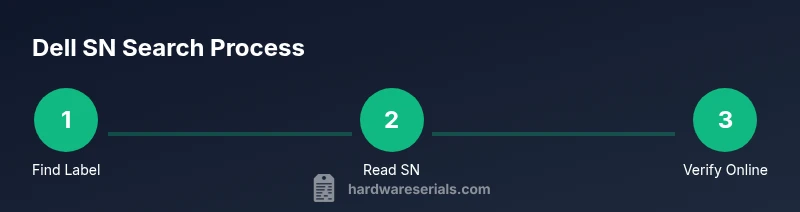
You can locate a Dell monitor serial number by inspecting the back or underside label, checking the OSD System Information menu, and reviewing any packaging or documentation. For verification, use Dell’s official support tools to check warranty status and match the SN to your purchase. This quick method saves time and ensures you’re referencing the correct device in diagnostics and service.
Why Dell monitor serial numbers matter
Serial numbers on Dell monitors serve as the primary identifier for warranty status, troubleshooting, and asset management. For DIYers and professionals, a correct SN enables quick access to product details, drivers, and service options. Verifying the SN also helps you avoid counterfeit parts when sourcing replacement panels or accessories. According to Hardware Serials, understanding and documenting serial numbers improves accountability, assists in recalls, and streamlines support requests. In any office or workshop, a centralized SN record reduces lost-device risk and speeds up repairs or replacements. When you know the exact model and SN, you can pull the right firmware files, confirm display specifications, and verify that the device you’re inspecting matches the order history. This depth of knowledge is particularly valuable in multi-monitor setups, where mixed models can complicate warranty coverage and spare part tracking. By adopting a consistent SN search workflow, teams improve traceability, reduce downtime, and bolster equipment hygiene across the fleet.
Where to find the Dell monitor serial number
Dell monitors typically print the serial number on a label affixed to the back or bottom edge of the unit. In some models, the SN is near the inputs, power connector, or stand attachment point. If your monitor is mounted or tucked into a tight space, use a flashlight and a magnifying tool to read small text. The SN may be labeled as “Serial Number,” “S/N,” or simply a string of alphanumeric characters. If the monitor comes with packaging or a quick-start guide, the SN is often listed there as well, sometimes alongside the model number and barcode. On newer models, you can also find the SN via the OSD (On-Screen Display) menu under System Information. Recording all potential locations helps you locate the SN quickly in the future and reduces time spent searching through drawers or storage.
How to read and verify the serial number
Serial numbers on Dell monitors are typically alphanumeric and may include hyphens or spaces, depending on the model. Look for a clearly labeled field that begins with S/N or Serial. If the label is damaged, examine the barcode or QR code and capture a high-quality image for later decoding. Once you obtain the SN, cross-check it against Dell’s official warranty status page or the customer support portal to confirm device eligibility and warranty timelines. If you’re cataloging multiple monitors, adopt a consistent data schema (model, SN, date of manufacture, purchase records) to prevent mislabeling. When in doubt, compare the SN to the packaging or invoice; discrepancies often indicate a mismatch or an older revision of the device. Remember that some Dell displays have separate service codes or barcodes that can be used for asset tracking even when the SN is missing or unreadable.
Using Dell's official tools to locate and verify
Dell provides online tools to verify warranty status and device details associated with a serial number. Start by navigating to Dell Support and selecting the warranty or product lookup option. Enter the serial number exactly as printed on the label; take note of any special characters, as a missing or extra dash can yield an error. The result should indicate the product type, model, warranty status, and expiration date if applicable. For corporate deployments, you may access an enterprise portal that allows batch lookups and asset tagging exports. If the SN isn’t recognized, double-check the digits and ensure you’re querying the right device. In some cases, the monitor’s SN may be swapped or damaged during refurbishment, requiring a service tag equivalent or alternate identifiers to verify ownership.
Verifying serial numbers across a mixed hardware environment
In environments with multiple Dell devices and other brands, maintain a centralized inventory that includes SN, model, purchase date, location, and assigned user. Use a spreadsheet or asset management software to track SNs and assign them to specific monitors. Regularly audit SNs against physical stock, especially after repairs or relocations. Cross-reference SNs with purchase orders and warranty documents to ensure consistency. If you discover duplicates or missing numbers, flag the entries for investigation and document any corrective actions. A well-maintained SN registry simplifies warranty redeems, recalls, and parts provisioning while reducing the risk of incorrect service actions.
Common pitfalls and quick checks
Common pitfalls include misreading characters (0 vs O, 1 vs I), labels that have faded over time, and mixing up model numbers with serials. Always photograph the SN clearly from multiple angles to confirm accuracy. If a label is damaged, check adjacent panels or the stand mount for a secondary label. When labeling your own inventory, don’t rely on memory—record the exact characters as printed. If the EDID or System Information shows a mismatch with the printed SN, use the verified SN from the back label as the primary reference and contact Dell Support for confirmation.
Advanced methods for hard-to-find serial numbers
If the label is unreadable, use software-assisted methods to extract device identifiers. Windows users can access the Device Manager or Display settings to pull display information, while advanced asset tools can read EDID data from the monitor. For some Dell displays, Dell Display Manager or Dell Display Manager Lite can reveal model and serial-like identifiers that map to your SN in the inventory. In cases where software reads differ from the physical label, prioritize the clearly printed SN on the device and note the discrepancy in your asset records. For networked environments, DHCP logs or asset tags in the network inventory can provide corroborating data points.
What to do if the serial number is unreadable
Begin by cleaning the label gently with a soft brush or microfiber cloth to remove dust without rubbing off characters. If the SN remains illegible, look for an alternate label on the packaging, the stand, or the power brick. Capture high-resolution photographs of the area and consult Dell Support with these images to request a replacement SN or a service option. Keep a note of the device’s model, approximate manufacture date, and any identifiers you can read. In corporate contexts, escalate through your IT asset management team to authenticate ownership and initiate a warranty verification request.
Tools & Materials
- Smartphone or digital camera(Capture legible close-up photos of the label and any barcodes.)
- Soft microfiber cloth(Gently wipe the label to remove dust without scratching.)
- Flashlight or bright work light(Helps read small text on dark or worn labels.)
- Notepad and pen(Record model, SN, and location details as you find them.)
- Access to Dell Support / warranty portal(For verification and cross-checking the SN with official records.)
- Optional magnifying glass(Useful for tiny print on labels in tight spaces.)
Steps
Estimated time: 15-25 minutes
- 1
Gather tools and prepare
Collect the label-reading tools, ensure you have the monitor model, and locate any packaging or purchase receipts. This helps you cross-check details and reduces back-and-forth between sources.
Tip: Have a clean, well-lit workspace to prevent misreading characters. - 2
Inspect the back and bottom labels
Turn the monitor gently and examine the sticker near the I/O ports, power input, or stand mount. Look for a label that explicitly says Serial Number, S/N, or a long alphanumeric string.
Tip: If the sticker is partially obscured by the stand, rotate the monitor to reveal hidden corners. - 3
Check the stand and packaging
Some models place a secondary SN on the stand or in the packaging insert. Inspect these areas carefully and note any variants that resemble the SN format.
Tip: Compare characters across multiple labels to verify consistency. - 4
Use the On-Screen Display (OSD) menu
Enter the monitor's OSD and navigate to System Information or About. If available, record the SN displayed there and compare with the physical label.
Tip: Not all Dell monitors expose SN in the OSD; use this as a supplementary check rather than the primary source. - 5
Capture and document everything
Take high-resolution photos of all SN areas and add them to your asset record. Note any unreadable characters and potential OCR-friendly strings.
Tip: Store images in a dedicated folder named with the model and SN for easy retrieval. - 6
Verify with Dell support tools
Enter the SN on Dell’s warranty/lookup portal to verify product details and warranty status. Ensure the SN matches the model indicated on the device.
Tip: If the portal rejects the SN, re-check for typos or consider a potential label replacement request. - 7
Cross-check against asset records
Update your inventory with the confirmed SN, model, and purchase date. Look for mismatches and address any discrepancies with the supplier.
Tip: Regularly audit SN data to prevent asset mix-ups in audits or recalls. - 8
Securely store and monitor
Archive the SN alongside other asset identifiers in your CMDB or asset spreadsheet. Review and refresh periodically to maintain accuracy.
Tip: Set a reminder for annual SN verification with major repairs or relocations.
Frequently Asked Questions
Where is the Dell monitor serial number usually located?
Most Dell monitors have a serial number on a label at the back or bottom edge, sometimes near the stand attachment. If unreadable, check the packaging and the OSD System Information menu for supplementary identifiers.
Most Dell monitors place the serial number on the back or bottom edge; if unreadable, check the packaging or system information in the display menu.
Can I verify a Dell monitor serial number online?
Yes. Use Dell's official warranty or product lookup portal and enter the serial number exactly as printed. The portal will show model details and warranty status if the SN is valid.
Yes. Enter the serial number on Dell's warranty lookup page to confirm model and warranty status.
What should I do if the label is damaged or unreadable?
Photograph all potential label areas and consult Dell Support with clear images. If the SN cannot be read, you may need a replacement label or alternative identification method.
If the label is unreadable, take clear photos and contact Dell Support for guidance on replacement labels or alternatives.
Is the serial number the same as the service tag?
No. Dell monitors typically use a serial number for identification. Service tags are more common on certain desktops and laptops. Use the SN for warranty checks when dealing with displays.
Serial numbers identify the monitor; service tags are more common on other Dell devices. Use the SN for warranty checks on monitors.
Can I find a Dell monitor SN via the OS or EDID?
Some monitors expose SN information in the OS or through EDID data, but this is not universal. Use the physical label as the primary source and verify with Dell tools if needed.
Some displays show the SN in the OS or EDID, but not all. Use the label first and verify with Dell tools.
What if the SN matches the packaging but not the device?
This could indicate a mix-up during refurbishment or mislabeling. Report the discrepancy to your IT or procurement team and verify with Dell Support.
If packaging SN differs from the device SN, report it to IT or procurement and confirm with Dell Support.
Watch Video
Key Takeaways
- Identify the primary SN location on the Dell monitor.
- Use official Dell tools to verify warranty status.
- Maintain a centralized SN record for inventory accuracy.
- Prioritize the physically printed SN over other identifiers when in doubt.