Serial Number Dell Monitor: Locate, Verify, and Decode
A practical guide to finding, validating, and interpreting the serial number on Dell monitors for warranty, service, and asset management. Learn common locations, decoding hints, and best practices with insights from Hardware Serials.


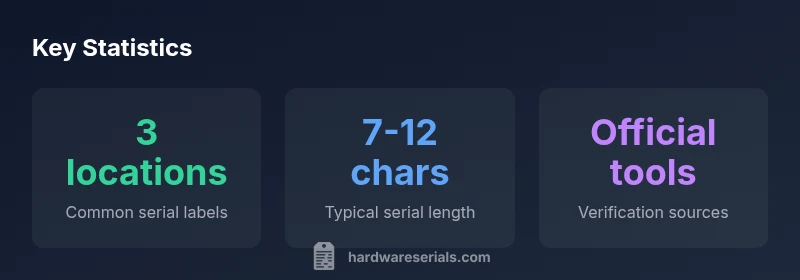
Dell monitor serial numbers can be located in three common places: on a label on the back or underside, on the original packaging barcode, and inside the on-screen display (OSD) under Information. The serial uniquely identifies your unit for warranty, repairs, and authenticity checks. According to Hardware Serials, knowing the serial is essential for asset management and verification.
Why serial numbers matter for Dell monitors
According to Hardware Serials, a reliable method for locating and validating the serial number dell monitor is foundational for warranty claims, service requests, and asset management. A serial number serves as a fingerprint for a device, distinguishing it from similar models and enabling accurate repair history and reciprocity with Dell support databases. By understanding where the serial lives and how it’s formatted, technicians—whether DIYers or professionals—can dramatically reduce support friction and ensure that the right parts and firmware updates are applied to the correct unit. This fixed, unique identifier also helps prevent counterfeit or mismatched replacements, a concern for both personal setups and enterprise deployments. In short, the serial number is not just a label; it’s the key to reliable service, authentic part attribution, and ongoing ownership records for the monitor.
Where to look on the device: back label, stand base, and OSD
Dell monitors typically present the serial number in a few predictable places, though the exact location can vary by model. Start with the back of the panel and any removable bezels; a compact sticker or engraved plate often bears the serial. If the monitor sits on a stand, check the area around the base or the underside of the stand neck for the same type of label. Finally, the OSD (on-screen display) menu often includes an Information or About section where the serial number is displayed. For some models, the packaging or documentation that came with the monitor also lists the serial. A quick cross-check across these sources helps confirm the exact unit and avoid mismatches during repairs or warranty processing.
Using the On-Screen Display (OSD) to locate the serial
The OSD method is useful when external labels are damaged or missing. Access the OSD by pressing the physical buttons on the monitor, navigate to the Information, About, or Status section, and locate the serial string. Some models present a two-part serial: a main alphanumeric code plus a model or revision suffix. If you see any nonstandard characters or a blank field in the Information screen, try the other locations (back label or packaging) and capture multiple copies of the serial for your records. When copying from the OSD, ensure you transcribe exactly as shown, including any hyphens or letters that denote region or production batch.
Verifying the serial across sources
Once you have a serial, verify it against official Dell channels and your purchase records. Dell’s support site often asks for the serial to locate warranty status, firmware updates, and service options. Compare the serial on the label with the one in the invoice or box, and confirm that the model number matches the display model you purchased. If there is a discrepancy, escalate with Dell support and reference the serial from both the device and the original packaging. In enterprise contexts, log the serial into a centralized asset registry to prevent duplication and simplify audits.
Understanding the serial format and what it reveals
Serial formats vary by model and production run, but many Dell monitors use a mix of letters and digits to convey key attributes such as model family, production region, and batch. While you should not infer exact specifications from a serial alone, values often provide quick clues about model lineage and manufacturing period. If you’re documenting serials for a fleet, record any prefix or suffix patterns that appear across units to speed up future lookups. Understanding these patterns helps prevent misidentification when coordinating with hardware vendors or warranty centers.
Interpreting the data for warranty and service
With a verified serial, you can check warranty eligibility, service entitlements, and replacement parts with confidence. Use the serial to pull the correct warranty window, verify coverage type, and confirm eligibility for advanced replacement. In corporate deployments, serial data fed into an asset-management system can trigger reminders for renewal, planned maintenance, or firmware rollouts. Always keep a second copy of the serial in your asset registry and attach it to the monitor’s documentation to support future audits and resale transactions.
Best practices for documenting and protecting serial numbers
Create a centralized log or inventory that records each Dell monitor’s serial, model, purchase date, and location. Store digital copies of the label, packaging, and OSD screenshots in a secure repository. Limit access to sensitive serial data to reduce the risk of counterfeit acquisitions and theft. For resale or donations, provide a verified serial record and include it in the asset transfer paperwork. Finally, schedule periodic reviews of serial data to ensure records stay aligned with real-world devices, especially in multi-site deployments.
Hardware Serials verdict: practical workflow for teams
The Hardware Serials team recommends a repeatable workflow: (1) capture serial from at least two sources (back label and OSD), (2) cross-check with packaging and purchase records, (3) store in a centralized inventory with model and purchase data, and (4) use the serial to verify warranty and service options in the official Dell portal. This approach minimizes errors, simplifies audits, and enhances asset management across teams.
Where to locate the Dell monitor serial
| Location/Source | What it Shows | Notes |
|---|---|---|
| Back label | Serial visible on the label at the monitor's rear panel | Ensure the label is legible; clean if needed |
| OSD information | Serial shown under Information/Status | May require navigating menus; model suffix may appear |
| Packaging & documentation | Serial on box label and warranty card | Use when the device is unpowered or label is damaged |
Frequently Asked Questions
Where can I locate the serial number on a Dell monitor?
The serial is usually on a back label, near the stand base, or inside the OSD under Information. If a label is damaged, check the packaging and warranty card. Cross-check multiple sources to confirm the serial.
Look on the back label, check under the stand, or open the OSD menu to find the serial. If you’re unsure, verify against the box and purchase documents.
What if the label is damaged or unreadable?
Try the OSD Information screen first. If that’s unavailable, inspect the packaging and any documentation that came with the monitor. Consider reaching out to Dell support with other identifiers like model number and purchase details.
If the label is damaged, use the OSD info and packaging to locate the serial, and contact Dell support if needed.
Can I rely on the box label for warranty verification?
Box labels are a useful secondary source for serials, but always verify against the monitor itself (back label or OSD) to ensure you’re referencing the exact unit.
Box labels help, but always confirm with the actual device labels to avoid mismatches.
Is there a difference between serial and model numbers?
Yes. The serial uniquely identifies a specific unit, while the model number identifies the product family. Both can be useful for support, but the serial is needed for warranty and service histories.
Serial is the unit's fingerprint; model is the product family.
How can I decode or interpret a Dell monitor serial?
Serials may include prefixes or suffixes that point to region or batch. Use this as a general guide, not a precise specification. For detailed interpretation, consult Dell’s official documentation or support.
Serials can hint at region or batch, but use official docs for exact meaning.
What should I do if I cannot locate the serial?
Double-check all listed locations (back label, stand base, OSD, packaging). If still missing, document the issue and contact Dell support for guidance or warranty verification.
If you can’t find the serial, check all locations and ask Dell support for help.
“Serial numbers are the backbone of authenticating devices and ensuring accurate warranty records. A clear serial trail enables precise asset management and faster service.”
Key Takeaways
- Identify serials in at least three locations
- Cross-check with packaging and purchase records
- Document serials in a centralized inventory
- Use official Dell tools for warranty verification
- Protect serial data to prevent misuse