How to Find a Monitor Serial Number from Your PC
Learn step-by-step how to locate a monitor's serial number from your PC using EDID data, OS utilities, and, when necessary, the monitor's physical label. This educational guide covers Windows, macOS, and Linux approaches, plus verification tips.


Yes. You can locate a monitor's serial number from your PC by querying EDID data, checking display properties, and, if necessary, verifying labels on the monitor. This quick guide shows where to look in Windows and macOS, what the retrieved data means, and tips to confirm accuracy without dismantling hardware.
Understanding why the monitor serial number matters
A monitor serial number is a unique identifier used for warranty, service, and asset management. For IT admins, technicians, and DIYers, knowing the serial helps verify authenticity, confirm model-year, and match documentation to the right device. The central question many have is can you get monitor serial number from pc? In many cases you can pull the serial from EDID data or device reports without opening the hardware. According to Hardware Serials, the modern display ecosystem exposes serials through software interfaces rather than physical labels alone. This article walks you through reliable, step-by-step methods to locate and verify a monitor's serial number using a PC, with safe checks and alternatives.
What a monitor serial number is and why you might need it
A monitor serial number is a unique code printed on the back of the display or encoded in EDID data. You might need it to verify warranty, register the device with the manufacturer, or confirm compatibility with service programs. Serials also help asset managers track inventory, confirm original parts, and distinguish between similar models. Not all displays expose a readable serial in EDID; in those cases, cross-referencing with the label on the chassis or a manufacturer portal is essential. This section explains how serials are used across the industry and what you should expect when you extract one from a PC. The goal is to give you a reliable method that works across common operating systems and display types.
Understanding EDID and its role in serial reporting
Extended Display Identification Data (EDID) is a small data block the monitor provides to your computer with basic specs—manufacturer, model, and serial when available. EDID is meant for plug-and-play and can be read by various tools. If the serial is present in EDID, it is often the most authoritative source for the display's identity because it is generated by the monitor's firmware. However, EDID data can be incomplete or altered by manufacturers for various reasons, and in some cases, the serial field is not populated at all. You'll learn how to read EDID safely without risking hardware or privacy concerns.
How to pull EDID data on Windows
Windows users can start by inspecting EDID data via software tools and WMI (Windows Management Instrumentation). The WmiMonitorID class under the root\wmi namespace exposes SerialNumberID for many displays. Admin rights may be required for some queries, and not every monitor provides a readable SerialNumberID. If EDID data is available, you’ll typically get a byte array that must be decoded into ASCII text. This method is non-invasive and keeps the monitor powered on. If the serial is not present, Windows will often show other identifying fields you can corroborate with the manufacturer.
How to pull EDID data on macOS
macOS users can access EDID information through System Information. Go to About This Mac > System Report > Graphics/Displays and examine the EDID block for fields labeled Serial Number or similar identifiers. If you don’t see a serial there, you can use IORegistry queries or the System Information report to extract EDID hex data and decode it manually. macOS apps and commands provide a non-destructive way to read the same data your monitor reports to the GPU.
How to pull EDID data on Linux
On Linux, EDID data is typically exposed under /sys/class/drm or /sys/class/drm/card*/edid. You can read the raw EDID bytes with cat and then decode them with a tool like edid-decode or a small script. If the serial is present, you’ll see a Serial Number field within the decoded output. Linux tooling often requires identifying the correct card and connector (HDMI, DP, or USB-C) that your monitor uses. This method is safe and works without altering system settings.
Decoding EDID data into a readable serial
Serial data in EDID is often stored as ASCII bytes within a byte array. To convert it, map the byte values to their ASCII characters and join them into a string. If you encounter nonprintable characters, ensure you’re decoding the correct EDID block and that you’re using the right character encoding. Some monitors encode serials with vendor-specific schemes, so you may need to cross-check with the manufacturer page or label.
If EDID lacks a serial: alternative sources and verification
If EDID does not reveal a serial, rely on the monitor's chassis label or product box. Compare model numbers from the EDID with the manufacturer’s catalog to locate a matching serial in the warranty portal. In enterprise setups, asset management systems may store serials linked to purchase orders or procurement records, providing another source to verify identity.
Best practices for documenting and validating monitor serials
Record the serial in a central inventory system with a timestamp, the OS used, and the method (EDID, label, or portal lookup). Keep a screenshot or text copy of the EDID data when possible. Periodically re-verify during hardware audits to ensure your records remain accurate, especially after monitor replacements or firmware updates.
Tools & Materials
- PC with Windows/macOS/Linux(Choose the OS you will use to retrieve EDID; ensure you have appropriate permissions for system queries)
- Connected monitor(Power on and connected to the PC; use the primary display if you have multiple)
- EDID viewer software or access to OS utilities(Examples include built-in system reports or third-party EDID tools)
- Text editor or note-taking app(Record decoded serial data and any observations)
- Internet access (optional but helpful)(Used for cross-checking with manufacturer databases)
Steps
Estimated time: 15-40 minutes
- 1
Prepare your PC and monitor
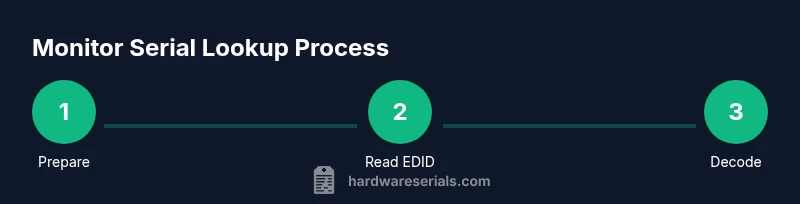
Connect the monitor to the PC and ensure the display is active. Have any required admin rights ready, and decide which OS method you’ll use first (Windows, macOS, or Linux). This initial setup minimizes interruptions later.
Tip: Ensure the monitor is not in a low-power state; an active EDID read often fails if the display is asleep. - 2
Open the Windows EDID path or WMI tool
If you're on Windows, launch PowerShell with admin privileges and access the WMI class that reports monitor data. This will be your primary path for EDID extraction on Windows platforms.
Tip: Use a known-good PowerShell script from trusted sources and run it in a session with appropriate permissions. - 3
Query EDID data on Windows and decode
Run the Windows command to pull SerialNumberID and decode the byte array into ASCII text. If necessary, convert hex bytes to characters to obtain the readable serial.
Tip: If the serial looks encoded or garbled, confirm you queried the correct monitor instance (especially with multi-monitor setups). - 4
Switch to macOS and inspect EDID in System Report
On macOS, open About This Mac > System Report > Graphics/Displays and locate EDID details. If a serial is present, copy it for your records; if not, note the absence for later cross-checks.
Tip: If EDID data is not obvious, try IORegistry commands or check the encoded EDID blocks in the report. - 5
Linux: read EDID from sysfs
Identify your display card path (e.g., card0) and read the edid file under /sys/class/drm/ with sudo. Pipe the bytes to edid-decode to reveal the serial field.
Tip: Make sure you’re reading the correct connector (HDMI, DP, or USB-C). - 6
Decode EDID bytes to human-readable serial
Convert the EDID bytes you retrieved into ASCII, aligning with the monitor’s encoding. If a serial appears, verify its formatting matches the vendor’s typical serial style.
Tip: Keep a backup copy of the raw EDID in case you need to re-decode later. - 7
Cross-check against manufacturer data
Search the manufacturer’s portal or product page for the model number shown in EDID to confirm the serial is legitimate. Cross-checking reduces the risk of misidentifying a similar model.
Tip: Document the link to the exact product page used for verification. - 8
Record and secure the results
Store the serial in your asset management system with the retrieval method and date. Include any notes about discrepancies or missing data and plan a follow-up if needed.
Tip: Regularly audit your inventory to keep serial data current.
Frequently Asked Questions
Can you always read a monitor serial number from EDID?
Not always. Some monitors do not expose a readable serial in EDID, and the data may be absent or obfuscated. In these cases, verify with the monitor’s physical label or vendor portal and document what you found.
Not always. Some displays don't show a readable serial in EDID, so check the label or vendor portal if needed.
Is EDID data safe to read on any PC?
Yes. Reading EDID is non-destructive and designed for automatic display configuration. Use trusted tools and avoid modifying EDID data unless you know what you’re doing.
Yes. Reading EDID is safe and non-destructive when using trusted tools.
What should I do if the serial in EDID doesn’t match the label?
Treat the label as authoritative for ownership and warranty. EDID can include a serial that differs due to firmware choices. Confirm with the vendor portal if needed.
If EDID serial mismatches the label, rely on the label for ownership and warranty checks and verify with the vendor if needed.
Can I use Linux to read EDID for HDMI and DisplayPort panels?
Yes. Linux exposes EDID under /sys/class/drm for each connector. Use edid-decode to translate the data into a readable serial and cross-check with model information.
Yes. Linux can read EDID from sysfs and decode it with edid-decode.
What if I can’t find a serial anywhere?
If you can’t locate a serial in EDID or on the chassis, contact the manufacturer’s support with the model number and purchase details to obtain the official serial.
If no serial is found, contact the manufacturer with model and purchase details to obtain the official serial.
Watch Video
Key Takeaways
- Identify EDID as the primary source when possible
- Use OS-specific methods to retrieve EDID safely
- Cross-check with manufacturer data for accuracy
- Record results for inventory and warranty needs