Look Up Apple Watch Serial Number: A Complete How-To
Learn how to locate and verify your Apple Watch serial number across the device, its packaging, and official Apple tools. This step-by-step guide helps DIYers and pros confirm authenticity, warranty coverage, and model details.


This guide helps you look up your Apple Watch serial number and verify it through official channels. You’ll locate the serial on the watch itself, in Settings, on the original packaging, and via Apple’s Check Coverage tool for validation. This quick preview shows where to start and what you’ll do in the full guide.
What is an Apple Watch serial number and why you should look up apple watch serial number
An Apple Watch serial number is a unique identifier assigned to every watch model, used by Apple and retailers to verify authenticity, confirm model details, and determine warranty eligibility. For DIYers and professionals, knowing how to locate and validate this number can prevent counterfeit purchases, support repairs, and ensure you’re covered for service. According to Hardware Serials, serial numbers are the gateway to tracing a device’s origin and history. This guide focuses on practical steps you can take today to locate and verify your Apple Watch serial, whether you have the watch, its box, or access to an iPhone. Understanding the serial number also helps you cross-check against manufacturer databases and service records, reducing the risk of scams and mislabeling. By mastering a reliable lookup process, you’ll gain confidence in every device you work with.
Locating the serial number on the Apple Watch itself
Your Apple Watch’s serial number is printed on the back of the case, between the sensors near the band attachment area. In many cases, you’ll only locate the number by inspecting the surface under bright light, as the print can be small. For a non-destructive check, carefully rotate the watch to reveal the engraving. Keep in mind that depending on the model, the printing may be etched very shallowly. If you’re handling a refurbished or second-hand watch, verify the serial against the box and device documentation to ensure consistency. Hardware Serials recommends photographing the back engraving for future reference and labeling it in a safe notes file.
Finding the serial number in the iPhone Settings
If your Apple Watch is paired with an iPhone, you can often view the serial number in Settings: open the Watch app on iPhone, go to General, then About. The serial will be listed along with other device identifiers such as model, software version, and IMEI-equivalent identifiers. This method is convenient when the watch’s surface print is hard to read or damaged. Make sure your iPhone is connected to the internet when you check, as some data may update from Apple’s servers.
Using the original packaging and documentation
The serial number is commonly printed on the watch’s box label and the included documentation. If you still have the box, check the label on the side or bottom of the packaging; it usually lists the serial, model number, and a barcode. If you have a purchase receipt or an invoice, a serial number may be present there as well. This route is especially helpful when the watch is inaccessible or the back engraving is illegible. Safe practice is to store a photo of the box label alongside your purchase records for quick reference.
Verifying serial numbers through Apple’s official channels
Apple provides official tools to verify device details and warranty status. Start at Apple’s Check Coverage page to input your serial number and see whether the device is under warranty. You can also use Apple Support articles for step-by-step guidance on locating serial numbers across devices. Always rely on Apple’s official websites for verification to avoid phishing or counterfeit pages.
Interpreting what the serial number can reveal
Serial numbers can hint at manufacturing location, date, and production batch, but Apple doesn’t publish a universal decoder for consumers. Third-party tools may attempt to map digits to dates, yet accuracy varies and is not guaranteed by Apple. The practical takeaway is that a valid serial confirmed by Apple’s official channels confirms authenticity and warranty status. If you’re uncertain, contact Apple Support with your serial and purchase details for authoritative confirmation.
Verifying against purchases and warranty records
Keep records of where and when you bought the watch. Cross-check the serial with retailer receipts or Apple’s support history to ensure the device matches your purchase. If the watch was gifted or inherited, work with the original owner to obtain the serial and proof of purchase. For business use, log serials in your asset management system and back them up in a secure location.
Privacy, security, and best practices
Never share your serial number on public forums or untrusted websites. Use only official Apple domains for any lookup and avoid third-party sites that request your credentials. If a lookup page asks for more than the serial (like login credentials or payment details), discontinue use and report it as suspicious. Maintaining a private, organized log of serial numbers helps prevent loss and theft, and it ensures you can prove ownership if needed.
Troubleshooting common issues during lookups
If a serial number doesn’t validate, double-check the digits for misreads, ensure you’re using the correct device (Apple Watch vs. other wearables), and verify you’re on a stable internet connection. If mismatch persists, try the Settings path on iPhone first, then the box, and finally Apple Support. If the watch is not responsive or the serial is missing, you may need to contact support or visit an Apple Store for in-person assistance. Hardware Serials notes that persistence with official channels yields the best outcomes.
Resources and next steps
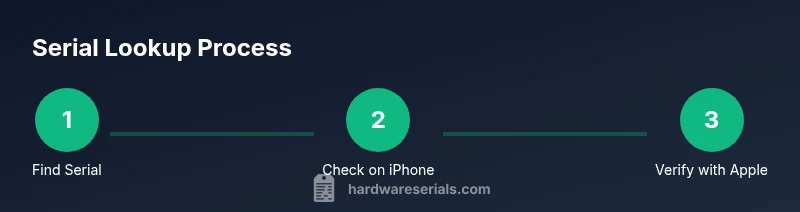
To deepen your understanding, consult official Apple support articles and trusted consumer publications. Create a simple lookup checklist: locate on watch, verify in Settings, check packaging, and confirm via Check Coverage. Keep serials organized with dates and purchase details. If you routinely handle devices for clients, consider adding a standardized serial-tracking workflow to your asset management process.
mainTopicQuery-1-3-word noun phrase for Wikidata lookup
Tools & Materials
- Apple Watch(Your device for the serial lookup)
- iPhone (paired with the Apple Watch)(Access to Settings > General > About if needed)
- Original packaging/box(Box label often lists the serial)
- Internet access(Needed for official lookups and updates)
- Apple ID logged in on iPhone(Helpful for access to Apple Support tools)
- Access to Apple Support/Check Coverage site(Use the official channel to verify the serial)
Steps
Estimated time: 15-25 minutes
- 1
Locate the serial on the watch
Inspect the back of the Apple Watch for the engraved serial number. If legibility is poor, use a bright light or magnification to read the digits clearly. This is your primary hardware identifier.
Tip: Handle the watch gently to avoid scratching the glass or back engraving. - 2
Check the serial in Settings
On the paired iPhone, open the Watch app, go to General, then About. The serial number is listed with other device identifiers. This method works even if the back engraving is damaged or unreadable.
Tip: Ensure the iPhone is connected to the internet for the most current data. - 3
Inspect packaging and receipts
If you still have the original box, check the label on the outside or the back for the serial. Receipts or invoices may also list the serial. This helps verify consistency among sources.
Tip: Take a photo of the label for your records. - 4
Use Apple’s Check Coverage tool
Visit Apple’s official Check Coverage page and enter the serial to confirm warranty status and device eligibility. This is the most authoritative verification method.
Tip: Avoid third-party sites that request login information or payments. - 5
Cross-check with purchase records
Match the serial to your purchase receipt, invoice, or retailer records. Inconsistencies should prompt you to contact Apple Support for resolution.
Tip: Keep a central log of all serials for client devices or personal gear. - 6
If in doubt, contact Apple Support
If any step yields conflicting information, contact Apple Support with your serial and proof of purchase. They can verify authenticity and assist with warranty questions.
Tip: Provide the serial, model, and purchase details to speed up service. - 7
Securely store serial data
Record serial numbers in a password-protected note or asset-management system. This prevents loss and helps in future repairs or resale.
Tip: Use a consistent naming convention for easy retrieval. - 8
Review privacy implications
Only share serial numbers with official channels. Avoid posting serials publicly to prevent misuse or scams.
Tip: Never reuse a serial number as a password or credential.
Frequently Asked Questions
Where can I find the Apple Watch serial number on the device?
The serial number is engraved on the back of the watch near the band. If unreadable, use the iPhone Settings path in the Watch app. The serial can also be on the original box.
Check the back of the watch or open the Watch app on your iPhone under General > About to view the serial number.
How do I view the serial number in the iPhone settings?
Pair your Apple Watch with your iPhone, open the Watch app, go to General, then About to see the serial number. This method is quick and non-destructive.
Open the Watch app on iPhone, go to General, About, and you’ll see the serial number.
Can I lookup the serial number without the watch or box?
Yes, if the watch is paired, you can view the serial in the iPhone’s Watch app. The box label is a backup source if you have the packaging.
You can use the iPhone’s Watch app to find it even if the box isn’t available.
What does Apple Check Coverage tell me about my serial?
Check Coverage shows whether the device is under warranty and confirms hardware eligibility. It’s the official way to verify a device’s status using the serial number.
Check Coverage confirms warranty status using the serial.
What should I do if the serial is invalid or missing?
If the serial is invalid or missing, contact Apple Support with purchase details. Avoid relying on third-party tools for verification, as they may be inaccurate.
If you have issues, contact Apple Support with proof of purchase.
Is it safe to share my Apple Watch serial online?
No. Do not share your serial on public forums or untrusted sites. Share only with official Apple support or retailers when needed for service.
Keep your serial private and share it only with official channels.
Watch Video
Key Takeaways
- Locate serial on watch or Settings
- Use official Apple channels for verification
- Keep serials organized with purchase records
- Do not share serials publicly to protect against scams