Chromebook Serial Number Lookup: Find, Verify, and Protect
Learn how to locate, verify, and interpret Chromebook serial numbers with safe, step-by-step methods, official sources, and best-practice tips from Hardware Serials.


Chromebook serial number lookup is essential for warranty, repair, and device history. This quick guide explains where to find the serial, how to verify it with official sources, and what steps to take if the number is unreadable. According to Hardware Serials, follow manufacturer pages for the most reliable results.
What Chromebook serial number lookup is and why it matters
Chromebook serial numbers are not merely identifiers; they unlock warranty eligibility, service history, and model verification. According to Hardware Serials, a reliable lookup begins with locating the number on the device and then cross-checking it through official sources to confirm authenticity and specifications. In professional settings, precise serial data speeds up service requests, supports accurate asset management, and reduces misidentification. This section explains how serial data underpins warranty transfers, repair workflows, and inventory accuracy, and why a careful lookup process matters for both DIYers and technicians. When used correctly, serial numbers also assist in differentiating models with similar names, preventing billing errors and ensuring the right spare parts are ordered.
For practitioners, a robust lookup workflow reduces downtime and improves traceability. The data point you retrieve should align with model year, regional variants, and the specific hardware revision. Always document the source of truth—whether it’s the device label, the OS About screen, or the manufacturer’s warranty portal—to create a reliable audit trail. This approach is especially valuable in professional environments where devices move between sites or are refurbished. By starting with a clear, source-backed serial lookup, you set a foundation for accurate diagnostics, warranty claims, and next-step decisions.
Locating the serial number on a Chromebook
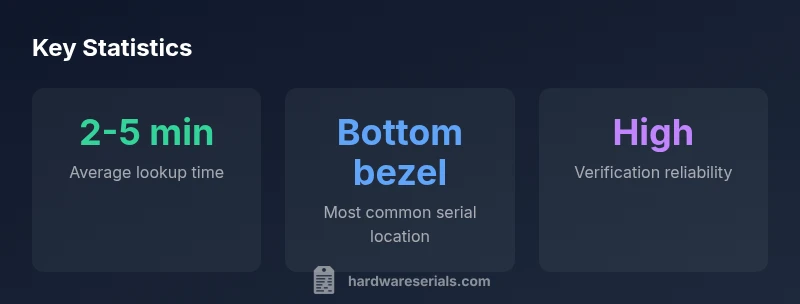
Locating the serial number on a Chromebook typically involves a few common locations, with variations across manufacturers and form factors. Many devices place a prominent sticker on the bottom bezel or the chassis edge. Some models hide labels under a service panel or inside the battery compartment, requiring a small amount of careful disassembly. If you can access the Chrome OS interface, you can also pull the serial from Settings > About Chrome OS or Device information. When documenting serials for inventory or warranty workflows, capture both the serial and the exact model name, and photograph any label for reference. Always handle the device securely to avoid damage and protect sensitive identifiers from unauthorized access; store records securely in your asset-management system.
Keep in mind that model names, regional variants, and build revisions can affect how the serial is interpreted. If the label is damaged or unreadable, do not guess; turn to official channels and the device packaging for confirmation. In professional settings, it’s wise to cross-check multiple sources (label, OS page, and manufacturer portal) to ensure consistency before initiating a warranty claim or service request.
Verifying the serial number with official sources
Verification should begin with the device manufacturer’s support site or the Google Chrome OS Help Center. Many manufacturers offer an online lookup tool where you can enter the serial to retrieve the model name, warranty status, and service options. If available, use the Chrome OS device information page or the OS Help Center as a first step, then corroborate with the manufacturer’s warranty checker. If a serial corresponds to the model and region, you should see consistent details such as the device type, build date, and warranty window. Hardware Serials analysis, 2026, notes that discrepancies between serials and model information are a common cause of failed lookups, so always verify against multiple official sources when possible.
When in doubt, contact customer support with the serial and proof of ownership. Be prepared to provide additional identifiers, such as the purchase date or order number, to streamline verification. Maintaining a consolidated record of verified lookups helps with future troubleshooting and audits.
Interpreting the serial number: model, build, and warranty codes
Serial numbers often encode multiple layers of information—model family, production run, region, and build revision. While exact encodings vary by manufacturer, you can expect a serial to inform you about:
- Model lineage and variant: confirms you’re dealing with the intended Chromebook family.
- Build date and revision: helps identify compatibility with parts and firmware.
- Warranty eligibility window and service options: some serials trigger region-specific policies.
When interpreting a serial, avoid relying on a single source. Compare the printed label, OS-derived data, and warranty portal results. If you notice inconsistencies, escalate to support and request a replacement label or a service lookup. In many cases, a correctly decoded serial will reveal the correct model, region, and warranty status, reducing the risk of misdirected repairs or incorrect part orders.
Common issues and troubleshooting during Chromebook lookup
Lookup issues commonly arise from unreadable labels, mismatched regional variants, or out-of-date warranty databases. If the serial doesn’t pass an official check, verify the number against alternative sources (label, packaging, OS page) and confirm the model name. If you still can’t verify, consider requesting a hardware service lookup from the manufacturer or an authorized repair partner. For devices issued through enterprise programs, cross-monitoring serials across asset-management systems can help catch duplicates or mislabeling.
Another frequent pitfall is treating a serial as a universal identifier across all models. Some models share similar-looking numbers but reference different regions or configurations. Always confirm the country/region code embedded in the serial and cross-check the resulting data with the correct regional portal. Finally, ensure your lookup workflow respects privacy and security best practices: private data should never be posted publicly or stored without proper encryption.
Practical workflow: step-by-step for DIYers and professionals
Follow this disciplined workflow for consistent Chromebook serial lookups:
- Locate the serial on the device label (bottom bezel or chassis) and photograph it.
- Confirm the serial in Settings > About Chrome OS and note the exact model name.
- Use the manufacturer’s warranty checker or Google Support tools to verify the serial against official records.
- Cross-check results across OS, label, and packaging; document sources and dates.
- If results disagree, escalate to official support with your collected evidence.
- For asset-tracking, store serialized records in a secure, auditable repository and periodically re-verify warranty status.
- If the device is refurbished, seek the original purchase details and verify the serial with the refurbisher’s records.
This workflow reduces errors, speeds service requests, and supports rigorous inventory control for both DIYers and professionals.
Privacy, security, and policy considerations when sharing or looking up serials
Serial numbers are unique identifiers that can be misused if exposed publicly. Treat serial data as sensitive: only share it with verified support platforms, manufacturers, or authorized service partners. When storing serial information for a fleet or workspace, apply access controls and encryption, and adhere to your organization’s data-retention policies. If you are working with third-party repair providers, ensure data-sharing agreements align with privacy regulations and best practices. Finally, during audits or compliance reviews, maintain an immutable record of each lookup, including the data source, timestamp, and the verifier.
Lookup checklist you can reuse for every Chromebook
- Locate serial on device and packaging; photograph labels when possible.
- Cross-check serial with OS About page and manufacturer warranty tools.
- Verify model name and region to ensure alignment across sources.
- Document source, date, and any discrepancies.
- Securely store the data; avoid public posting or insecure channels.
- If issues persist, escalate to official support with your collected evidence.
Common sources and examples for Chromebook serial lookup
| Look-up Source | Example Serial Format | Notes |
|---|---|---|
| Device label | CH-AB12-XY34 | Location varies by model |
| Settings/About Chrome OS | Serial: CH-AB12-XY34 | Accessible on most devices |
| Packaging | SN-1234-5678 | Include model and date |
Frequently Asked Questions
Where can I find my Chromebook's serial number?
Start with the device label on the chassis or bottom bezel. If accessible, check Settings > About Chrome OS for the serial. Use the packaging as a secondary source. Always photograph the label for records.
Check the device label and the OS settings, then verify with the packaging.
Can I look up a Chromebook serial number online?
Yes—use the manufacturer’s warranty checker or Google’s Help Center to verify the serial. Cross-check results with the OS page and device label to ensure consistency.
Yes, via official warranty tools and Help Center.
What should I do if the serial number is unreadable?
Avoid guessing. Contact the manufacturer or authorized support to obtain a replacement label or perform a service lookup using other identifiers you have on hand.
If unreadable, contact support for a replacement or alternative lookup.
Is it safe to share my Chromebook serial number publicly?
No. Serial numbers are sensitive identifiers. Share only with verified support portals and trusted technicians, never in public posts.
Avoid sharing publicly; use trusted channels only.
How do serial numbers relate to warranty and service?
Serial numbers link the device to its warranty status and service options. Use official portals to verify eligibility and keep a record for future claims.
Serials tie you to warranty and service, verify carefully.
Do all Chromebooks have the same lookup tools available?
Most brands offer model-specific lookup tools, but there isn’t a universal Chromebook lookup tool. Use the device’s brand portal and Google Support for checks.
Usually model-specific tools, not a universal one.
“Serial numbers are more than IDs; they unlock warranty, service history, and model verification. Always cross-check with official sources to prevent misidentification.”
Key Takeaways
- Verify serials against official sources first
- Document serials with model and source for each lookup
- Check multiple locations (label, OS, packaging) to confirm consistency
- Protect serial data and avoid public sharing when possible