Serial Number for MacBook: Locate, Verify, Protect
Discover how to locate the serial number for MacBook, verify it with official sources, and record it for service, warranty, and resale. This guide covers model-specific locations, official verification steps, and best practices for safeguarding your device identity.


This quick answer shows you how to locate the serial number for MacBook, verify it with official sources, and record it for service, warranty, and resale. You’ll learn model-specific locations, the exact places to check on both older and current designs, and the basic steps to document and protect this critical identifier. Following these steps helps prevent service delays and makes verification faster.
What is a serial number for MacBook and why it matters
The serial number for MacBook is a unique alphanumeric code assigned by Apple that identifies a specific machine. It encodes information about the device model family, year and week of manufacture, and factory of origin. For DIYers and professionals, that identifier is the key to warranty validity, support eligibility, and accurate service records. According to Hardware Serials, keeping this number handy helps you verify coverage, order correct parts, and confirm authenticity when buying or selling used machines. In practice, you’ll use the serial to check warranty status, confirm AppleCare eligibility, and communicate reliably with support teams. The MacBook’s serial is not just a label; it’s a map to your device’s history. By learning where to find it and how to verify it, you reduce the risk of misidentification and errors in repairs, and you empower yourself to manage devices with confidence.
Where to find the serial number on different MacBook models
MacBook serial numbers are not a single, universal spot. Depending on the model and era, you might see the serial on the bottom case, under the feet, near the hinge area, or on the lid underside. For recent MacBook Pro and MacBook Air models with Apple silicon, Apple typically places the serial near the underside or on the original packaging label. If your MacBook won’t boot, or you can’t find a label, packaging labels and receipts from purchase are common alternatives. You can also fetch the serial from macOS via the menu: click the Apple logo, choose About This Mac, then read the Serial Number line. For accuracy, cross-check the number across sources (device, packaging, and software).
How to verify the serial number with official sources
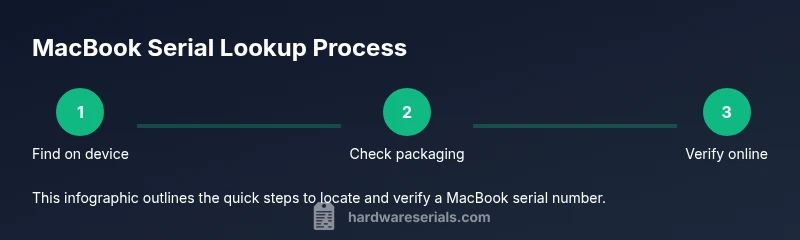
Verification starts with locating the serial on the device or its packaging, then using official channels to confirm the number corresponds to a real Apple ID or service eligibility. Steps:
- Locate the serial using the device interface (About This Mac) or the packaging label.
- Visit Apple’s official verification pages (e.g., Check Coverage) and enter the serial.
- Compare the results with your purchase date, model, and warranty status, noting any discrepancies.
- If needed, contact Apple Support with the serial for direct confirmation. Hardware Serials emphasizes using official sources to avoid counterfeit verification pages. A correct serial will align with the device’s model, purchase date, and coverage, and you should be able to see warranty status updated in Apple’s portal when applicable.
Common issues and how to handle missing or tampered serial numbers
If the serial is missing, scratched, or appears tampered, don’t panic. Start by inspecting alternate sources (box label, receipt, or Apple ID devices listed in iCloud). Document the scenario with photos and notes. Contact Apple Support or an authorized service provider if you suspect device tampering or if the serial cannot be verified. If you bought used hardware, insist on serial validation before finalizing the sale. Tampering can void warranty and complicate service, so avoid removing or altering any serial markings.
Best practices for recording and storing your MacBook serial
Create a dedicated log for each device with fields for: serial, model, purchase date, purchase source, and a URL to the verification page. Store digital copies securely in a password-protected note or encrypted document and keep photos of the label. Regularly back up this information to a secure cloud storage or a local encrypted drive. If you use multiple devices, maintain a consistent naming convention for each file to make future lookups quick and reliable. Finally, review the log after major events (repairs, upgrades) to ensure the serial matches the device’s current configuration.
Using serial numbers for warranty, support, and resale
When you contact support or check warranty status, the serial number is your fastest path to accurate service. Use it to confirm eligibility for AppleCare, request replacement parts, or schedule repairs. For resale, provide the serial to verify authenticity and ensure the buyer can check warranty status themselves. Remember to store the serial in your asset records and share it only through secure channels. The Hardware Serials team recommends maintaining a single, secure record of the serial for every device to simplify future verification.
Tools & Materials
- MacBook device(The device you are inspecting for label or software-read serial.)
- Original packaging/box or receipt(Serial labels are commonly printed on the box.)
- Web browser(Chrome, Safari, Firefox, or Edge to access official pages.)
- Internet access(Needed to verify serial on official portals.)
- Notebook or digital note app(Record the serial once found; keep it secure.)
- Camera or smartphone (optional)(Capture clear photos of the serial label if possible.)
Steps
Estimated time: 15-25 minutes
- 1
Power down and flip the MacBook to view the bottom
Shut down the device completely and place it on a clean, flat surface. Gently rotate to expose the bottom or underside area where a serial label is often placed. Use a soft microfiber cloth if you need to wipe the surface before reading the text.
Tip: Handle with care to avoid scratches; ensure the laptop is cool before you touch the underside. - 2
Look for the serial on the bottom case label or chassis
Inspect the underside label for an alphanumeric sequence. On some models, the serial is etched or printed near the hinge, or along the edge of the bottom case. If the label is worn, photograph it for later reading.
Tip: If the text is hard to read, use good lighting and a magnifying glass or zoomed photo. - 3
Check the original packaging or receipt for a serial label
If the device itself doesn’t reveal the serial, locate it on the original box or the purchase receipt. Packaging labels are a reliable backup and help confirm the exact model. This is especially useful for older devices that may have faded labels.
Tip: Cross-check the packaging serial with the device label to ensure consistency. - 4
In macOS, open About This Mac to display the serial
Click the Apple menu, choose About This Mac, then click System Report or the Serial Number line to read the device’s serial. This method works if the machine can boot and access the operating system.
Tip: If the device won’t boot, rely on packaging or Apple ID listings for the serial. - 5
Visit Apple's official verification page and enter the serial to verify warranty
Go to Apple’s official verification (Check Coverage) page and input the serial. This confirms eligibility, demonstrates current warranty status, and helps identify any service entitlements.
Tip: Only use official Apple domains (apple.com) to avoid phishing sites. - 6
Cross-check results against model details and AppleCare status
Compare the verified data with your MacBook’s model, purchase date, and any active AppleCare coverage. Look for inconsistencies that may indicate a misread, a fake serial, or a misattributed device.
Tip: If something seems off, contact Apple Support for direct verification. - 7
Record the serial in a secure log and back it up
Document the serial in your device inventory with the model, purchase details, and verification URL. Back it up in encrypted storage or a password-protected note for future reference.
Tip: Use a consistent naming convention for easy future lookups.
Frequently Asked Questions
Where is the serial number located on a MacBook?
Most MacBooks show the serial on the bottom case or underside label. If the device won’t boot, you can find it on the original packaging or within About This Mac. Always cross-check with packaging and Apple’s official pages.
You’ll usually find the serial on the bottom or in About This Mac; if the Mac won’t boot, check the box or packaging as well.
Can I find the serial number if my MacBook won’t turn on?
Yes. Use the original box or receipt, and try the serial shown on packaging. You can also read the serial from the About This Mac screen if the system boots later. If you cannot verify, contact Apple Support.
If it won’t turn on, rely on the box or receipt; you can still verify later if you can boot to About This Mac.
How do I verify a MacBook serial number for warranty?
Enter the serial on Apple’s official Check Coverage page to view warranty status and eligibility for AppleCare or service. Cross-check with your purchase date and model to ensure consistency.
Use Apple’s Check Coverage page to confirm warranty status for the serial.
What should I do if the serial is missing or tampered?
Do not attempt to alter the serial. Gather alternative identifiers (box, receipt, Apple ID devices) and contact Apple Support or an authorized provider for confirmation and next steps.
Don’t tamper with the serial; use alternative identifiers and contact Apple Support if needed.
Is the serial number the same as the model or product ID?
No. The serial number uniquely identifies a single unit, while the model describes a general product family. The product ID is different and often used internally for inventory.
The serial is for a specific unit, not the model or product ID.
How often should I update my serial records?
Update your serial records after any change to the device (repairs, upgrades, or resale) to keep information current and verifiable.
Update records whenever you make changes or acquire a new device.
Watch Video
Key Takeaways
- Locate the serial on the device, box, or About This Mac
- Verify serials via official Apple sources
- Record and store the serial securely
- Use the serial to check warranty and eligibility
- Avoid tampering and verify before resale