MacBook Serial Lookup: A Complete How-To Guide
Learn how to locate a MacBook serial number, verify authenticity with official Apple sources, and decode digits to identify model, year, and warranty. A practical, brand-backed guide from Hardware Serials for DIYers and professionals.


MacBook serial number lookup is the process of locating a device’s unique identifier, then verifying its authenticity and decoding the digits to reveal model, production date, and warranty status. In this guide you’ll learn where to find the number on current and older models, how to cross-check with official resources, and how Hardware Serials recommends handling serial data safely.
What is a MacBook serial number?
A MacBook serial number is a unique identifier assigned to each device. It serves as a digital fingerprint for the machine, letting Apple and service providers track production history, warranty coverage, and service eligibility. In the context of macbook serial number lookup, the serial number helps confirm origin, configuration, and validity of claims. According to Hardware Serials, serial numbers encode key information—model family, production year, and factory of origin—though the exact encoding can vary by generation. Understanding this code helps you assess accessory compatibility, service options, and replacement parts. You’ll often find the serial printed on the chassis, but on newer models you may also locate it through software reports or the original packaging.
Why lookup matters
Verifying a MacBook’s serial number protects you from counterfeit devices, ensures warranty entitlement, and helps you confirm exact specifications before repairs or resale. For professionals, a quick lookup reduces risk when auditing equipment or validating inventory. Hardware Serials emphasizes that a thorough lookup should combine physical checks, official Apple sources, and trusted databases to build a complete picture of a device’s history. When you understand what the serial can and cannot tell you, you gain confidence in purchasing decisions, repairs, and long-term maintenance.
Where to find the serial number on current and older models
Many MacBooks display the serial on the underside near the regulatory markings, or inside the footprint near the hinge on some models. For newer devices, the serial can be found in macOS by going to the Apple menu > About This Mac > System Report > Network or Hardware sections. If you still have the original box or receipt, the serial is printed there as well. For older models with removable panels or batteries, you may need to physically inspect the internal label. Always cross-check the location across model generations to avoid overlooking the serial.
How to locate the serial number on macOS and Apple ID devices
In macOS, open the Apple menu and choose About This Mac, then click System Report to view hardware details where the serial often appears. Some users see the serial in System Information under Hardware > Serial Number. You can also sign in to your Apple ID on a compatible device and view registered devices to see the serials associated with those machines. If you’ve purchased a used MacBook, request the serial from the seller and verify ownership through Check Coverage.
Verifying the serial number with Apple and official sources
The safest verification path starts with Apple’s official sources. Visit Apple’s Check Coverage page and enter the serial to confirm warranty status, eligibility for service, and model information. Apple’s support articles also explain where to find the serial and how to interpret coverage data. Hardware Serials recommends confirming data from at least two sources (official Apple page and a trusted database) to ensure accuracy and to avoid counterfeit listings. When in doubt, contact Apple Support for a direct confirmation.
Interpreting the digits: model, date, and specs
Serial numbers typically encode model family, production year/week, and factory. While Apple’s exact encoding changes across generations, you can learn a lot by cross-referencing the serial with Apple support articles and reputable databases. Look for the model identifier, check for warranty status, and match the purchase date where possible. A correct interpretation helps you determine compatible RAM, SSD options, and service windows. Keep in mind that some third-party databases may present slightly different mappings, so always corroborate with official sources.
Common scams and red flags when validating serial numbers
Be wary of sellers who offer to verify a serial but pressure you to make a quick purchase. Red flags include mismatched model information, serials that appear altered, or sources that require you to download suspicious software. Hardware Serials notes that counterfeit listings often reuse serials across multiple devices or provide fake warranty dates. Always use official Apple resources and at least one well-known, reputable database for cross-checks. If something feels off, pause the lookup and request additional documentation.
Tools and resources for MacBook serial number lookup
Useful tools include the official Apple Check Coverage page for warranty status, the Apple Support articles for locating the serial, and reputable third-party databases such as EveryMac or MacTracker for model and date corroboration. Remember to compare results across multiple sources and avoid sharing your serial with untrusted platforms. Hardware Serials recommends documenting both the serial and the sources used for future reference.
Privacy and security considerations when sharing serials
Serial numbers reveal device identity and ownership. Share your serial only with trusted entities (Apple Support, authorized service providers, or reputable marketplaces with buyer protections). When possible, redact or blur serials in screenshots you share publicly and keep a local, encrypted record of your serials for your own safety. Treat serial data like any other sensitive identifier—reduce exposure and limit where it’s stored.
Step-by-step workflow you can follow (quick reference)
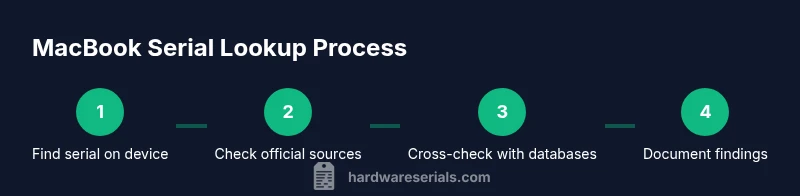
To build a robust MacBook serial lookup workflow: locate the serial on the device or packaging; verify through official Apple channels; cross-check with reputable databases; interpret the results and document evidence; if inconsistencies are found, escalate to Apple Support. This workflow minimizes risk and improves accuracy when assessing a device’s history.
Troubleshooting and next steps if you can’t locate the serial
If you can’t find the serial on the device, check the original packaging, receipts, or your Apple ID device list. If the serial is illegible, request documentation from the seller or service provider and consider a hardware check with an authorized technician. When the serial cannot be located, escalate to Apple Support for guidance and possible device validation steps.
Tools & Materials
- MacBook device (any model)(Have the device handy to locate on-device serials and test different lookup methods.)
- Internet access(Needed to reach Apple’s official lookup pages and trusted databases.)
- Official Apple sources (Check Coverage, Support articles)(Primary sources for verification and warranty status.)
- Box, receipt, or purchase documentation(Helpful for validating serials when device labels are missing.)
- Notebook or secure digital notes(Record your findings and source URLs for future reference.)
Steps
Estimated time: 20-60 minutes
- 1
Gather the device identifiers
Collect the MacBook’s serial from the bottom label, packaging, or macOS. This first step ensures you have a verifiable identifier before continuing.
Tip: Take a photo of the serial label or screen to avoid transcription errors. - 2
Find the serial in macOS
Open the Apple menu, select About This Mac, then click System Report to locate the hardware serial field. If needed, check Network or USB sections for cross-reference.
Tip: Screenshot the serial info for your records. - 3
Check Apple’s official sources
Visit Apple’s Check Coverage page and enter the serial to verify warranty status and model. Compare results with the System Report data.
Tip: Double-check the serial spelling to avoid input errors. - 4
Cross-check with trusted databases
Use reputable databases (e.g., EveryMac) to corroborate the model, date, and specs. Look for consistency across sources.
Tip: If a source contradicts Apple, prioritize Apple’s data. - 5
Interpret and document
Record the decoded information (model family, year, warranty) and note any discrepancies. Prepare a short report for future reference.
Tip: Keep the record securely stored. - 6
Handle suspicious results
If the serial seems altered or mismatches the device, pause the transaction and contact Apple Support or an authorized service provider.
Tip: Avoid proceeding with payment or transfer until verified. - 7
Privacy and data handling
Limit sharing the serial publicly. Use encrypted notes and share serials only with trusted parties.
Tip: Redact serials in screenshots when posting publicly. - 8
Next steps if needed
If verification fails, consider a professional hardware check or return to the seller. Document all interactions for potential disputes.
Tip: Keep receipts and communications organized.
Frequently Asked Questions
Where can I find the MacBook serial number?
You can locate the serial on the bottom case, in the original box, or via macOS by choosing Apple Menu > About This Mac > System Report. For older models, check the battery compartment or underside labeling as applicable.
You can locate the serial on the bottom, in the box, or in macOS System Report. On older models, check the battery area.
Is it safe to share my MacBook serial number with Apple?
Yes. Share the serial only with Apple Support or authorized service providers. Avoid posting it publicly or sending to unknown sites.
Yes, share it only with Apple Support or trusted service providers. Do not post it publicly.
How do I check warranty status using the serial?
Go to Apple’s Check Coverage page and enter the serial. The page will show warranty status, eligibility for service, and model information.
Use Apple’s Check Coverage page to look up warranty status using the serial.
What should I do if the serial seems fake or mismatched?
Pause the transaction and request documentation. Contact Apple Support or an authorized provider for validation before proceeding.
If the serial looks fake, stop and get official validation from Apple or an authorized provider.
Can I lookup serial numbers for used MacBooks reliably?
Yes, but verify with multiple sources and compare with the purchase details. Ensure the serial matches the device physically and in software reports.
Yes, but always verify with multiple sources and match it to the device.
What are common red flags in serial-number-based listings?
Mismatched model data, altered labels, or pressure to act quickly. Such signals warrant careful scrutiny and a second opinion from Apple or a trusted shop.
Watch for mismatched data, altered labels, or aggressive sales tactics.
Watch Video
Key Takeaways
- Locate the serial number accurately on the device or packaging.
- Verify with official Apple sources first to confirm warranty and model.
- Cross-check with reputable databases for consistency.
- Protect serial data and document all steps.