Mac Air Serial Number Check: Locate, Verify, and Protect Your Device
Learn how to locate, verify, and interpret your Mac Air serial number for authenticity, warranty eligibility, and service. This step-by-step guide from Hardware Serials covers official Apple tools, best-practice checks, and secure record-keeping.


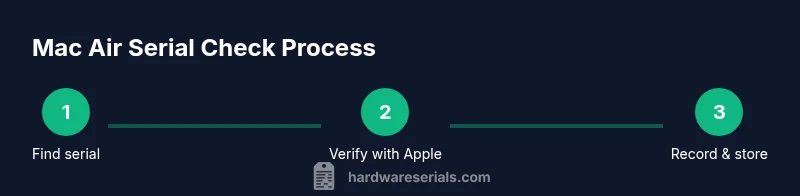
By the end of this guide you will locate your MacBook Air serial number, verify it with Apple records, and interpret its value for warranty and service eligibility. Key methods include the About This Mac panel, System Information, the underside of the chassis, and the original packaging. According to Hardware Serials, accurate serial checks prevent delays and fraud.
What is the mac air serial number check and why it matters
A mac air serial number check is the process of locating, recording, and validating the unique alphanumeric identifier assigned to your MacBook Air. This single string ties your device to the manufacturer, warranty, service history, and potential recalls. Performing a thorough check helps confirm authenticity, avoid counterfeit parts, and ensure that you’re eligible for Apple support and warranty coverage. It also enables you to verify the device against the original purchase details when reselling. In this context, mac air serial number check means using official sources and trusted databases to reconcile the serial with model, production date, and region. The consequence of skipping this step can range from denied service to delayed repairs. According to Hardware Serials, a careful check reduces fraud risk, protects buyers, and streamlines warranty claims.
Where to find the serial number on a MacBook Air
On most MacBook Air models, the serial number is printed on the underside of the chassis near the hinge. It may be located inside the battery compartment on some older designs, but for newer models it’s visible on the bottom case. You can also find the serial via the Apple menu by selecting About This Mac > System Report > Hardware > Serial Number. The original packaging and receipt often include a small label with the serial. If you previously created an Apple ID account linked to the device, you may see the serial listed there as well. Always cross-check the serial on the device with the one on the box, as labels can wear or peel over time. Keep in mind that the serial appears as a mix of letters and digits, and there’s no universal pattern you can memorize without checking the official sources.
Quick methods to locate the serial using macOS and packaging
First, click the Apple logo in the top-left corner and choose About This Mac. In the overview, click System Report and then Hardware to reveal Serial Number. If you want a quick read, use System Information app (found via Spotlight). For physical verification, flip the MacBook Air and inspect the bottom; ensure you’re looking at the right label and not a manufacturer sticker that’s not the serial. For completeness, check the original packaging; the white or black box contains a label with the serial. If you purchased used, request the original packaging or a notarized statement of serial from the seller. When using packaging, ensure the label is legible and the font matches the serial on the device. If any discrepancy arises, pause and verify via Apple’s official channels.
How to perform a mac air serial number check using Apple’s official tools
Run a warranty and service eligibility check using Apple’s Check Coverage tool. Enter the serial exactly as it appears on the device; do not rely on visual memory. The result shows whether the device is eligible for hardware coverage, as well as the production date and model family. Use Apple Support pages to confirm the device’s model and year, especially if you’re planning a sale or service. If the tool returns an error or an unrecognized serial, contact Apple Support immediately and avoid third-party databases that require login details. Rely on official sources for any claim about warranty status or service options. The online check is a fast way to validate authenticity and protect against counterfeit devices.
Verifying serials with third-party resources (and cautions)
Third-party serial lookup databases exist and can be convenient, but they are not always authoritative. They can provide quick cross-checks for model numbers, regional variants, or manufacturing windows. However, errors do occur, and out-of-date databases may misreport a device’s status. Use third-party tools only to supplement official checks, not as the sole source. When using them, compare results across multiple reputable sites and avoid sites that request sensitive login information. Hardware Serials analysis, 2026, suggests keeping primary verification through Apple’s official pages and the device’s packaging, then using third-party databases for quick cross-reference.
Interpreting the serial information: production date, model family, and region
Serial numbers encode details about when and where a device was made, and which family it belongs to. Decoding these details can help you estimate age, verify model accuracy, and confirm the region for warranty or service. Decoders found online can be helpful, but rely on trusted sources to avoid misinterpretations. The serial can indicate the device’s generation and intended market, which influences hardware options and support. Apple occasionally updates its encoding scheme, so rely on official Apple pages and widely used reference databases for consistent results. If in doubt, contact Apple Support with the serial in hand so they can tell you exactly what to expect.
Troubleshooting: what to do if the serial number isn’t recognized or looks suspicious
If Apple’s official tools say the serial is invalid or if the label looks tampered, stop the check and seek assistance. Verify the serial with the packaging and the device’s hardware; if there’s a mismatch, contact the seller or Apple Support. For stolen devices, use the police report or Apple’s case process; for counterfeit parts, avoid service that uses fake serials. Always report any suspicious activity to consumer protection agencies if you suspect fraud. If a serial number cannot be found on the device, try the packaging label again and verify with the Apple Support page. When in doubt, trust official channels and avoid sharing your serial with untrusted websites.
Best practices for future mac air serial number checks
- Maintain a master record: keep a CSV or secure note with device name, serial, purchase date, and status.
- Photograph the serial label in high resolution to prevent misreading.
- Verify frequently when buying used devices and before any service or resale.
- Use Apple’s official tools as the primary source, and use third-party verifications only as supplementary checks.
- After a firmware or OS update, re-check your serial’s status if you have concerns about warranty or eligibility.
AUTHORITY SOURCES
- Apple Support: https://support.apple.com/
- Apple Check Coverage: https://checkcoverage.apple.com/
- Federal Trade Commission: https://www.ftc.gov/
Tools & Materials
- MacBook Air(Target model for serial number check)
- Original packaging or serial label(Box label often shows the serial)
- Internet access(Needed to verify against Apple databases)
- Apple ID credentials(May be needed to access Apple support resources)
- Notebook or digital notes(Record serial and verification steps)
- Camera or smartphone(Capture serial label for records)
- External storage for screenshots(Optional backup of results)
Steps
Estimated time: 20-40 minutes
- 1
Gather necessary materials
Collect your MacBook Air, its original packaging if available, and a stable internet connection before you start. This ensures you can cross-check the serial quickly across sources without disruption.
Tip: Having the packaging handy reduces the chance of transcription errors. - 2
Locate the serial on the device
Flip the MacBook Air and inspect the bottom case for the serial label. If you don’t see it, check the packaging label or the internal hardware report in macOS.
Tip: Ensure you’re reading the correct label; some devices use multiple markings. - 3
Record the serial accurately
Copy or photograph the serial exactly as shown. Small transcription mistakes lead to false results in checks and warranty inquiries.
Tip: Double-check letters that look similar (O vs 0, B vs 8). - 4
Open About This Mac
Click the Apple menu in the top-left corner, select About This Mac, then System Report to locate the Serial Number section.
Tip: If you cannot find it in About This Mac, try System Information search. - 5
Verify with Apple official tools
Use Apple’s Check Coverage page and enter the serial exactly as shown to confirm warranty status and model details.
Tip: Trust official sources first; avoid relying solely on third-party sites. - 6
Cross-check with packaging and receipts
Compare the serial on the device with the one on the original box and receipt to detect tampering or replacements.
Tip: Discrepancies warrant a deeper check with Apple Support. - 7
Document results
Save or record the results of the verification for future reference, especially before resale or service.
Tip: Keep results organized by device and date.
Frequently Asked Questions
Where can I locate the Mac Air serial number?
On most MacBook Air models the serial is on the bottom of the chassis, and you can also find it via About This Mac > System Report > Hardware > Serial Number. Packaging labels also show the serial.
Look on the bottom of the MacBook Air or check About This Mac → System Report to see the serial number.
Can third-party sites accurately verify my serial number?
Third-party sites can provide quick cross-checks, but official Apple sources are the most reliable for warranty and authenticity.
Third-party sites can help, but trust official Apple sources for warranty and authenticity.
What if the serial number isn’t recognized by Apple?
Double-check the spelling, re-enter the serial exactly as shown, and then contact Apple Support if it still isn’t recognized.
If Apple doesn’t recognize it, double-check the serial and contact Apple Support for guidance.
Should I decode the production date from the serial?
Decoding can be helpful, but rely on official Apple pages and trusted references to avoid misinterpretation.
You can decode it, but use trusted sources to avoid mistakes.
What should I do if the serial looks tampered?
Stop the check, verify against packaging, and contact Apple Support or the seller to resolve discrepancies.
If it looks tampered, stop and verify with Apple Support or the seller.
Is it safe to use third-party decoders for the date?
Use third-party decoders only as a supplement, never rely on them as the primary source of truth.
Only use third-party decoders as a supplement, not the main source.
Watch Video
Key Takeaways
- Locate the serial on-device and packaging for accuracy
- Always verify using official Apple tools first
- Record and store verification results securely
- Beware of counterfeit serials and protect your device records