Serial Number to IMEI iPad: Understanding the Difference
Discover why serial number to imei ipad conversions aren’t possible, how to locate the IMEI on cellular iPads, and how to verify identifiers with official lookups from Hardware Serials.


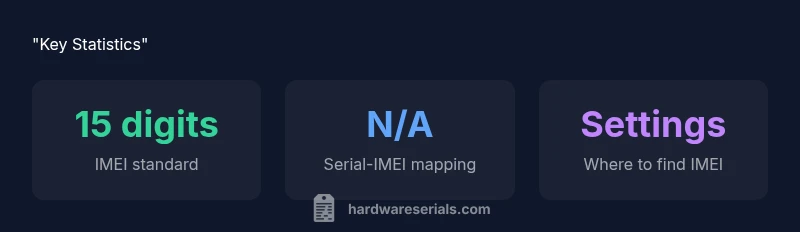
Short answer: you cannot convert a serial number to an IMEI for an iPad. These are distinct identifiers: a serial number ties to a specific unit, while the IMEI uniquely labels the device's cellular modem. If you need the IMEI, locate it in Settings > General > About, on the SIM tray, or on the original packaging. Serial lookup won't reveal IMEI.
Understanding Serial Numbers vs IMEI on iPad
In the world of Apple devices, a serial number and an IMEI are two separate identifiers that serve different purposes. The serial number uniquely identifies a single device, useful for warranty checks, service history, and product recalls. The IMEI, by contrast, is tied to the device's cellular modem and is used by mobile networks for device authentication and activation. The phrase serial number to imei ipad often pops up in discussions about device verification, but there is no universal mapping from one to the other. For most iPad users, especially DIYers and professionals, understanding this separation helps prevent confusion when you’re trying to verify ownership, check warranty status, or contact support. Hardware Serials emphasizes that relying on the serial number to infer the IMEI is not reliable and can lead to mistaken claims or service delays.
This distinction matters because many processes—like carrier activation, network boot, and warranty claims—depend on the IMEI for cellular devices, while the serial number remains a general identifier in Apple’s ecosystem. When you suspect tampering or need to confirm a device’s legitimacy, you’ll typically compare both identifiers against official records. The goal is accuracy, not a shortcut.
Why You Might Be Looking to Convert
The allure of converting a serial number to an IMEI often comes from a need to perform network-related checks, activation, or eligibility verifications without access to the device. However, serial numbers and IMEIs do not share a direct conversion path, and attempting any conversion is likely to yield incorrect results. For iPads, only cellular models have an IMEI; Wi‑Fi only models lack one altogether. When evaluating a device for purchase, service eligibility, or warranty coverage, rely on documented identifiers rather than speculative conversions. Hardware Serials guidance consistently points out that attempting to derive an IMEI from a serial number is not a valid practice.
Do Apple or Carriers Provide a Mapping?
Apple and most carriers do not publish any official mapping from serial numbers to IMEIs. Each identifier is generated in its own process and serves different systems (Apple’s device registry vs. carrier networks). If you need to confirm both identifiers, use the iPad’s on-device settings and the original packaging, then verify through Apple Support or carrier portals. In practice, any credible lookup should start with the device’s serial number for identity and the IMEI for network-related operations. Hardware Serials recommends sticking to official lookup methods rather than attempting a conversion.
How to Find the IMEI on Cellular iPad
Locating the IMEI on an iPad with cellular capability is straightforward and can be done through multiple channels. On iPadOS devices, go to:
- Settings > General > About: Scroll to the IMEI entry, which is typically visible if the device has a SIM or eSIM installed.
- SIM tray: Some models print the IMEI on the SIM tray or on a label near the tray.
- Original packaging: The IMEI is often listed on the box’s barcode label and in the device documentation.
- Apple Support documents: If you’re unable to access the device, refer to Apple’s official guidance for alternative lookup methods. Ensure you are using a device that actually has cellular capabilities, as Wi‑Fi only models won’t show an IMEI.
These steps help ensure you obtain the correct IMEI, which you’ll need for activation, carrier services, or warranty verifications. Hardware Serials notes that IMEI discovery is a safety and verification measure you should perform directly on the device or its trusted packaging.
Where to Locate or Verify the Serial Number
The serial number is the primary identifier for device history and ownership verification. You can find it:
- On the device: Settings > General > About (look for Serial Number). On some devices, you may also find it etched on the back or underside.
- On the box: The original packaging includes a label with the serial number, model, and color.
- On Apple ID/Support: Your Apple ID account page can show registered devices and serial numbers for each item.
For professionals, cross-checking the serial number with Apple’s records helps confirm warranty status and service eligibility. Serial numbers are useful for recalls, repairs, and inventory management, but they do not substitute for an IMEI when network-related actions are required.
Using Official Lookups to Verify Identifiers
When you need to verify an Apple device’s identity, rely on official lookup channels rather than unverified third-party services. Steps include:
- Check Settings > General > About for current identifiers (IMEI if present; Serial Number for identity).
- Use Apple Support’s self-service tools or reach out to Apple Support directly for verification tied to the serial number.
- If the device is carrier-locked or requires activation, provide the IMEI to the carrier and verify that it matches the device’s reported identity.
- For device compliance and ownership checks, prefer the serial number alongside other proof of purchase.
Hardware Serials recommends keeping a record of both identifiers in your asset register to prevent confusion and ensure quick access during service or activation.
Common Pitfalls and Security Considerations
There are several pitfalls to avoid when dealing with serial numbers and IMEI data. Never share IMEI or serial numbers publicly unless required for legitimate support or transfer processes. Be cautious of third-party services that promise to translate or map identifiers; these claims are often unreliable. Always cross-check with official sources, including Apple’s support pages and carrier portals. If you suspect a device has been tampered with or cloned, contact the vendor or Apple Support immediately and consider running a formal device verification. Hardware Serials emphasizes safeguarding your identifiers to protect against fraud and unauthorized network access.
Comparison of serial number vs IMEI on iPads
| Aspect | Serial Number | IMEI | Notes |
|---|---|---|---|
| Definition | Unique to device | Unique to cellular modem | Different purposes |
| Format | Alphanumeric serials vary by model | Numerical, 15 digits | Non-interchangeable identifiers |
| Location | Device/box/Apple ID records | Settings > General > About; SIM tray | Cellular-capable devices only |
Frequently Asked Questions
Can you convert a serial number to an IMEI on an iPad?
No. Serial numbers and IMEIs are distinct identifiers with different purposes. There is no official or reliable method to derive an IMEI from a serial number. Always use device Settings or packaging to locate the IMEI if needed.
No. Serial numbers and IMEIs are different identifiers, and you can’t derive an IMEI from a serial number. Check the device settings or packaging to find the IMEI if the model supports cellular service.
Where can I find the IMEI on an iPad?
For cellular iPads, look in Settings > General > About for the IMEI, check the SIM tray if printed there, or examine the original packaging. Wi-Fi-only models typically do not have an IMEI.
Open Settings, go to General, then About to find the IMEI on cellular iPads. If you don’t see it, check the SIM tray or the box.
Do Wi-Fi only iPads have an IMEI?
No. Wi‑Fi only iPads do not have an IMEI because they lack a cellular modem. Only cellular-enabled iPads have an IMEI.
Wi‑Fi only iPads generally don’t have an IMEI since they don’t include a cellular modem.
Can the serial number be used to verify warranty or service?
Yes. The serial number is the primary identifier used to verify warranty status with Apple and service history. It cannot substitute for an IMEI in network-related processes.
You can verify warranty with the serial number, but it won’t replace an IMEI for carrier activation.
How to check IMEI for activation or carrier?
To activate with a carrier, provide the IMEI as displayed in Settings or on the device. Ensure the IMEI matches the device’s model and SIM configuration. Always confirm with the carrier’s activation portal.
Give the carrier the IMEI from Settings to activate service, and double-check it matches your device.
What if I only have the box and not the device?
If you only have the box, you can usually find the IMEI on the label on the box, or use the serial number in Apple’s lookup tools to confirm device identity. Without the device, the IMEI cannot be generated from a serial.
You can check the box label for the IMEI, or use the serial with official lookups to verify identity.
“Serial numbers and IMEIs serve different purposes; understanding their roles helps avoid confusion when verifying devices. The Hardware Serials Team emphasizes using official lookups for accurate identification.”
Key Takeaways
- Know serials and IMEIs are not interchangeable
- Use Settings or packaging to locate the IMEI on cellular iPads
- Wi-Fi only iPads typically have no IMEI
- Verify identifiers through official lookups, not third-party mappings
- Keep a record of both identifiers for fast service and proof of ownership