Can You Track iPhone with Serial Number? A Practical Guide
Explore whether you can track an iPhone using its serial number, what a serial reveals, and safer alternatives like Find My. Learn with Hardware Serials for clarity and protection.


Short answer: you cannot track an iPhone in real time using only its serial number. Serial numbers are static identifiers used to verify model, warranty, and authenticity. Real-time tracking requires Find My iPhone, an Apple ID, and location services enabled on the device.
What an iPhone serial number actually is
The serial number is a unique identifier assigned to your iPhone by Apple during manufacturing. It helps Apple and service providers confirm your device’s model, color, storage capacity, and production batch. According to Hardware Serials, understanding what this number can and cannot reveal is essential for reliable troubleshooting and protecting your device. A serial can appear on the original packaging, the SIM tray, or in Settings > General > About. It travels with the device even if you rename or reset settings, making it useful for customer support requests or warranty checks. However, it is not a tracking beacon or locator. Location data is separate and tightly controlled by Apple’s Find My network and your Apple ID. Relying on a serial alone to pinpoint a device’s whereabouts is not possible, and attempting to do so through dubious third-party services often leads to scams.
Why serial numbers can't locate a lost iPhone
Serial numbers are static identifiers that do not emit current location data. They’re intended for model verification, service eligibility, and warranty status. Real-time location requires the device to be online, have Find My iPhone enabled, and be linked to an Apple ID. Apple’s Find My network uses encrypted location signals from nearby devices to help locate a missing iPhone, not the serial number itself. Hardware Serials emphasizes that attempting to track a device via a serial number is not supported by Apple, and such efforts usually lead to scams or privacy issues. If you hear promises of location data from a serial, treat them with skepticism and prioritize official channels like Find My and your carrier.
What you can use a serial number for
A serial number can help you verify device authenticity, confirm model details, and check warranty or eligibility for AppleCare. It can assist customer support when you report a problem, request service, or seek replacement parts. You can use the serial to confirm the device you’ve purchased is genuine and to see whether it’s still under warranty. While useful for ownership records, a serial does not reveal current location, ownership status, or prior owner history in a way that would enable tracking. Hardware Serials notes that serial-based checks are best used as a verification tool, not a locator tool.
Real-time location? Use Find My instead
If a device is lost or stolen, the proper channel is Find My iPhone. Sign into iCloud with the associated Apple ID, select the missing iPhone, and view its last known location if available. Activation Lock can prevent others from using the phone even if they reset it. The serial number itself plays a role only in verification and support workflows, not in pinpointing a live location. Hardware Serials also reminds users that location data is tightly controlled to protect user privacy.
Safety and scams: avoid tracking scams
Be wary of third-party services that claim to track devices using a serial number. These claims are often scams designed to harvest your data or push you into paying for a service that won’t work. Only rely on official Apple tools (Find My, Check Coverage) and trusted carriers for any locate requests. If something sounds too good to be true, it probably is. Hardware Serials recommends sticking to verified sources and reporting suspicious offers to the proper authorities.
How to verify device using serial number
Start by locating the serial on the device, packaging, or Settings > General > About. Use Apple’s Check Coverage page to confirm warranty status and AppleCare eligibility. If you recently bought a used iPhone, checking the serial can help verify ownership and ensure activation is possible. Remember that even with a valid serial, you still need the Apple ID and Find My settings to locate a device in real time. Always compare serial information with the original purchase to avoid counterfeit or stolen devices, a step emphasized by Hardware Serials.
Quick reference: where to find the serial and check coverage
- On the device: Settings > General > About (Serial Number).
- On the hardware: the SIM tray or back of the device for older models.
- On the box: label with serial and model information.
- Check coverage: visit Apple’s Check Coverage page and enter the serial to view warranty status and eligibility.
Using these official paths ensures you’re relying on authorized data, not questionable sources.
Tools & Materials
- iPhone or its original packaging (serial visible)(Location may be Settings > General > About or the box label)
- Stable internet connection(Needed to access Apple pages and Find My status)
- Apple ID credentials(Required to use Find My iPhone and iCloud features)
- Access to official Apple support tools(Check Coverage, Find My, and Activation Lock information)
Steps
Estimated time: 45-60 minutes
- 1
Find the serial number
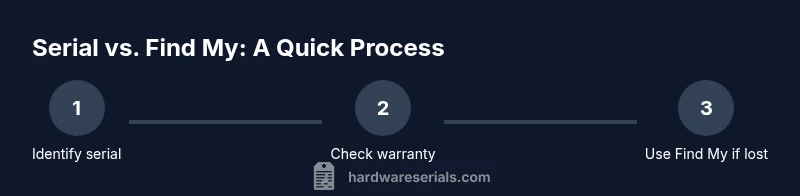
Locate the device serial on the iPhone itself (Settings > General > About), on the SIM tray, or on the original packaging. Having the serial handy helps with official verification and service inquiries.
Tip: Keep a secure record of the serial in a password-protected note or your hardware inventory log. - 2
Check warranty status using the serial
Visit Apple’s Check Coverage page and enter the serial to view warranty, eligibility for AppleCare, and production date. This confirms ownership details and service options.
Tip: Note the warranty expiration date and any AppleCare coverage for future reference. - 3
Verify ownership and purchase details
If you bought the phone used, verify the serial against the seller’s record and the original receipt. This helps ensure Activation Lock won’t block legitimate use.
Tip: Ask for a proof of purchase and compare the serial to the box label before finalizing a transfer. - 4
Review Find My iPhone status
Check whether Find My iPhone is enabled on the device. If you’re the owner, enable it now for future location capability; if you’re not, ensure you have authorization to access the account.
Tip: If you’re the owner and Find My isn’t enabled, enable it immediately to protect your device. - 5
If the device is lost, use Find My iPhone
Sign into iCloud with the linked Apple ID and attempt to locate the device on a map. If online, you can play a sound, lock the device, or erase data remotely.
Tip: Enable Lost Mode if you suspect theft; it locks the device and can display contact information for the finder. - 6
Contact your carrier
Notify your wireless carrier with the serial (and IMEI if needed) to suspend service or blacklist the device if stolen. They can help with network-level protections.
Tip: Avoid sharing sensitive data via phone calls; use official chat or support portals for documentation. - 7
If theft is suspected, file a report
If you believe the device was stolen, file a police report and provide the serial number, IMEI, and any other identifiers. A formal report can aid investigations and potential recovery.
Tip: Keep a copy of the report and serial/IMEI numbers in a secure location for reference. - 8
Document actions and monitor updates
Record every step taken (serial checks, Find My actions, carrier reports) and monitor for any status changes in Apple or carrier accounts.
Tip: Regularly review account activity for unauthorized access and update passwords as needed.
Frequently Asked Questions
Can you locate an iPhone using its serial number alone?
No. Serial numbers are not used to locate devices in real time. For location, rely on Find My iPhone and the associated Apple ID.
You can’t track an iPhone with just the serial number; use Find My iPhone for location when it’s available.
Where can I find the iPhone serial number?
You can find the serial in Settings > General > About, on the SIM tray, or on the original packaging.
Check Settings under General > About or look on the box to locate the serial number.
Is the IMEI the same as the serial number?
No. The IMEI is used by networks to identify a device, while the serial number identifies the device for support and authenticity.
IMEI identifies the phone to networks; serial numbers are for manufacturer and service records.
What should I do if Find My is disabled?
Apple cannot locate the device if Find My is off. Report the situation to the police and your carrier, and secure your accounts.
If Find My is off, you should report it and secure your accounts, as location data won’t be available.
Can I use the serial number to verify ownership before buying?
Yes. Check the serial on Apple’s site for warranty status and ensure the seller can provide a valid proof of purchase.
You can verify warranty status with the serial to ensure the device isn’t stolen.
What are safe ways to protect my iPhone’s location privacy?
Keep Find My enabled only on devices you own and control. Use strong Apple ID password and two-factor authentication.
Keep Find My on for your devices you own and use a strong password.
Watch Video
Key Takeaways
- Serial numbers do not provide real-time location data.
- Use Find My iPhone and Apple ID to locate a device if possible.
- Verify ownership with the serial via Apple Check Coverage.
- Beware of scams claiming serial-based tracking; rely on official channels.