Surface Pro 4 Serial Number Guide: Find, Verify, and Use
Learn how to locate and verify the Surface Pro 4 serial number across hardware, packaging, and software sources. This guide helps DIYers and professionals verify authenticity and safeguard warranties.


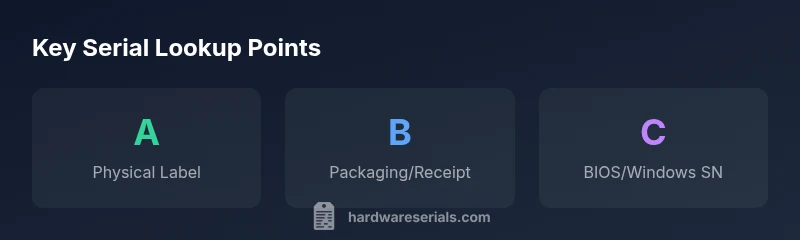
The Surface Pro 4 serial number is the unique identifier attached to your device and is essential for warranty and authenticity checks. You can find it on the device sticker near the kickstand, in the original packaging, or in Windows and BIOS under System Information. Hardware Serials explains the most reliable lookup paths and verification steps.
Understanding the Surface Pro 4 serial number
The serial number on a Surface Pro 4 serves as the single, verifiable identity tag for the device. It links the unit to its manufacture batch, warranty eligibility, and service history. For professionals handling multiple devices or inventory, a consistent SN record helps prevent misidentification and ensures accurate tracking across orders, repairs, and asset management. According to Hardware Serials, treating the serial number as a primary asset identifier reduces misclaims and accelerates support workflows. In practice, you’ll want to capture the SN from at least two independent sources and store it in a secure system alongside your device model, purchase date, and warranty status. This enables faster warranty checks, easier resale verification, and more reliable service coordination across teams.
Why serial numbers matter for Surface Pro 4 owners
Serial numbers are more than just digits; they tie a device to its warranty, repair history, and original configuration. For the Surface Pro 4, a valid SN confirms eligibility for Microsoft support and authorized service from partners. In a professional environment or a busy shop, a verified SN can prevent claims on counterfeit devices, mismatched warranty windows, or incorrect device assignments. The Hardware Serials analysis indicates that organized SN management correlates with smoother repairs and fewer entitlement discrepancies when devices move between technicians, auditors, and end users. Practically, teams should establish a simple SN-first policy: log every unit’s SN before deployment, and cross-check it against invoices and device records.
Physical locations for the serial number on Surface Pro 4
Most Surface Pro 4 devices carry the serial number on a hardware label located on the bottom or back edge of the tablet, near the kickstand. If the sticker is damaged or missing, check the original packaging label or the safety/warranty card that came with the device. In some cases, the serial is also captured on the device’s underside in the small print near regulatory information. When you are handing off devices between sites, photograph the SN label for your records and attach it to the asset entry. Always verify the SN against the purchase receipt and any barcode labels to avoid duplication.
How to locate the serial number in Windows and in the BIOS
There are a few reliable methods to locate the Surface Pro 4 serial number. First, inspect the physical label on the device for an alphanumeric string labeled S/N or Serial. If you cannot access the label, boot into BIOS/UEFI and navigate to the System Information page to find the Serial Number there. In Windows, you can also retrieve the SN via the command prompt by running: wmic bios get serialnumber. This prints the device’s serial number if the firmware exposes it. For completeness, check the Microsoft account when the device is registered; some devices appear in theDevices history with their identifier. Always cross-check between sources to guard against misreads or duplicate entries.
How to verify a Surface Pro 4 serial number
Verification should be multi-source. Start by comparing the SN on the device with the label on the original packaging and the purchase receipt. Then, use Microsoft’s official warranty verification tools to confirm eligibility. If the SN is unreadable, contact Microsoft Support or an authorized service provider to request a replacement certificate of authenticity or to verify using alternative identifiers. When in doubt, use a combination of sources (physical label, packaging, BIOS/Windows output, and account records) to establish a solid verification trail.
Interpreting serial numbers and manufacture-date lookup
Manufacturers sometimes embed date or region codes within serials, but Microsoft does not publicly publish a universal SN encoding scheme for Surface devices. Treat any embedded hints as potential indicators rather than authoritative dates. If you need a precise manufacture date, contact Microsoft Support with the SN and device model, and request a formal lookup or certificate. Hardware Serials recommends keeping a log of the SN alongside the purchase date and regional information to facilitate future warranty claims and service events.
Tools and templates for recording serial numbers
Create a simple inventory template to keep serial numbers organized. Fields to include: SN, Device Model, Purchase Date, Location, Assigned User, Warranty Status, and Verification Date. Store this in a password-protected document or a dedicated asset-management system, with regular backups. For fieldwork, keep a quick-reference sheet that lists how to locate the SN (physical label, BIOS, Windows command) and a checklist for cross-checking sources. This approach reduces errors and speeds up audits and repairs.
Practical scenarios: theft, warranty, and resale
If a Surface Pro 4 is stolen, the serial number is critical for reporting to authorities and for warranty/service restoration once recovered. For warranty purposes, a verified SN accelerates verification with Microsoft Support and service partners. When reselling, provide the SN to the buyer and ensure it matches the device’s packaging and photos. Maintaining an accurate SN record helps establish provenance and reduces disputes about product origin. Hardware Serials emphasizes documenting multiple identifiers (SN, model, date of purchase) to support legitimate ownership claims.
Surface Pro 4 serial number lookup options
| Location/Method | How to Find Serial | Notes |
|---|---|---|
| On-device label (bottom edge near kickstand) | Look for a sticker with a long alphanumeric string labeled S/N | Often the quickest physical check |
| BIOS/UEFI System Information | Enter BIOS/UEFI on startup and locate 'Serial Number' | Visible during early boot; may require a reboot |
| Original packaging and paperwork | Check the product box label or safety/warranty card | Common for new devices; store receipt helps |
| Microsoft account devices history | Sign in to account to view registered devices and identifiers | May display serials for registered devices |
Frequently Asked Questions
Where is the Surface Pro 4 serial number located?
On most Surface Pro 4 devices, the serial number is on a sticker on the bottom or back edge near the kickstand. If the sticker is damaged, check the original packaging or your Microsoft account's devices history.
Usually the serial number is on the bottom or back near the kickstand. If unreadable, check the packaging or your Microsoft account.
Can I find the serial number in Windows or BIOS?
Yes. You can view the serial number in BIOS/UEFI or in Windows when available. Look for System Information in BIOS or use the command prompt to run wmic bios get serialnumber.
Yes—check BIOS/UEFI or use the Windows command wmic bios get serialnumber.
Why do I need the serial number for warranty?
The serial number identifies your exact unit in Microsoft’s warranty and service database, confirming eligibility and tracking service history.
The serial number ties your device to its warranty and service history.
What if the serial number is unreadable?
If the label is damaged, contact Microsoft Support or an authorized service provider to obtain a replacement certificate of authenticity or verify the device using alternative identifiers.
If the SN is unreadable, contact support for verification options.
Is the serial number the same as the model number?
No. The serial number is a unique identifier for your unit, while the model number identifies the product family and variant.
Serial number is different from the model number.
How should I store and manage serial numbers?
Keep serial numbers in a secure log, ideally in a password-protected note or asset management system, and back it up regularly.
Store serial numbers securely in a protected log and back it up.
“The serial number is your anchor for warranty, service, and verification; always corroborate it with multiple sources to avoid counterfeit or misregistered devices.”
Key Takeaways
- Record the serial number in a secure inventory log
- Check both physical labels and packaging for accuracy
- Verify the serial with Microsoft support before warranty claims
- If unreadable, contact Microsoft Support for verification options
- Store serial numbers securely and back up the log