Check Serial Number Microsoft Surface: A Practical How-To
Learn how to check the serial number on a Microsoft Surface, verify authenticity, warranty status, and keep a secure record. Step-by-step guidance for DIYers and professionals.


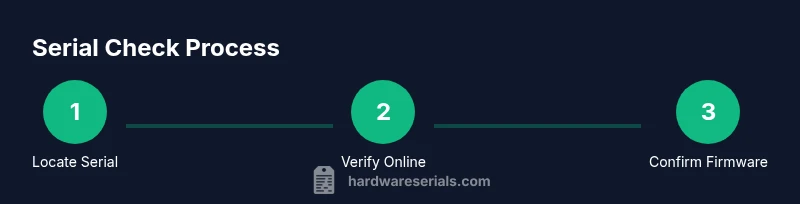
To check serial number microsoft surface, locate the number on the device or packaging, verify it on Microsoft’s support site, and confirm it matches the firmware. You’ll need your Surface, its packaging or BIOS, and internet access to validate. Quick checks include cross-referencing with the Microsoft device status page and ensuring the serial matches the model and warranty.
Why checking serial numbers matters for Surface devices
According to Hardware Serials, validating the serial number on your Microsoft Surface is not just about determining authenticity. It safeguards warranty eligibility, helps confirm model accuracy for service requests, and reduces the risk of counterfeit parts or mislabeled devices entering your workflow. For DIYers and professionals, a verified serial link to the correct model ensures you’re eligible for firmware updates, driver compatibility, and official support channels. In environments with lots of devices—like repair shops, schools, or enterprise deployments—serial verification becomes a routine risk-management step. This section lays the groundwork for why the serial matters, the kinds of issues it helps prevent, and how to structure your process so it’s repeatable and auditable. Hardware Serials research highlights that consistent serial checks improve asset lifecycle management and reduce post-sale disputes.
Where to find the serial number on a Microsoft Surface
Surface devices expose their serial numbers in multiple places to accommodate different workflows. For most recent models, you can locate the serial on the back or bottom bezel of the device, often near the Surface logo or a small barcode. Some devices also display the serial inside the kickstand cavity on Surface Pro variants, or under the keyboard base on certain laptop configurations. If you still have the original packaging, check the white label on the box and any included documentation, which typically lists the serial and model information. For on-device checks, you can also retrieve the serial from the Settings menu or BIOS/UEFI, which is crucial if the outer shell has been damaged or disguised. Always cross-check serials across these sources to catch mismatches that may indicate tampering or counterfeit parts.
How to locate serials on packaging and accessories
Packaging labels are your fastest route when the device is not powered or accessible. Look for a sticker on the box’s side or bottom that includes a long alphanumeric sequence labeled as the serial or S/N. Serial numbers may appear near barcodes or alongside the model number. If you have accessories like the charger or pen, check their packaging as well, since sometimes serials are included on accessory packaging rather than the main device. Keep packaging scans or photos organized with the device record. Documentation that links the serial to the box, purchase date, and configuration helps during warranty claims or resale.
How to check the serial number online with Microsoft
Microsoft offers official channels to verify a device’s serial against warranty status, service eligibility, and support coverage. Visit the official Microsoft support or warranty lookup page and enter the serial number exactly as printed. If the lookup returns a valid model and warranty window, you’re likely dealing with an authentic device. If the page rejects the serial, re-check the digits for transcription errors, verify you’re on the correct regional site, and consider trying alternate sources like the Windows settings, BIOS, or My Surface account. For business environments, coordinate with your asset-management system to flag any discrepancies automatically.
Using the BIOS/UEFI and system settings to confirm serial
Access the Surface’s firmware or system information to confirm the serial, especially if the device is powered on. To enter BIOS/UEFI on Surface devices, power off, then press and hold the Volume Up button while pressing the Power button until the Surface logo appears. In the firmware interface, navigate to the System Information or Device Information section to read the serial number. In Windows, you can also check Settings > System > About for the device information panel, which may list the serial or a service tag. Use both sources to ensure consistency; discrepancies between firmware and OS-reported serials can indicate tampering or mislabeling.
Cross-checking serials with model numbers and warranty status
Serial numbers must align with model numbers, color options, and SKU shown on the box. Use the serial to verify the exact model (e.g., Surface Pro, Surface Laptop, Surface Book) and cross-check with the purchase invoice or order history. Warranty status is often time-bound to the device’s purchase date; an irregular warranty window may signal counterfeit or refurbished parts. If you have multiple devices, maintain a centralized log including serial, model, purchase date, and warranty end date. This practice streamlines audits and future service requests.
Troubleshooting common mismatches and counterfeit signs
If a serial number isn’t recognized by Microsoft’s lookup tool, verify there are no obvious errors like swapped digits or ambiguous characters (0 vs O, 1 vs I). Check for inconsistencies in font, spacing, or label placement on the device versus the packaging. Counterfeit devices may copy logos or use unfamiliar serial prefixes. If you suspect tampering, discontinue use, isolate the device, and contact official Microsoft support or your authorized service provider for verification. Always prefer official sources and avoid third-party databases that lack verification processes.
Best practices for recording, storing, and renewing serial info
Develop a simple serial-inventory routine: capture the serial, model, purchase date, warranty end, and a photo of both the device label and the packaging. Store records in a secure, backed-up location like a business-grade document management system or encrypted folder. Create a reminder for warranty renewal dates and service eligibility windows. When devices are reassigned or retired, update the registry and archive the relevant serials with notes about the device’s condition and service history. Regular audits help maintain an accurate, auditable asset register.
Quick-reference checklist for check serial number microsoft surface
- Locate serial on device and packaging; photograph key labels
- Record the serial in a secure log with model and purchase date
- Check serial in OS (Settings/About) and BIOS/UEFI when possible
- Verify serial on Microsoft official warranty/serial lookup page
- Cross-check with model numbers and warranty status
- Look for red flags: mismatched labels, odd fonts, or unrecognized serials
- Archive results and set future reminders for warranty expiry
Tools & Materials
- Microsoft Surface device (any model)(Have the device available for on-device checks and settings access)
- Original packaging and accessories(Box label or packaging insert with serial and model info)
- Internet access(Needed to verify serial on official Microsoft pages)
- Official Microsoft warranty/serial lookup page(Use only MS-supported portals for authenticity checks)
- Notebook or digital record(Log serials, purchase dates, and warranty windows)
- BIOS/UEFI access capability(Needed to read serial from firmware in some models)
Steps
Estimated time: Estimated total time: 25-40 minutes
- 1
Gather devices and evidence
Collect the Surface device, its packaging, and any accessories. Photograph serial labels and note any serials from the OS or BIOS if available. This establishes a baseline for verification.
Tip: Organize by device and label location to avoid cross-check errors. - 2
Find serial on the device
Inspect the back, bottom bezel, or kickstand cavity for a printed serial or barcode. If you can power on the device, check Settings > System > About for the serial. For some models, the serial is hidden behind a removable panel.
Tip: If the serial is hard to read, use good lighting or a magnifying glass. - 3
Locate serial on packaging
Turn to the original box and look for a white label with the serial (S/N) and model information. Take a clear photo of the label so you can reference it later during the lookup.
Tip: Label position can vary by region; document all potential locations. - 4
Verify online with Microsoft
Go to the official Microsoft warranty/serial lookup page and enter the serial exactly as printed. Confirm that the returned model aligns with your device and note any warranty status.
Tip: If the page returns an error, recheck characters and consider trying the lookups for related regions if your device was purchased internationally. - 5
Check firmware/OS consistency
Boot into BIOS/UEFI to read the serial from firmware, and compare with the OS-reported serial. Mismatches can indicate tampering or mislabeling. If available, use the Surface app or device health reports to corroborate.
Tip: Only perform BIOS access if you’re comfortable with firmware interfaces; abrupt changes can affect boot behavior. - 6
Document and store results
Record all serials, dates, and verification results in a centralized log. Attach photos of labels and notes about the model and purchase. Back up the log securely and set reminders for warranty expiries.
Tip: Maintain a clear, auditable trail for audits or service requests.
Frequently Asked Questions
Where can I typically find the Surface serial number?
Typically on the device back or bottom bezel, inside the kickstand cavity on some models, or on the original packaging. You can also find it in Settings > System > About or in BIOS/UEFI.
You’ll usually find the serial on the device itself, in the settings, or in the BIOS. If you can’t read it, check the box label or packaging.
What should I do if the online lookup doesn’t recognize my serial?
Double-check the characters for common mistakes (0 vs O, 1 vs I). Ensure you’re using the official Microsoft page and consider regional variations if the device was purchased abroad.
If the lookup fails, recheck the digits and try the regional Microsoft site or another official verification path.
Can I verify warranty without the original packaging?
Yes. Use the serial from the device and check via Settings or BIOS and then verify against Microsoft’s warranty portal by the device serial alone. Keep a record for audits.
You can verify warranty using the device serial from Settings or BIOS, even without the box label.
Is it safe to share my serial number online?
Share serial numbers only with official portals or trusted service providers. Avoid posting serials in public forums or insecure sites.
Only share your serial with official portals or trusted support teams; avoid public posting.
What indicates a counterfeit serial label?
Counterfeits may show unusual fonts, spacing, or misaligned labels. Serial prefixes may not match the model or region. Always cross-check with the official model and warranty data.
Look for odd fonts, spacing, or mismatched model information as red flags.
Watch Video
Key Takeaways
- Verify serials from multiple sources to ensure authenticity
- Document serials with photos and purchase data
- Cross-check with model numbers and warranty status
- Use BIOS/UEFI and OS settings for independent confirmation
- Maintain an auditable serial log for asset management