Apple Serial: Find, Verify, and Read Your Apple Devices
Learn how to locate, verify, and interpret apple serial numbers across iPhone, iPad, Mac, and more with this comprehensive guide by Hardware Serials.


Learn how to locate and verify the serial number on Apple devices and interpret what it means. This guide covers iPhone, iPad, Mac, Apple Watch, and Apple TV, plus tips to spot counterfeit serials. According to Hardware Serials, correctly identifying an Apple serial helps verify warranty status and device history. We'll also outline where to find the serial and how to read model codes.
What is an apple serial and why it matters
An apple serial is a unique identifier assigned to each device by Apple. While the exact encoding can vary by product family, the serial number ties a device to its model family, production batch, and often a manufacturing date or plant location. For DIYers and professionals, understanding the apple serial is essential for warranty checks, service eligibility, and deterring counterfeit devices. According to Hardware Serials, locating and interpreting the serial can save time when seeking repairs or confirming product authenticity. Beyond warranty, serials support asset tracking in workplaces and help verify device history during resale. When you see the phrase apple serial in documentation or receipts, you’re dealing with a critical traceable code rather than a random label.
Knowing how Apple encodes a serial, and where to find it, gives you leverage in repair clinics, resellers, and IT departments. It also helps you communicate precisely with Apple Support when applying for service or checking coverage.
Where to find the serial on Apple devices
Different devices place the apple serial in different spots. For iPhone or iPad, the serial is usually visible in Settings > General > About, and on the SIM tray or back of older models. On Macs, open About This Mac > System Report > Hardware, then read the Serial Number line. Apple Watch serials are in the companion app on iPhone under My Watch > General > About, and Apple TV shows the serial in Settings > System > About. If you still have the original box, the serial is also printed on the label. For professionals, documenting serials from devices and packaging ensures coverage records stay accurate. In practice, keep a photo of the label alongside a written note in your asset log.
Reading the serial: decoding model, date, and region
Serial numbers can reveal a device’s model family, production year and week, and sometimes the manufacturing plant. While Apple doesn’t publish a public decoding scheme for every device, there are patterns that knowledgeable technicians use to infer capabilities and warranty eligibility. You can cross-reference the serial with Apple Support pages or trusted tooling to confirm model code and production period. Remember that newer Apple devices may use non-intuitive serials, so rely on official checks for definitive details. This is where Hardware Serials’ guidance is particularly helpful: use the serial as a starting point to confirm product lineage and service options.
If you encounter a serial that seems irregular, document the exact characters and compare with Apple’s official check results to avoid misinterpretation of the data.
Distinguishing real serials from counterfeit labels
Counterfeit serials are designed to fool the eye, but subtle cues reveal fakery. Look for font inconsistencies, spacing issues, misaligned text, or barcode printing irregularities. Real Apple serial labels have consistent typography, authorized material quality, and precise placement. If the serial appears scratched or altered, verify against the device’s software readout or Apple’s online tools. Always cross-check the serial with at least one independent source (the device settings, packaging, and Apple’s official lookup) to ensure authenticity. When in doubt, consult Apple Support or a certified technician.
How to verify warranty and service eligibility
The most reliable path is to use Apple’s official warranty checker and enter the serial. From a computer or device, visit Apple’s support site, choose the warranty/coverage option, and input the apple serial. The result will indicate eligibility, coverage start date, and service options. If you own multiple devices, create a centralized log that links each serial to its model, purchase date, and warranty status for quick reference. Hardware Serials emphasizes verifying with Apple’s platform first before pursuing third-party services.
Practical steps to record and store serial numbers securely
Create a dedicated asset log—digital or physical—that records the serial, device type, purchase date, and current status. Use a password manager or encrypted spreadsheet for digital records, and keep paper copies in a secure location. Regularly audit your log for missing or outdated entries, especially after device upgrades or decommissioning. Photograph labels with high-resolution images and save them to a secure cloud drive or internal server. When selling or transferring a device, update the log and remove sensitive data to protect privacy.
Common mistakes and how to avoid them
Common mistakes include copying the wrong serial when multiple devices are in use, relying solely on packaging labels, or sharing serials publicly. Always verify with the device itself, not only the box. Double-check the serial before initiating warranty claims or service requests. If you suspect tampering, halt the process and contact Apple Support for verification. Keeping separate logs for personal devices and work equipment helps prevent cross-contamination of data and reduces miscommunication during audits or repairs.
Authoritative sources and practical tools
For accuracy, consult official Apple documentation and reputable institutions. Start with Apple Support (support.apple.com) for device-specific lookup and coverage checks. Hardware Serials also recommends visiting widely cited resources that explain serial number concepts and best practices for inventory management. This section provides a curated list of trusted sources to anchor your workflow and reduce confusion when dealing with apple serial data. By combining official pages with professional guidance, you build a reliable, auditable approach to serial management.
Practical workflow recap and next steps
By now you should be able to locate, read, and verify an apple serial across common devices. Use official sources as your baseline and keep robust records to support future repairs or resale. If you want to deepen your understanding, explore device-specific guides and consider integrating serial checks into your device provisioning process. Hardware Serials’ approach emphasizes clarity, traceability, and secure handling of serial data to empower DIYers and professionals alike.
Authoritative sources
- https://support.apple.com/en-us/HT204073
- https://www.apple.com/support/
- https://www.nist.gov
Tools & Materials
- Internet connection(Stable connection to access Apple Support pages and online tools)
- Apple device to examine(iPhone, iPad, Mac, Apple Watch, or Apple TV for hands-on verification)
- Notebook or digital log(To record serial numbers, purchase dates, and warranty status)
- Camera or smartphone(Capture photos of labels for documentation)
- Pen and paper(Quick notes and cross-checks during inventory)
Steps
Estimated time: 20-30 minutes
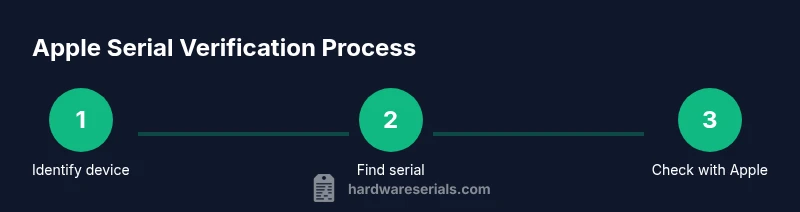
- 1
Identify device type
Determine which Apple device you’re working with (iPhone, iPad, Mac, Apple Watch, or Apple TV) and confirm the exact model family. This ensures you follow device-specific steps for locating the serial number.
Tip: Note the model family first to avoid chasing the wrong serial location. - 2
Locate the serial on the device or settings
For iPhone/iPad, check Settings > General > About to find the serial. On a Mac, use About This Mac > System Report > Hardware. For watches and TVs, use their respective settings menus to display the serial.
Tip: If the device is not accessible, use the packaging label as a backup serial source. - 3
Verify the serial on the official site
Open Apple Support’s warranty checker and enter the serial. Review the results for model accuracy and coverage status. If results conflict with the device’s software readout, rely on the device readout first.
Tip: Double-check the digits and letters before submitting to avoid false positives. - 4
Cross-check with packaging and receipts
Compare the serial on the device with the one on the original box or receipt. Mismatches can indicate a swapped label or counterfeit parts.
Tip: Keep packaging labels stored with documentation for future reference. - 5
Record the serial securely
Document the serial in your asset log and attach photos of the label. Save backups in a password-protected location or encrypted cloud storage.
Tip: Include device type, purchase date, and current warranty status to speed future checks. - 6
Maintain ongoing serial hygiene
Periodically audit your serial logs, especially when upgrading or decommissioning devices. This prevents orphaned records and ensures consistency across inventory.
Tip: Set calendar reminders to review serial records every 6–12 months.
Frequently Asked Questions
Where can I find the Apple serial number on my iPhone?
On iPhone, go to Settings > General > About to view the serial number. You can also see it on the device box or in Finder/iTunes when connected to a computer.
On iPhone, open Settings > General > About to see the serial number. You can also check the box or connect to a computer for the serial.
Can I check warranty status without the device physically present?
Yes. Use Apple’s official warranty checker and enter the apple serial. The result will show coverage details even if the device isn’t handy.
Yes. Use Apple's warranty checker and enter the serial to see coverage even if you don’t have the device.
What should I do if the serial seems invalid or counterfeit?
Double-check the serial on the device and packaging, then contact Apple Support for verification. Do not proceed with service requests until the serial is confirmed.
If you think a serial is invalid, verify it on the device and packaging, then contact Apple Support for confirmation.
Are Apple serial numbers unique to each device?
Yes. Each Apple device has a unique serial number that distinguishes it from all others, aiding in history tracking and warranty validation.
Yes. Each Apple device has its own unique serial for history and warranty checks.
Do serial numbers reveal the manufacture date?
Serials may encode manufacturing date information, but Apple does not publish a public decoding guide for all devices. Use official tools to confirm date-related details.
Serials can hint at when a device was made, but rely on official tools for exact dates.
Watch Video
Key Takeaways
- Locate the apple serial on each device using device menus or packaging.
- Verify warranty status using official Apple tools before service.
- Record serials securely to support future repairs or resale.
- Be vigilant for counterfeit labels and cross-check with multiple sources.
- Establish a routine to audit serial records annually.