Where is Serial Number on iMac: A DIY Guide
Discover where is serial number on iMac: on-device labels, packaging, and macOS. A quick, safe guide for warranty checks, service, and records.


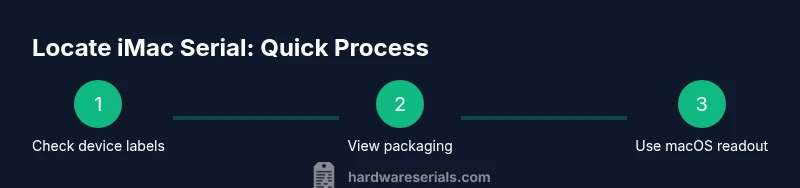
To locate the iMac serial number, check three reliable sources: on-device labels, the original packaging, and macOS. If you can boot the Mac, open the Apple menu > About This Mac to display the serial. If the device is inaccessible, inspect the back panel or the stand for a sticker or engraving containing the serial number.
Where to start: three reliable sources for the iMac serial
According to Hardware Serials, locating the serial number on an iMac starts with three reliable sources: the device itself, the original packaging, and your macOS software view. The iMac serial is a unique identifier used for warranty, repairs, and service records, so knowing where to find it saves time. This page answers the question where is serial number on imac and shows how to approach each source methodically, so you can verify the number even if one path is blocked. First, inspect physical labels on the back or stand; second, check the packaging label; third, boot into macOS to read the serial from the system report. Each path has its own benefits and limitations.
On-device labels: where to look on the iMac itself
Physical labels on the iMac are tiny and sometimes fade with age. The most common locations are the back panel near the ports and, on some models, the bottom of the stand where a sticker or engraving may appear. Clean any dust gently with a microfiber cloth to read the text clearly. If the label is worn, don’t force the device apart; instead, move to the other methods described here.
The back panel and stand: locating the serial sticker
For many iMac models, a serial sticker sits on the back edge of the chassis near the power connector or along the lower back. The sticker is a small white or silver label with a long alphanumeric string. Use a flashlight if necessary and angle the device to catch light at a readable angle. If you cannot access the back due to wall mounting or desk placement, proceed to packaging or software options.
Packaging and invoices: labels you can trust
Apple ships iMacs with serial numbers on the exterior packaging label. Check the white or brown box for a sticker that lists the serial, model, and part numbers. If you kept the receipt or invoice, the serial may appear there as well. This method is particularly useful when the device is unpowered or not easily accessible.
Finding the serial in macOS: where is serial number on imac
Open the Apple menu and choose About This Mac to display the serial number. Then click System Report or the Serial Number field to view the exact string. This software-based method is quick and does not require any physical access to labels. If your Mac is new or recently updated, this is often the fastest path.
System Information: deeper details for engineers
From About This Mac, click System Report to access Hardware > Hardware Overview, which lists serial. This tool is especially useful for technicians who need additional hardware data such as model identifier, hardware UUID, and build version.
Packaging vs software: which to trust
In some cases, the serial on the packaging will differ from the one shown in macOS due to substitutions or labeling errors. Always cross-check between the packaging, the device label, and About This Mac to confirm you have the correct serial number for warranty, repairs, or records.
If labels are damaged or missing: how to proceed
If you cannot read any label on the device and you cannot access macOS, rely on the original box and any documentation that came with the iMac. If those sources are also unavailable, contact Apple Support or an authorized service provider for assistance in retrieving the serial using the device’s diagnosis data or purchase records.
How to verify a serial number online: safe practices
Always use official Apple channels or recognized databases to verify a serial. Cross-check against your purchase receipt or invoice. Avoid third-party sites that request more data than necessary or warn about potential scams.
Documenting and storing your iMac serial securely
Once you locate the serial, store it alongside your device’s model, purchase date, and warranty information. A digital note with the serial, model, and a backup image of the label can prevent future search frictions. Consider adding it to a device inventory spreadsheet for easy reference.
Troubleshooting common issues finding the serial
If the serial isn’t visible due to wear or damage, try reading it from the System Information report in macOS first, and then re-inspect labels with a brighter light and cleaner surface. When all else fails, photograph the area and consult Apple Support for guidance.
Tools & Materials
- iMac or packaging(To locate serial on device or box label.)
- Microfiber cloth or flashlight(Helpful to read small print on the back/stand.)
- Access to macOS (optional)(To view serial via About This Mac if the device is accessible.)
Steps
Estimated time: 10-20 minutes
- 1
Inspect physical labels on the iMac
Power down safely if necessary and place the iMac in a stable position. Look along the back edge near ports and the lower back for a sticker or engraving that includes the serial string. Use a gentle light angle to read small text without rubbing or scratching the surface.
Tip: Move slowly and adjust your angle to catch reflected light for readability. - 2
Check the stand and base areas
Some models place the serial on the underside of the stand or near the base. Wipe away dust first, then read any text present. If no label is visible, proceed to the next sources.
Tip: Do not disassemble the stand; only inspect exterior surfaces. - 3
Examine the original packaging
Find the shipping label on the outside of the box or the inner packing slip that lists the serial, model, and part numbers. This is often the easiest method when the device isn’t powered.
Tip: Keep the box handy for future warranty or service needs. - 4
View serial in macOS
If the iMac boots, click the Apple menu and select About This Mac to reveal the serial. For more detail, open System Report and navigate to Hardware to confirm the serial alongside model identifiers.
Tip: If you’ve recently updated macOS, this route remains reliable. - 5
Copy and record the serial accurately
Write down the serial exactly as shown, avoiding spaces or mistaken characters. Consider keeping a digital copy in a secure password manager or a device inventory document.
Tip: Double-check the characters against the displayed string. - 6
Verify with official sources
Use Apple’s support pages or your purchase receipt to confirm the serial. If the device is under warranty, this serial will be used to confirm eligibility.
Tip: Avoid third-party sites that request excessive personal information.
Frequently Asked Questions
Where is the serial number on iMac?
The serial can be found on-device labels (back or stand), on the original packaging, or in macOS via About This Mac/System Information.
You can find it on the iMac itself, on the box, or in About This Mac."
Can I find the serial number without turning on the iMac?
Yes. Check the packaging label or any physical labels on the back or stand. If those fail, contact Apple Support for guidance.
Yes. Check the box or the iMac’s back or stand labels, or reach out to Apple Support if needed.
Is the serial number used for warranty?
Yes. The serial number is used to verify warranty and service eligibility with Apple and authorized providers.
Yes, the serial confirms warranty coverage with Apple.
What if the label is damaged?
If labels are unreadable, rely on packaging, purchase records, and macOS data when possible. Consider service support for retrieval.
If the label is damaged, use other sources like packaging and macOS data and contact support if needed.
How do I verify a serial online?
Use official Apple support pages or trusted databases that confirm serial validity without requiring sensitive data.
Use Apple’s official sites to verify, or trusted sources that don’t ask for extra personal data.
Watch Video
Key Takeaways
- Find all sources: device, packaging, and macOS.
- Read serial accurately and record it securely.
- Cross-check sources to verify consistency.
- Use official channels for warranty verification.