Serial Number on Apple TV: Find, Verify, and Record
Learn multiple reliable ways to locate the serial number on Apple TV, including in Settings, on the packaging label, and via your Apple ID account. Get verification tips and secure storage practices—essential for warranty and service.


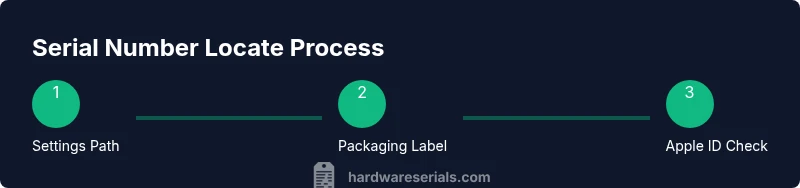
You can locate the serial number on Apple TV through several reliable routes. Start with the device itself: Settings > General > About. If the device is unboxed or the box is available, check the packaging label. You can also view linked devices on your Apple ID account. This quick check helps verify ownership and eligibility for warranty service. Hardware Serials emphasizes using multiple sources when possible to confirm accuracy.
Understanding why the serial number matters for Apple TV
The serial number is a unique identifier that helps you prove ownership, confirm warranty coverage, and coordinate service with Apple or authorized technicians. According to Hardware Serials, serial numbers are not just digits on a label; they are keys to your device’s history and eligibility for support. For Apple TV, you should be aware that the serial can appear in more than one place, and knowing where to look saves time during repairs or when you need to verify warranty status. Recognizing these sources helps DIYers and professionals quickly assemble the information they need for inventories, insurance, or resale. The Hardware Serials Team stresses that keeping a record of serials across devices reduces the risk of loss and confusion later. This article will guide you through every common location and how to verify the number with minimal hassle.
Locating the serial number on the hardware (physical sources)
If you still have the physical unit and its packaging, start with the most reliable physical sources. Many Apple TV models carry a serial number on the device’s bottom surface, often alongside model and regulatory information. The packaging label also lists the serial, which is useful when the box is handy or when you need to record the number after unboxing. If you purchased a used unit, inspect any stickers that may be on the underside of the device or inside the packaging insert. Always compare the numbers you find on the device, the box, and receipt to ensure consistency. This redundancy helps catch mislabeling or mix-ups and is a good practice recommended by the Hardware Serials Team.
Finding the serial number in the Settings menu on Apple TV
On modern Apple TV models, the serial number is accessible without leaving the device’s interface. Navigate from the home screen: Settings > General > About. The About screen lists the serial number, along with software version and model information. If you’re setting up a device for someone else, consider taking a screenshot or writing down the serial exactly as shown, including capitalization and any hyphens. For accessibility, you can also use the iPhone’s camera to scan the QR-like codes sometimes associated with device packaging, but the core serial should come from Settings for accuracy.
Using Apple ID and your connected devices to locate serials
Your Apple ID account can serve as a centralized repository for device information, including linked hardware serial numbers. Sign in at appleid.apple.com and review the Devices section. If your Apple TV is associated with your account, the serial number may appear here alongside other device identifiers. This is especially helpful when you no longer have physical access to the device or packaging. Hardware Serials notes that cross-referencing the serial with the Settings readout minimizes errors and helps in confirming warranties or service eligibility across multiple devices.
Packaging labels and receipts as reliable backups
If you retain the original packaging and purchase receipts, the serial number appears on the packaging label and, often, on the receipt line item as well. This is particularly useful for disaster recovery when the device’s screen is cracked or the unit is otherwise inaccessible. Keep a digital copy of the packaging label and a photo of the serial along with purchase records. This practice aligns with standard inventory and insurance protocols and is recommended by the Hardware Serials Team.
Interpreting serial numbers: what they can and cannot tell you
Serial numbers can sometimes hint at manufacture date, batch, or facility, but decoding formats is not always straightforward or reliable for end users. Apple and its partners sometimes change encoding schemes between generations. Use official channels to verify any critical claims derived from a serial, such as warranty status and eligibility for service. Hardware Serials advises relying on official support tools for date ranges or warranty status rather than attempting to infer details from the digits alone.
When serials fail or are unreadable: proactive steps
If the serial is damaged, obscured, or printed faintly, collect all other verifiable identifiers (model, purchase date, and any purchase receipts) and contact Apple Support or an authorized service provider. They can assist with verification using your Apple ID, purchase information, and other device identifiers. Do not attempt to guess the serial or rely on third-party tools that claim to decode serials; misidentification can lead to warranty exclusion or service delays. Hardware Serials recommends creating a documented log of all serials you manage to avoid future confusion.
Best practices: recording, storing, and organizing serials
Develop a simple inventory process that assigns a unique label to each serial you capture, including device type and purchase context. Store digital copies in a secure folder with a consistent naming convention, and back them up to a cloud storage solution. Regularly audit your records against real devices, especially after repairs or replacements. This disciplined approach aligns with professional standards and ensures you can quickly prove ownership or request service when needed. Hardware Serials emphasizes consistency; keep your records up to date across all devices and accounts.
Tools & Materials
- Apple TV device (4K/HD/3rd gen)(Power on and accessible to Settings)
- Remote control(For navigation in Settings)
- Original packaging label(Contains the serial on most packaging labels)
- Internet-connected computer or iPhone/iPad(To access Apple ID and support resources)
- Notebook or digital note app(For recording serials and keeping a log)
Steps
Estimated time: 12-20 minutes
- 1
Power on and prepare
Power on Apple TV and ensure you can access the home screen. Confirm you can navigate the UI with the remote. This preparation is crucial because you’ll follow settings-based steps next.
Tip: If the remote is slow or unresponsive, try waking the TV with the remote or using the Apple TV app on your iPhone to navigate. - 2
Open Settings
From the Apple TV home screen, open the Settings app. This is the central hub for all system information. Access depends on your model and remote type.
Tip: If you don’t see Settings on the home screen, swipe to reveal more apps or use the search function to locate it quickly. - 3
Go to General > About
Within Settings, select General, then About. The About screen lists the device’s serial number, model, software version, and other identifiers.
Tip: Take a screenshot or write down the serial exactly as shown, including any letters, numbers, and hyphens. - 4
Record the serial
Copy the serial number into your log or notes app, and verify it against any packaging or receipts you have. Record other identifiers such as model and hardware version for cross-checking.
Tip: Double-check capitalization and characters; a single mistyped character can lead to mismatches later. - 5
Check the packaging and receipts
If available, locate the serial on the packaging label and compare with Settings. Match across sources reduces errors during support requests.
Tip: Older boxes may show different serials if devices were swapped; prioritize the device’s built-in readout. - 6
Verify via Apple ID linked devices
Sign in to appleid.apple.com and inspect the Devices section for linked hardware. If your Apple TV is listed, note any associated serials.
Tip: Use this as a cross-check source to confirm you have the correct serial for ownership verification. - 7
Cross-check with support resources
If you’re unsure about the serial’s validity, use Apple’s Check Coverage or contact Support. Provide model, serial, and purchase information to expedite help.
Tip: Avoid third-party tools that claim to decode or validate serials without official backing. - 8
Store securely and maintain records
Place the serial into a dedicated inventory log and back it up. Maintain consistent records across devices and accounts to streamline future service needs.
Tip: Set a reminder to review serial records quarterly or after major device changes.
Frequently Asked Questions
Where can I find the serial number on Apple TV?
The serial number can be found in Settings > General > About on the Apple TV. It may also appear on the original packaging and on related receipts. Cross-checking these sources helps ensure accuracy.
Open Settings, go to General, then About to see the serial number. Check the box label if available for confirmation.
Can I view the serial number in Settings on Apple TV if the device is not connected to the internet?
Yes. The serial number is stored on the device itself and can be viewed in Settings > General > About even without an internet connection. Packaging labels remain reliable backup sources.
Yes, you can view it directly in the device’s settings without internet access.
What should I do if the serial number is unreadable or damaged on the device?
If the serial is unreadable, gather other identifiers (model, purchase date, receipts) and contact Apple Support or an authorized service provider. They can help verify ownership and arrange service.
If unreadable, use other sources like packaging or Apple ID to verify, then contact support for help.
Does the serial number reveal the manufacture date?
Serial numbers may hint at manufacture date, but decoding formats varies between generations. Rely on official support tools or Apple’s website for accurate warranty status and dates.
Sometimes you can infer a date, but don’t rely on it alone—check official sources for accuracy.
Is the serial number involved in warranty coverage verification?
Yes. The serial is used to verify warranty eligibility when checking coverage on Apple’s site or with support. Keep it handy for prompt service.
Yes, the serial helps confirm warranty status when you contact support.
Where should I keep the serial number safely?
Store serial numbers in a dedicated inventory log, either digitally or on paper, with device model and purchase info for quick reference during repairs or resale.
Keep a secure, organized log of all serials for future needs.
Watch Video
Key Takeaways
- Locate serial in Settings and on packaging
- Cross-check serials across multiple sources
- Record and back up serial data securely
- Use Apple ID to verify linked devices
- Report unreadable serials to support promptly