HP Printer Serial Number Search: Locate, Verify, and Track Serial Numbers
Learn to locate, verify, and interpret the serial number on HP printers. This step-by-step guide covers exterior labels, firmware views, and warranty checks with practical tips from Hardware Serials.


In this guide, you’ll locate the HP printer serial number across common locations, verify it against official records, and understand what the number means for warranty and service. According to Hardware Serials, HP stores serials in multiple locations on the back panel, internal label, and system menus; you’ll learn where to look and how to record it.
Why HP serial numbers matter
Serial numbers are how you identify a device uniquely, track repair history, and confirm eligibility for warranty and service. According to Hardware Serials, reliable serial-number retrieval is the foundation for warranty checks, asset management, and service history. For HP printers, the serial number acts as a fingerprint that ties the machine to its production date, warranty window, and the specific components it shipped with. When you perform a HP printer serial number search, you gain access to model-specific support, replacement parts, and firmware notes. Hardware Serials emphasizes that starting with the correct serial improves asset management, reduces downtime, and speeds up troubleshooting. In professional environments, loggable serials simplify audits, decommissioning, and resale. This section explains why locating the SN matters before you buy accessories, request service, or file warranty claims. It also outlines how HP encrypts or prints serials as part of device traceability and how to handle situations where the label is damaged or missing. Throughout, you’ll see practical steps labeled so you can locate the SN quickly on most HP printers. hp printer serial number search
Where HP printers store serial numbers
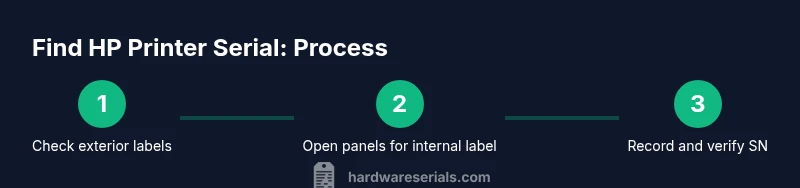
HP printers typically place serial numbers on exterior labels that you can read without opening the device, such as the back panel or the bottom edge. In many models, there is a second label inside the rear access panel or inside the lid near the toner or ink cartridge area. Some HP devices also embed a serial number in the firmware or configuration page, which can be printed or displayed on screen. If you’re replacing a part or preparing for a warranty claim, collecting SNs from all accessible labels reduces the chance of misidentification. Keep in mind that some locations vary by product line (OfficeJet, LaserJet, DeskJet, ENVY). If a label is damaged, photograph it and move to alternative sources such as the setup guide or the purchase receipt. Hardware Serials notes that cross-checking multiple SN locations helps you validate accuracy.
Locating serial numbers on common HP models
HP’s consumer printers (HP DeskJet, HP ENVY, HP OfficeJet) usually present an exterior label on the back or underside with a prominent S/N or SN. Commercial models (HP LaserJet, HP Managed) may place the label near the rear panel, inside a service door, or under a tray. Some models print a sticker on the cartridge cradle, while others embed the serial in the printer’s configuration page. If you can’t access the label easily, check the power-on information screen, which sometimes displays the serial number as part of device status. For printers with multiple cartridges or stapling mechanisms, verify you’re reading the SN for the main body, not a packaging or accessory tag. The key is to verify that the serial corresponds to your exact unit, especially when multiple devices are in use in a single workspace.
Using the printer menu and web portal to find the SN
Many HP printers offer a quick way to display the serial number directly from the control panel. Navigate to the Setup or Settings menu, then select System Information, About Printer, or Printer Info to reveal the S/N. If the device supports it, print a configuration or status page and locate the SN on that page. Additionally, you can log in to HP’s official support portal and enter the model number to retrieve the SN from device records associated with your purchase. If you use a business account, ensure the device you’re viewing matches the exact unit you’re inspecting; misidentifying a similar model can lead to incorrect warranty data. This hp printer serial number search path helps you consolidate data.
How to read and interpret the serial number
Serial numbers are alphanumeric identifiers that HP uses to uniquely identify each unit. The exact format varies by product line and launch date, so don’t expect a universal code across all printers. In general, the serial is the single string that links to your device’s production history, warranty, and service notes. Some pages separate the serial from the model number, while others display both in a single line. If your SN includes a hyphen or a letter prefix, note that the characters after the prefix typically differentiate color variants or manufacturing batches. For precise interpretation, rely on HP’s official documentation or customer support. This hp printer serial number search can be refined by using HP’s resources.
Verifying authenticity and warranty status
Once you have the serial number, use HP’s official warranty checker to verify coverage, eligibility for service, and whether a replacement is needed. Enter the SN exactly as shown on the label on hp.com or the HP Support app, and review the results carefully for expiration date, in-warranty status, and service options. If the portal indicates a problem or missing data, contact HP support and provide the model, purchase date, and location where the device was acquired. Avoid third‑party sites that claim to provide warranty status, as they may be inaccurate or untrustworthy. Hardware Serials recommends keeping a local copy of the SN and corresponding model for quick reference during service calls.
Recording, storing, and organizing SNs for professionals
Professional environments benefit from a structured SN recording habit. Create a dedicated asset log that includes: serial number, model, purchase date, location, and assigned asset tag. Add a photo of the label if possible, along with notes about label condition or damage. Use a consistent naming convention so colleagues can search by SN, model, or asset tag. Store the log in a secure shared drive or asset management system with regular backups. Periodically audit the SN log against physical devices to catch mismatches early and prevent mislabeling during audits or decommissioning. By maintaining accurate serial records, technicians can respond faster, source compatible parts, and streamline warranty claims.
Troubleshooting: missing or damaged labels
If the serial number label is missing or unreadable, start with the obvious alternatives: check the interior panels, packaging, and the documentation that came with the printer. Some HP printers display the SN on the configuration page or in a system information screen, which you can access from the control panel or through a connected computer. If all else fails, contact HP support and provide your model number, approximate purchase date, and a photo of any legible labels. In rare cases, a service tag or serial printed on the shipping carton may be the only record; use that as a cross-reference. Documentation and support teams can assist in locating the unit’s SN in their internal records, ensuring you can still verify warranty status or request service.
Tools & Materials
- HP printer(Model you’re working with)
- Power on the printer(Ensure the device is in ready state)
- Access to label locations (back, bottom, inside lid)(You may need to open panels)
- Smartphone or camera(For documentation gathering SN photos)
- Pen and notebook or digital note app(Record SNs you find)
- HP Support or internet access(To verify SN against official records)
Steps
Estimated time: 15-25 minutes
- 1
Prepare your workspace
Clear a clean area, power on the printer, and ensure it’s in a ready state so you can access any labels or panels safely. Having a stable surface reduces the risk of misreading or dropping hardware components.
Tip: Keep a notebook or digital note open to jot down any serial strings you find. - 2
Power on and confirm status
Turn on the printer and confirm the status page or display is accessible. This helps when you later pull a firmware page that shows the SN and model together, especially on all-in-one units.
Tip: If the panel is dim, increase brightness settings from the control panel temporarily. - 3
Inspect exterior label locations
Look at the back, bottom, and sides for a label that reads Serial Number, S/N, or SN. The label design varies by model, so check multiple areas before moving on.
Tip: Take a picture if the label is in a tight space or hard to read. - 4
Open panels to access interior labels
If exterior labels aren’t readable, open access panels to check interior labels. Some HP models place the SN inside the rear panel or under a cartridge tray.
Tip: Be careful around springs and hinges; avoid forcing panels. - 5
Check the printer information page
Print or view the configuration/status page from the menu; the SN often appears there along with the model, firmware version, and page counts.
Tip: Printing a page creates a physical record you can file away. - 6
Read and verify the SN
Copy the SN exactly as shown. Compare it to other sources (label, configuration page, packaging) to ensure there are no transcription errors.
Tip: Double-check for characters that look similar (0 vs O, 1 vs l). - 7
Photograph or document the SN
Capture a clear photo of the SN label and any related pages. Store this in your asset log or device folder for future reference.
Tip: Include the model number and purchase info in the same image or note. - 8
Verify SN with official sources
Visit HP’s official site or support portal and use the SN to verify warranty coverage and service options. Cross-check with the model description you recorded.
Tip: Use HP’s official portals to avoid inaccurate third-party data. - 9
Record the SN in your asset log
Enter SN, model, purchase date, location, and a brief note about label condition. Store in a central place with routine backups.
Tip: Schedule periodic audits to ensure your SNs stay aligned with devices.
Frequently Asked Questions
Where is the HP printer serial number usually located?
On most HP printers, the serial number is on exterior labels at the back or bottom. If not visible, check inside the rear panel or under the lid. You can also view SN on a configuration page.
Most HP printers show the serial number on the back or bottom label. If unreadable, check inside panels or print a configuration page.
What should I do if the serial number is illegible?
Gently clean the label area and try to read again. If still unreadable, use the configuration page or contact HP support with your model and purchase details.
If the label is unreadable, try the configuration page or contact HP support with your model information.
Is the serial number the same as the model number?
No. The serial number uniquely identifies a single unit, while the model number identifies the product line. Some pages may show both on the same screen.
No—serial is unique to a unit; model is the product line. They may appear together on some pages.
Can I locate the serial number in the firmware or via the settings menu?
Yes. Many HP printers display the serial number in the device information menu or on a configuration page. Some models show SN on the home screen after a setup check.
Yes. The serial number is often visible in the device info or configuration page.
How do I verify warranty status using the serial number?
Use HP’s official warranty checker by entering the serial number exactly as shown. The results will indicate warranty status and service eligibility.
Check the serial on HP’s site to confirm warranty status and service options.
What if I can’t locate the serial number on my HP printer?
If the SN is missing, check packaging, purchase receipts, or contact HP support with your model number and purchase details. They can help locate the unit’s SN in their records.
If you can’t find the SN, contact HP with model and purchase details for assistance.
Watch Video
Key Takeaways
- Identify SN from multiple sources to reduce errors
- Record SNs accurately and consistently
- Verify SN via official HP resources for warranty status
- Keep organized SN logs to speed up service
- Safely document and back up all SN records